

Subscript All Numbers in Chemical Equations in Excel:
In this post, we will guide you to learn how to Subscript All Numbers in Chemical Equations in Excel Office 365 using Kutools. Get an official version of MS Excel from the following link: https://www.microsoft.com/en-in/microsoft-365/excel
Note: kutools for Excel has more than 180 features which are used to complete the difficult task with several clicks. If you want to use Kutools, you need to install it from Excel’s official website.
Steps to Subscript All Numbers in Chemical Equations:
To subscript, all numbers in chemical equations in Excel, do as follows.
- First, you need to select a text string that you want to subscript the numbers.
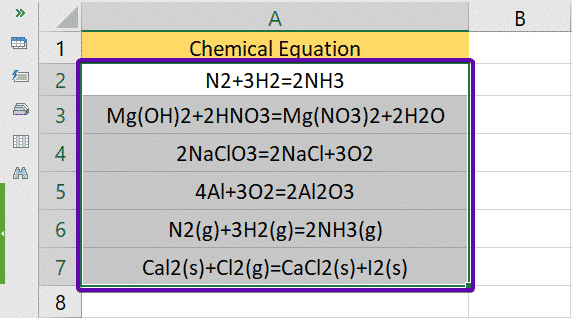
- On the Kutools tab, select the Text option, and choose Subscript numbers in chemical formulas.

- Now, Kutools for Excel dialog box will pop out to tell you that the number of successfully converted cells.
- Click the OK button to close it.

- Now, you will see the result as shown in the below screenshot.

Summary:
In this post, you can learn the steps to Subscript All Numbers in Chemical Equations in Excel Office 365 using Kutools. Give your feedback in the comment section. Thanks for visiting Geek Excel. Keep Learning!!


Latest comments (0)