


📁 Git Workflow
- Checkout to main branch.
Command:
git checkout main
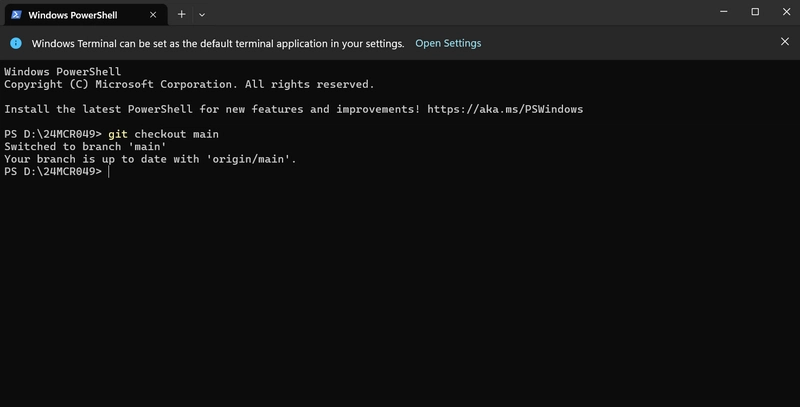 ➡️ Switch to the main branch to start fresh.
 - Create a new feature branch.
Command:
git checkout -b feature-24mcr042
 ➡️ Create and move to a new branch for your work.
 - (Optional) Create a branch through GitHub UI.
Go to GitHub → Open your repo → Click on Branch Dropdown → Type new branch name → Create branch.
 ➡️ Useful if you prefer using GitHub's website.
 - Check all available branches.
Command:
git branch
 ➡️ List all branches in your local repo and see which branch you are on.
 - Check the status of your changes.
Commands:
git status
 ➡️ View what files are staged, unstaged, or untracked.
 - Add all changes to staging area.
Command:
git add .
 ➡️ Stage all modified or new files for committing.
 - Commit your changes with a message.
Command:
git commit -m "Added hello_world.py"
 ➡️ Save your staged changes into the local repo with a meaningful message.
 - Push your branch to GitHub.
Command:
git push origin feature-24mcr042
 ➡️ Upload your feature branch to the remote GitHub repository.
9.Create a Pull Request on GitHub.
Go to GitHub → Pull Requests → New Pull Request → Select branch → Create Pull Request → Merge Pull Request → Confirm Merge
➡️ Upload your feature branch to the remote GitHub repository.
9.Create a Pull Request on GitHub.
Go to GitHub → Pull Requests → New Pull Request → Select branch → Create Pull Request → Merge Pull Request → Confirm Merge


 🐳 Docker Workflow
 - Check Docker version.
Commands:
docker --version
 ➡️ Confirm Docker is installed and check the version.
 - Build the Docker image.
Commands
docker build -t kanaga14/mca-24mcr049-ml:latest .
 ➡️ Build a Docker image from your Dockerfile.
 - List all Docker images.
docker images
 ➡️ See all Docker images available locally.
 - Push Docker image to DockerHub.
docker push kanaga14/mca-24mcr042-ml
 ➡️ Upload your Docker image to your DockerHub account.
5.Open Docker Desktop (Optional).
➡️ Upload your Docker image to your DockerHub account.
5.Open Docker Desktop (Optional).
 ➡️ View your images and running containers through Docker’s graphical interface.
6.Run the Docker container.
➡️ View your images and running containers through Docker’s graphical interface.
6.Run the Docker container.
 7.Verify running container in Docker Desktop.
 ➡️ Use the GUI to check your running containers and images visually.


Top comments (0)