

Introduction
This tutorial is going to focus on building a cross-browser (Firefox, Chrome, and Edge) extension that uses TheCatAPI to display random images of cats when the icon is clicked.
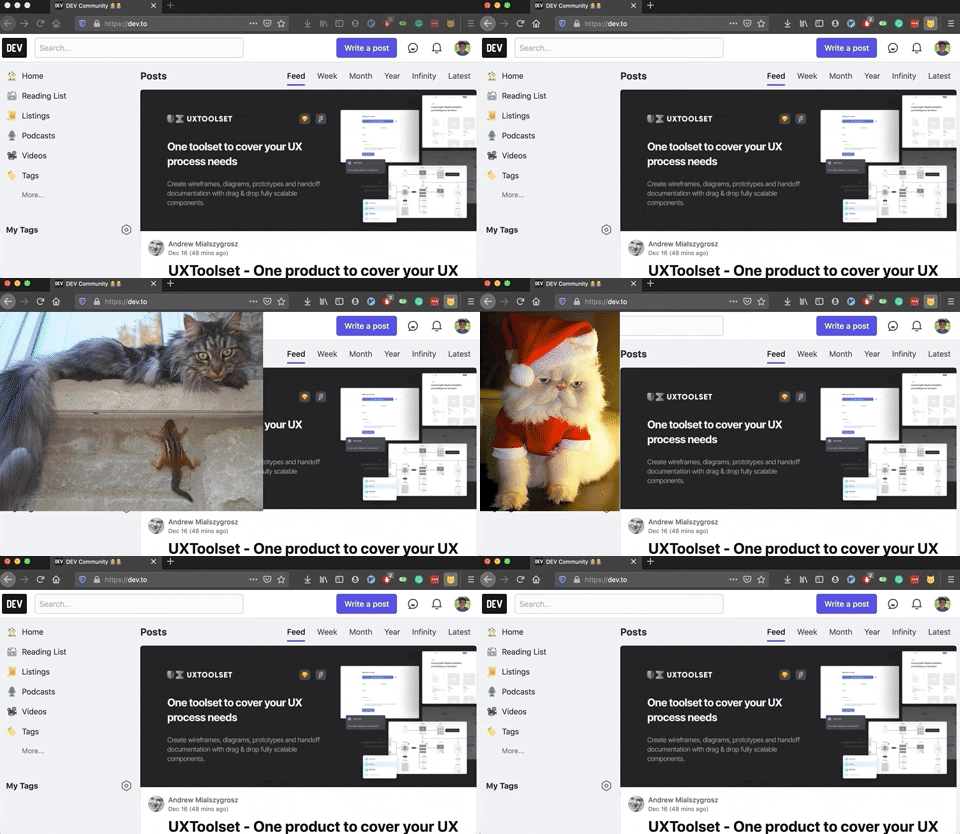
The tutorial is going to cover important concepts such as:
- Background and content scripts.
- Injecting new DOM elements into the page.
- Message passing between background and content scripts.
- Using a polyfill for cross-browser compatibility.
The code used for this tutorial can be found on Github.
We can begin by creating the three main files we will be working with: manifest.json, background.js, and content.js. The browser extension will first work on Firefox and then later we will add the polyfill for Chrome and Edge support.
manifest.json
{
  "name": "Catify",
  "version": "1.0",
  "description": "Display images of random cats on your browser",
  "manifest_version": 2,
  "permissions": [
    "activeTab",
    "tabs",
    "https://api.thecatapi.com/*"
  ],
  "content_scripts": [
    {
      "matches": ["<all_urls>"],
      "js": [
        "content.js"
      ],
      "run_at": "document_end"
    }
  ],
  "browser_action": {
    "default_icon": "icons/cat.png",
    "default_title": "Catify"
  },
  "background": {
    "scripts": [
      "background.js"
    ]
  }
}
manifest.json is the configuration file for browser extensions that will be used by Firefox, Chrome, and Edge. We will be modifying this file later on in the tutorial to add the polyfill for cross-browser compatibility.
permissions: We must specify permissions our background script will need and the URL pattern of the API that we will be calling from our content script.content_scripts: Content scripts are mainly used for JavasScript code that needs to interact with the DOM and in our case, it will contain the code that calls TheCatAPI and adds a new DOM image element to the page.background: Our background script will be in charge of interacting with the browser action to add an event listener whenever it is clicked.
For more information about
manifest.json, please see this link.
background.js
browser.browserAction.onClicked.addListener(async (tab) => {
  const tabs = await browser.tabs.query({
    currentWindow: true,
    active: true
  });

  const activeTab = tabs[0];
  await browser.tabs.sendMessage(activeTab.id, {});
});
background.js is our background script that will set up the onClick event listener for our browser action icon and communicate with our content script.
browser.tabs.query: This lets us query the active tab we are currently on so we can communicate with the correct content script.browser.tabs.sendMessage: In order to notify our content script of the event, we usesendMessagewhich in this case also passes along an empty payload since we don't necessarily need to send data to the content script handler function.
For more information about background scripts, please see this link.
content.js
let insert = true;
const CAT_API_URL = "https://api.thecatapi.com/v1/images/search";

browser.runtime.onMessage.addListener(async () => {
  if (insert) {
    const response = await fetch(CAT_API_URL);
    const data = await response.json();
    const imageUrl = data[0].url;
    const image = document.createElement("img");

    image.setAttribute("id", "catify-image");
    image.setAttribute("src", imageUrl);

    Object.assign(image.style, {
      height: "400px",
      position: "absolute",
      top: 0,
      zIndex: 2147483647
    });
    document.body.appendChild(image);
    insert = false;
  } else {
    const catifyImage = document.getElementById("catify-image");
    catifyImage.remove();
    insert = true;
  }
});
content.js is our content script that will be responsible for handling the event sent from the background script, fetching from the Cat API, and interacting with the DOM.
When inserting,
- Fetch from TheCatAPI to get a random cat image URL
- Create an
imgDOM element with the cat image URL, ID to reference it when removing it, and some CSS style. - Set
insertvariable to false
When removing,
- Query the
imgDOM element based on the ID we previously used. - Remove the
imgDOM element. - Set
insertvariable to true
For more information about content scripts, please see this link.
Now the last thing to do would be to download the cat.png image from the Github repo and place that inside a icons directory within your project directory.
Firefox ready!
To upload and test out your browser extension on Firefox:
- Visit
about:debugging#addonson your Firefox browser - Click on
Load Temporary Add-ons - Select the
manifest.jsonfile of your project directory.
Note:
Content scripts are blocked on domain addons.mozilla.org but any other website like www.github.com and www.dev.to should work fine.
Cross-browser compatibility
Chrome uses the chrome.* namespace with callback functions for asynchronous APIs.
Edge uses the browser.* namespace with callback functions for asynchronous APIs.
So far we have been using the browser.* namespace with Promises for asynchronous APIs. We could go back to our background.js and content.js to change our JavaScript code to support each of the browsers but instead, we can use the webextesion polyfill to do this for us!
Webextesion polyfill installation
There are a couple of ways to integrate this polyfill into our codebase but I found it easiest to install it via yarn and add it to our manifest.json.
Install:
yarn add webextension-polyfill
Modify content_scripts and background fields in manifest.json to include the polyfill JavaScript file:
{
  "name": "Catify",
  "version": "1.0",
  "description": "Display images of random cats on your browser",
  "manifest_version": 2,
  "permissions": [
    "activeTab",
    "tabs",
    "https://api.thecatapi.com/*"
  ],
  "content_scripts": [
    {
      "matches": ["<all_urls>"],
      "js": [
        "node_modules/webextension-polyfill/dist/browser-polyfill.js",
        "content.js"
      ],
      "run_at": "document_end"
    }
  ],
  "browser_action": {
    "default_icon": "icons/cat.png",
    "default_title": "Catify"
  },
  "background": {
    "scripts": [
      "node_modules/webextension-polyfill/dist/browser-polyfill.js",
      "background.js"
    ]
  }
}
Chrome and Edge ready!
After making the changes above, our browser extension is now supported on Chrome and Edge browsers.
To upload and test out your browser extension on Chrome:
- Visit
chrome://extensionson your Chrome browser. - Make sure the
developer modetoggle is turned on. - Click on
Load unpackedand select your project directory.
To upload and test out your browser extension on Edge:
- Visit
edge://extensionson your Edge browser. - Make sure the
developer modetoggle is turned on. - Click on
Load unpackedand select your project directory.
Conclusion
manifest.jsonallows the developer to specify the permissions, background, and content scripts of their browser extension project.Communication between background and content scripts can be done using and
sendMessageandonMessagefunctions.Building a browser extension for Firefox, Chrome, and Edge doesn't always mean we have to write completely different codebases but instead, we can leverage a polyfill for cross-browser compatibility.


Top comments (0)