


There are a lot of Code Editors, some are free and some are paid. Among all of them my favorite Code Editor is Visual Studio Code. It's free and has amazing features. I'm using it from the beginning of my web development journey.
Today I'm going to share my favorite Code Editor settings, using for my web development. And I'm going to start with my Code Editor looks. After all look matters.
🎨 Theme:
My most used VS Code theme is Snazzy Operator, currently I'm using this.

This theme is based on hyper-snazzy and optimized for used with the Operator Mono font. I just love😍 this theme.
⭐ Some other themes I used before:
- Oceanic Next - I used Oceanic Next (dimmed bg).
- Remedy - I used Remedy Dark (straight).
✒ Font:
Another important things for my Code Editor looks. The font I'm using for my Code Editor is JetBrains Mono. It's a free font with ligatures support.

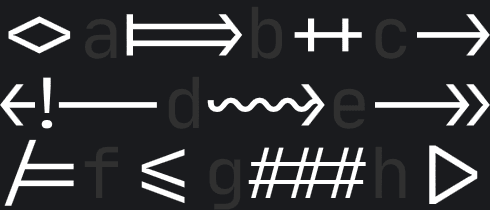
The font ligatures are a new format for fonts that support symbol decorations instead of normal characters like =>, <=.

Before JetBrains Mono, I used Operator Mono. It's also a nice font.
⭐ Some other fonts I used before:
- Operator Mono - Supports ligatures.
- Fira Code - Free & supports ligatures.
- Dank Mono - Paid & supports ligatures.
🌟🌟🌟 Do you want to use my settings, I use for my VS Code fonts? In your VS Code press Ctrl + p, type settings.json and open that file. Now replace below properties values with my given values.
{
  "workbench.colorTheme": "Snazzy Operator",
  "editor.fontFamily": "'JetBrains Mono', Consolas, 'Courier New', monospace",
  "editor.fontLigatures": true,
  "editor.fontSize": 14,
  "editor.lineHeight": 22,
  "editor.letterSpacing": 0.5,
  "editor.fontWeight": "400",
  "editor.cursorStyle": "line",
  "editor.cursorWidth": 5,
  "editor.cursorBlinking": "solid"
}
📁 Icons:
File Icons enhance our VS Code Editor looks. Mainly it helps us to differentiate between different files & folders by their given icons. For my VS Code I use two file icons :-
- Material Icon Theme - One of the most popular icon theme for VS Code.
- Material Theme Icons - Currently using this. And I'm using Material Theme Icons Light variant.

🛠 Extensions I Use:
🔹 Auto Rename Tag
Automatically rename paired HTML/XML tag, also works in JSX.
Add entry into auto-rename-tag.activationOnLanguage, in your settings.json file to set the languages that the extension will be activated. By default, it is ["*"] and will be activated for all languages.
"auto-rename-tag.activationOnLanguage": ["html", "xml", "php", "javascript"]

🔹 Bracket Pair Colorizer 2
This extension allows matching brackets to be identified with colours. The user can define which tokens to match, and which colours to use.

🔹 Color Highlight
This extension styles css/web colors, found in your document.

🔹 CSS Peek
- Peek: Load the css file inline and make quick edits right there. (Ctrl+Shift+F12)
- Go To: Jump directly to the css file or open it in a new editor (F12)
- Hover: Show the definition in a hover over the symbol (Ctrl+hover)

🔹 DotENV
Highlight key, value pairs in .env file.

🔹 ES7 React/Redux/GraphQL/React-Native snippets
This extension provides you JavaScript and React/Redux snippets in ES7 with Babel plugin features for VS Code.
🔹 ESLint
'Linting' tool for VS Code - or Code checking tool.
"Lint, or a Linter, is a tool that analyzes source code to flag programming errors, bugs, stylistic errors, and suspicious constructs." Wikipedia
🔹 Highlight Matching Tag
Highlight matching opening or closing tags.

Styles I use for this extension:
"highlight-matching-tag.styles": {
        "opening": {
            "left": {
                "custom": {
                    "borderWidth": "0 0 0 1.5px",
                    "borderStyle": "solid",
                    "borderColor": "yellow",
                    "borderRadius": "5px",
                    "overviewRulerColor": "white"
                }
            },
            "right": {
                "custom": {
                    "borderWidth": "0 1.5px 0 0",
                    "borderStyle": "solid",
                    "borderColor": "yellow",
                    "borderRadius": "5px",
                    "overviewRulerColor": "white"
                }
            }
        }
    }
🔹 Image preview
Shows image preview in the gutter and on hover.

🔹 Indent Rainbow
This extension colorizes the indentation in front of your text alternating four different colors on each step.

🔹 Live Server
Launch a local development server with live reload feature for static & dynamic pages.
🔹 Prettier
Prettier is an opinionated code formatter. It enforces a consistent style by parsing your code and re-printing it with its own rules that take the maximum line length into account, wrapping code when necessary.
Set below property value to be true or add this property into your settings.json file to format code on save.
"editor.formatOnSave": true
🔹 Pug beautify
Pug beautify plugin for VS Code. Press F1 and run the command named Beautify pug/jade to beautify your pug file.
🔹 REST Client
REST Client allows you to send HTTP request and view the response in Visual Studio Code directly.

🔹 Settings Sync
Synchronize Settings, Snippets, Themes, File Icons, Launch, Keybindings, Workspaces and Extensions Across Multiple Machines Using GitHub Gist.
🔹 TODO Highlight
Highlight TODO, FIXME and other annotations within your code.
🔹 Version Lens
Shows the latest version for each package in your package.json file.
📃 Terminal Setup:
I use Windows Operating System. Since I use Git via the command line, I have Git Terminal. And I use this terminal as my integrated terminal. My terminal settings are given below:
  "terminal.integrated.shell.windows": "C:\\Program Files\\Git\\bin\\bash.exe",
  "terminal.integrated.fontFamily": "FuraMono Nerd Font",
  "terminal.integrated.fontSize": 12,
  "terminal.integrated.rightClickCopyPaste": true
✔ Useful VS Code Keyboard Shortcuts:
There are some important keyboard shortcuts, I use in my day to day coding life. These shortcuts enhance my productivity with Visual Studio Code.
| Keybinding | Action |
|---|---|
| Ctrl + P | Go to File, You can move to any file of open solution/folder in Visual Studio code |
| Ctrl + ` | Open terminal in VS Code |
| Alt + Down | Move Line Down |
| Alt + Up | Move Line Up |
| Ctrl + D | Move Last Selection To Next Find Match |
| Ctrl + Space | Trigger Suggest |
| Ctrl + F | Find |
| Ctrl + / | Toggle Line Comment |
| Ctrl + C | Copy line |
| Ctrl + X | Cut line |
| Ctrl + V | Paste |
| Ctrl + Z | Undo |
| Ctrl + Y | Redo |
| Shift + Alt + Down | Copy Line Down |
| Shift + Alt + Up | Copy Line Up |
| Ctrl + Shift + T | Reopen the latest closed window |
Thanks for reading and stay tuned.🙂👋


Oldest comments (76)
What do you think about extension name as "Prettier".
To me it's an important extensions. It's make my code more readable, enforces to a consistent style which helps me not to think about my code to write a particulars way. I missed it out from my extensions list. I'm going to add this now. Thank you.🙂
Yeah because I use beautify from past but due to certain recommendation i switched to Prettier though I can say my decision is not wrong in any way for choosing prettier over beautify because where beautiful fails Prettier work with full efficiency.
At first I also used 'Beautify' but when I switched to 'Prettier', I'm happy with it.
Auto Rename Tag is a nice one 👌
Happy to know that you find something that helps you.🙂
wow thanks so much for the "ligatures for code" graphics
without ligs

with ligs
It's my pleasure. Thanks for your comment.🙂
My setup is very close to yours. Would add npm & npm intellissense plugins. And also formatting toggle & gitlens.
Thanks for sharing, didn't know highlight matching tag.
Ohh. Our taste is almost same😊. I will try your mentioned extensions. Thanks to you also.
Great setup! I too use JetBrains Mono and the first time I applied it in VS Code I fell in love with it. What a beautiful type it has.
Thank you so much🙂
mille grazie - this is great. AT the moment i am trying to install VSCode into MX-Linux.
I appreciate any and all help.
love to hear from you
Sorry😞. I've no idea about it.
One of the best extensions I have used is "Settings sync", this tool is amazing. Now I don't have to worry about which machine I am working on, I can sync all my VS Code extensions via Gist.
Yeah, It's an amazing extensions. It helped me so many times. Thanks for your comment.🙂
side note: color highlight extension cause bug for live Sass compiler. Here is Github closed issue link: github.com/ritwickdey/vscode-live-...
Thanks for letting us know about this.🙂
the font is really refreshing, thanks for letting us know that.
It's my pleasure. Thanks for your comment.🙂
Ligatures ... Yuck!
Don't you like ligatures?
Personally, I like my code to look like code. I find => to be more readable then the equivalent with ligatures, for example.
Everyone has his own preference, I appreciate your preference. Thanks for your comment.🙂
I agree 100%. Ligatures remind me of having emojis in you code.
😁😁... I like ligatures but I'm not fond of it.
As if it is something bad!
Not like that. If you don't like it then set "editor.fontLigatures": false. It's a personal preference, some people like it, some people not.
I've always felt alone on this
😄😄... But this time need not to be fell alone.
I never realized that it causes high cpu load. If you didn't tell me, I might not be know about that. Thanks man.🙂