In NeoVim (not really Vim but humor me :P), I can create panes with terminals in it. So I don't need Tmux anymore. Also, I can use Vim bindings for scrolling through the terminal panes and copy stuff. That feature made my workflow way more fluid.
I’m actually the other way around in regards to neovim’s :terminal, though. I am using tmux, and prefer splitting the tmux window instead of starting a terminal session in Vim.
I must say I’ve never taken the time to set :terminal up properly, as I’m still getting a couple of “command not found” errors when starting it.
Fun fact: I’ve actually tried using tmux splits instead of Vim’s built-in ones a while back, but that didn’t really work because I didn’t find a way to share sessions between Vim instances.
So, what does your workflow look like? Do you open up Vim and do everything from there, in one instance?
Yes, I do everything inside Nvim now. When I was using Vim+Tmux, I was using a plugin for moving between Vim and Tmux panes transparently. I also needed special config for getting access to the system's clipboard. That wasn't necessary when I got rid of Tmux. Are you using those plugins?
The only thing I had to do for getting my Nvim's terminal splits just the same as iTerm's was to source my .bashrc file inside .bash_profile. I also added some useful mappings like:
  " Maps ESC to exit terminal's insert mode
  if has('nvim')
    tnoremap <Esc> <C-\><C-n>
  endif

  " Maps ctrl-b + c to open a new tab window
  nnoremap <C-b>c :tabnew +terminal<CR>
  tnoremap <C-b>c <C-\><C-n>:tabnew +terminal<CR>

  " Maps ctrl-b + " to open a new horizontal split with a terminal
  nnoremap <C-b>" :new +terminal<CR>
  tnoremap <C-b>" <C-\><C-n>:new +terminal<CR>

  " Maps ctrl-b + % to open a new vertical split with a terminal
  nnoremap <C-b>% :vnew +terminal<CR>
  tnoremap <C-b>% <C-\><C-n>:vnew +terminal<cr>
also removed the number lines and got terminal buffers to automatically enter into insert mode with
  augroup neovim_terminal
    autocmd!

    " Enter Terminal-mode (insert) automatically
    autocmd TermOpen * startinsert

    " Disables number lines on terminal buffers
    autocmd TermOpen * :set nonumber norelativenumber
  augroup END
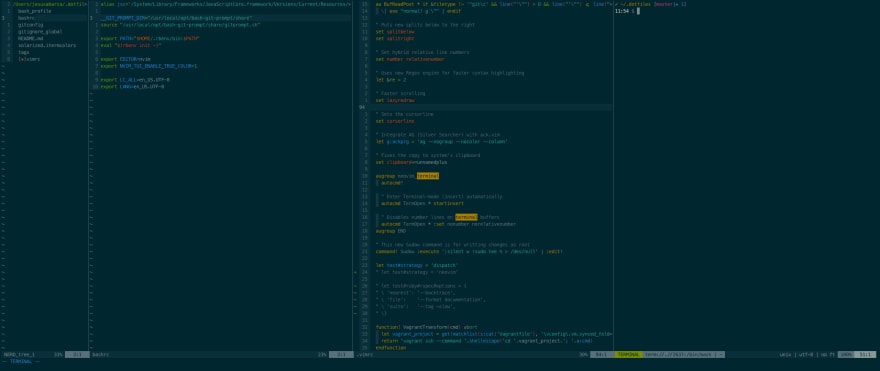
I'm attaching a screenshot of my current setup. Also here's my dot file repo if you want to take a look 🤓 github.com/jesusabarca/.dotfiles
My favorite so far is setting macros in command-line mode.
This post basically blew my mind. I don't actually use macros that often and when I do I always get stage fright whenever I start recording. But as the article says, macros are just registers that you can set and edit.
If I wanted to convert this.
const test = require('tape')
into this.
import test from 'tape'
I would start typing a command.
:let @i=''
Inside the quotes I'll write the keys that the macro would execute. The cool thing about this is that if you get something wrong you can undo, go back in the commands history, edit the macro and try again.
The final result would be this.
:let @i='^cwimport ^[f=cwfrom^[wdwds(j'
There is just no way I would get that right on the first try.
You'll have to be careful with special characters like "Escape". The way you get then in the command is by pressing ctrl+v first. For the escape character you would press ctrl+v first and then the escape key.
Macros have been near the top of the list I’ve been planning to properly figure out for years now, I just never get around to it. I always have a hard time blindly recording macros with q<letter><commands>q.
I love the idea of writing macros in command mode, and having them available in the command history. That article looks great, too. Great suggestion!
Brace yourself... you can still use your q...q command to record them as you go. Then, find a blank line somewhere and "qp and boom - your macro is right there. Tweak it, then highlight it and "qy and now @q will replay your new one.
Blew my mind when I figured out there was nothing special about qq.. it's just putting things into a buffer to replay.
Here are a number of tricks in core Vim I've found useful over the years:
CTRL-p completion - it just completes identifiers in the current file (well, you can enable it to complete more things via the complete option), but often that's good enough!
Speaking of completion, there are all of the various completions hanging off of CTRL-x - I use CTRL-x CTRL-f to complete filenames all the time, and I use CTRL-x CTRL-l to complete lines way more often than I probably should =)
Using :normal to run Vim commands across an entire file or a selection is really nice - it provides a nice alternative to macros (which are also quite handy)
I use :%!command all the time for arbitrary text processing - especially :%!perl.
Special registers, especially used in combination with CTRL-r, which inserts a register in insert mode:
+/* - clipboard registers
" - last yanked text (useful if you want to type some text, paste what you yanked, and then type a little more)
. - last inserted text (useful if you want to replace different motions with the same text)
= - expression register (useful for things like inserting the current directory with CTRL-r =getcwd())
CTRL-w - current word under the cursor (I use this with :Pydoc CTRL-w to look up the documentation for the word under my cursor)
/ - current search (I will often do a search, and then do /\C<C-r>/ to enable case sensitivity for the current search, or wrap the current search via /\C\<<C-r>\> to search for only the target word and not words containing the search as a substring)
CTRL-f in the command line to open a command line editor, which allows you to fix previous command lines using Vim commands
g-/g+/:earlier/:later to traverse history by time, rather than undo order
Running vim filename +line_num to seek to line_num from the start, and vim filename +/pattern to start searching for pattern from the get-go
>'] to indent the last paste (the [ and ] registers contain the start and end locations of the last changed or yanked text)
And it's not technically a Vim trick, per se, but I like running my shell in Vi mode!
NeoVim has a "preview" functionality when you're doing substitutions.
First: set inccommand=split
Then, enjoy incremental highlighting of the text that will be impacted by any substitutions until you hit [ENTER]: :%s/foo/bar/g
When renaming variables, I use ciw and rename the variable, at the next instance just press . to repeat
zz to bring the current line the cursor is at in the middle of the screen (very useful)
P.S. Not a trick but a highly recommend feature is relative line numbers. Helps me a lot
when renaming variables, you can search for it using / or * (reverse with ? or #) and use cgn (reverse cgN) to modify it, using . to change the next match.
The -gn movement is working on the next match. So you can spare one key (n or N) when bulk renaming variables.
"Make search faster
:nnoremap <space> /

"Alternate "nonumber | number | relativenumber"
:nnoremap <C-n> :let [&nu, &rnu] = [!&rnu, &nu+&rnu==1]<cr>

" allows me to use a smarter cgn
nnoremap c* *<c-o>cgn
nnoremap c# #<C-o>cgn
" Tab and Shift tab to go next and previous buffers
nnoremap <Tab> :bnext<CR>:normal <C-g><CR>
nnoremap <S-Tab> :bprevious<CR>:normal <C-g><CR>

" allows to type gf to "go to file"
set path+=.,**
I also like "Ctrl-6" to jump to alternate buffer ":%y+" to copy the entire buffer to the clipboard. "gx" to open links. "gv" to reselect. "gi" to start insert at the last inserting point.
" Use whole "words" when opening URLs.
" This avoids cutting off parameters (after '?') and anchors (after '#').
" See http://vi.stackexchange.com/q/2801/1631
let g:netrw_gx="<cWORD>"

" copy the last command to clipboard
:let @+=@:

" avoid clipboard hacking security issue
" http://thejh.net/misc/website-terminal-copy-paste
inoremap <C-R>+ <C-R><C-R>+
On my ~/.zshrc and ~/.bashrc I have
" lvim opens the last edited file on vim
alias lvim='vim -c "normal '\''0"'

# Edit clipboard on a vim scratch buffer
alias vimscratch="vim -c 'setlocal buftype=nofile bufhidden=wipe nobuflisted noswapfile'"
alias pbpaste='xclip -i -selection clipboard -o'
alias pbcopy='xclip -selection clipboard'
alias vcb="pbpaste | vimscratch -"

# Open files very quicly using fzy
alias nfu='nvim $(find ~/.dotfiles -type f | fzy)'
Currently I have an autoloaded zsh function that goes like this:
    # source:https://stackoverflow.com/a/65375231/2571881
function vif() {
    local fname
    local current_dir=$PWD
    cd ~/.dotfiles
    fname=$(fzy) || return
    vim "$fname"
    cd $current_dir
}
   # zsh key-binding to run the vif function Ctrl-o
   bindkey -s '^o' 'vif^M'
and you want to update all the references across all files of a project, you can do this with quickfix + :cdo:
First, grep for the old function name in the src/ directory.
:grep"add3("-R src/
This will load all results into a quickfix list.
You can see this list by typing:
:copen
Now, you can run another vim command to simply update all the references in your quickfix list in one go:
:cdo s/add3\(/add\(3,\ /g|update
This is a simple subsitituion which replaces all references to add3( to add(3, and saves the changes.
For more information about quickfix lists and what you can do with them, check out the vim docs and feel free to search "vim quickfix" online (lots of good blog posts & youtube videos dive into this feature of vim).


In NeoVim (not really Vim but humor me :P), I can create panes with terminals in it. So I don't need Tmux anymore. Also, I can use Vim bindings for scrolling through the terminal panes and copy stuff. That feature made my workflow way more fluid.
Don't worry, I’m a neovim user myself. ✊
I’m actually the other way around in regards to neovim’s
:terminal, though. I am using tmux, and prefer splitting the tmux window instead of starting a terminal session in Vim.I must say I’ve never taken the time to set
:terminalup properly, as I’m still getting a couple of “command not found” errors when starting it.Fun fact: I’ve actually tried using tmux splits instead of Vim’s built-in ones a while back, but that didn’t really work because I didn’t find a way to share sessions between Vim instances.
So, what does your workflow look like? Do you open up Vim and do everything from there, in one instance?
Yes, I do everything inside Nvim now. When I was using Vim+Tmux, I was using a plugin for moving between Vim and Tmux panes transparently. I also needed special config for getting access to the system's clipboard. That wasn't necessary when I got rid of Tmux. Are you using those plugins?
The only thing I had to do for getting my Nvim's terminal splits just the same as iTerm's was to source my
.bashrcfile inside.bash_profile. I also added some useful mappings like:also removed the number lines and got terminal buffers to automatically enter into insert mode with
I'm attaching a screenshot of my current setup. Also here's my dot file repo if you want to take a look 🤓 github.com/jesusabarca/.dotfiles
Current setup:
I use vim-tmux-navigator to switch between Vim and tmux splits, configure Vim to use the unnamed paste buffer, and use reattach-to-user-namespace to do the same in tmux (although that doesn’t seem to be required anymore).
I’ll try the built-in terminal again sometime soon, though!
Terminal panes have been in Vim since 8.1 I think. This is still commonly touted as a reason to use neovim, but it's not really an issue nowadays.
Cool, I didn't know that. I went from Vim 7.x directly to Nvim.
My favorite so far is setting macros in command-line mode.
This post basically blew my mind. I don't actually use macros that often and when I do I always get stage fright whenever I start recording. But as the article says, macros are just registers that you can set and edit.
If I wanted to convert this.
into this.
I would start typing a command.
Inside the quotes I'll write the keys that the macro would execute. The cool thing about this is that if you get something wrong you can undo, go back in the commands history, edit the macro and try again.
The final result would be this.
There is just no way I would get that right on the first try.
You'll have to be careful with special characters like "Escape". The way you get then in the command is by pressing
ctrl+vfirst. For the escape character you would press ctrl+v first and then the escape key.Macros have been near the top of the list I’ve been planning to properly figure out for years now, I just never get around to it. I always have a hard time blindly recording macros with
q<letter><commands>q.I love the idea of writing macros in command mode, and having them available in the command history. That article looks great, too. Great suggestion!
Brace yourself... you can still use your
q...qcommand to record them as you go. Then, find a blank line somewhere and"qpand boom - your macro is right there. Tweak it, then highlight it and"qyand now@qwill replay your new one.Blew my mind when I figured out there was nothing special about
qq.. it's just putting things into a buffer to replay.Using double quotes you can use a better notation to indicate keystrokes, something like:
In order to test the above macro paste this on the firest line and run
10@a
Here are a number of tricks in core Vim I've found useful over the years:
CTRL-pcompletion - it just completes identifiers in the current file (well, you can enable it to complete more things via thecompleteoption), but often that's good enough!CTRL-x- I useCTRL-x CTRL-fto complete filenames all the time, and I useCTRL-x CTRL-lto complete lines way more often than I probably should =):normalto run Vim commands across an entire file or a selection is really nice - it provides a nice alternative to macros (which are also quite handy):%!commandall the time for arbitrary text processing - especially:%!perl.CTRL-r, which inserts a register in insert mode:+/*- clipboard registers"- last yanked text (useful if you want to type some text, paste what you yanked, and then type a little more).- last inserted text (useful if you want to replace different motions with the same text)=- expression register (useful for things like inserting the current directory withCTRL-r =getcwd())CTRL-w- current word under the cursor (I use this with:Pydoc CTRL-wto look up the documentation for the word under my cursor)/- current search (I will often do a search, and then do/\C<C-r>/to enable case sensitivity for the current search, or wrap the current search via/\C\<<C-r>\>to search for only the target word and not words containing the search as a substring)CTRL-fin the command line to open a command line editor, which allows you to fix previous command lines using Vim commandsg-/g+/:earlier/:laterto traverse history by time, rather than undo ordervim filename +line_numto seek toline_numfrom the start, andvim filename +/patternto start searching forpatternfrom the get-go>']to indent the last paste (the[and]registers contain the start and end locations of the last changed or yanked text)And it's not technically a Vim trick, per se, but I like running my shell in Vi mode!
NeoVim has a "preview" functionality when you're doing substitutions.
First:
set inccommand=splitThen, enjoy incremental highlighting of the text that will be impacted by any substitutions until you hit [ENTER]:
:%s/foo/bar/gThere are a couple of tricks in Vim that I love.
about your 1. there's another more awesome trick:
when renaming variables, you can search for it using
/or*(reverse with?or#) and usecgn(reversecgN) to modify it, using.to change the next match.The
-gnmovement is working on the next match. So you can spare one key (norN) when bulk renaming variables.tl;dr : Instead of
you can do:
cheers 🍻
The operations you can do with the built-in file explorer (aka
netrw):d%DX(upper-case):help netrw-quickhelpI have many tricks on at my "init.vim"
I also like "Ctrl-6" to jump to alternate buffer ":%y+" to copy the entire buffer to the clipboard. "gx" to open links. "gv" to reselect. "gi" to start insert at the last inserting point.
On my ~/.zshrc and ~/.bashrc I have
Currently I have an autoloaded zsh function that goes like this:
Column selection and insertion in multiple rows. Ctrl + V to select vertically and then I to insert in multiple rows.
Say you've changed a function signature, like:
and you want to update all the references across all files of a project, you can do this with quickfix +
:cdo:src/directory.This will load all results into a quickfix list.
You can see this list by typing:
This is a simple subsitituion which replaces all references to
add3(toadd(3,and saves the changes.For more information about quickfix lists and what you can do with them, check out the vim docs and feel free to search "vim quickfix" online (lots of good blog posts & youtube videos dive into this feature of vim).
*. Find the next occurrence of whatever "word" is under the cursor.I set up a shortcut to print in my .vimrc.
I run this command to see available printers.
I set a default printer.
In my .vimrc I have this line to print the current file.
To me one of the most usefull features I have discovered is how to manipulate varoius registers type like:
Load a function from the clipboard:
On insert mode, paste any register with
Ctrl-r + Register, for example insert last search<Esc><Esc><Esc>:q!😆then space space to switch between two files
:%!python -m json.toolAuto pretty formats json files :)
Vim has a biult-in file explorer:
:EI use it to open existing files or just to explore the filesystem through the terminal
I like to encrypt files sometimes.
vim -x /path/to/file/somefile.txt
Whenever I want to search for the current word, I just type:
and then n or N to navigate through the results.
cit
My favorite Vim trick is Spacemacs 👀
Anywho, macros. I know it sounds a bit basic but boy are they powerful (and they turn heads, both in a technical and non technical setting).
Macro! Definitely macro! (Although it is a feature not a trick)