

While preparing NovaSaaS for its first public release, I noticed a small but frustrating problem: the dashboard had horizontal and vertical page scrollbars that should not have been there.
The issue was more visible after deploying the project to Netlify. The notification badge in the header was partially cut off, the page could move horizontally by a few pixels, and the entire document was scrolling instead of keeping the scrolling inside the dashboard content.
At first, it looked like a simple CSS problem. It was actually a combination of several layout details: an incorrectly positioned notification badge, flex children that were not allowed to shrink, and a dashboard shell without strict viewport and overflow constraints.
In this article, I will explain how I identified those problems, how I fixed them with Next.js and Tailwind CSS, and what I learned while testing the dashboard across different screen sizes.
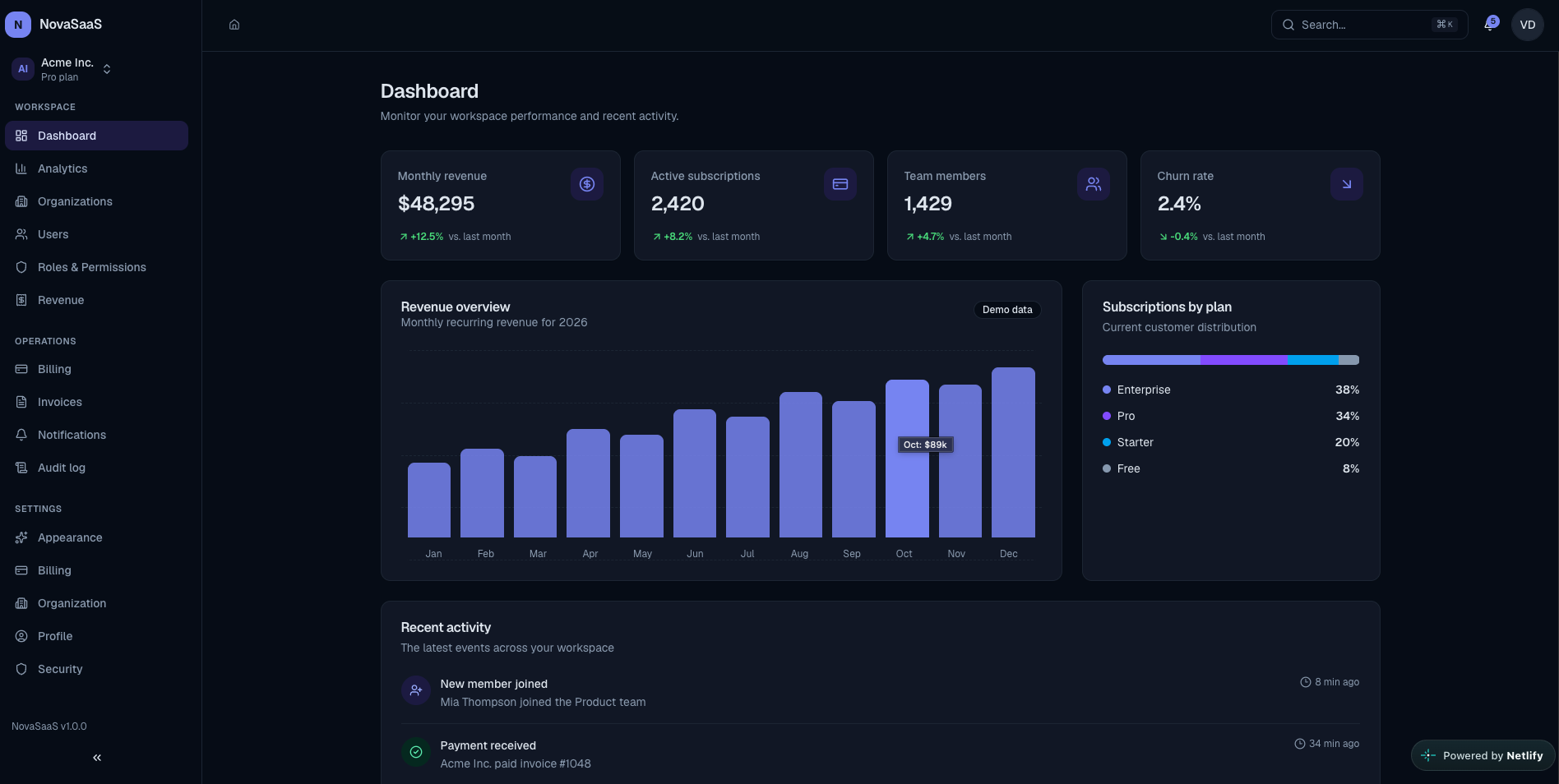](https://media2.dev.to/dynamic/image/width=800%2Cheight=%2Cfit=scale-down%2Cgravity=auto%2Cformat=auto/https%3A%2F%2Fdev-to-uploads.s3.us-east-2.amazonaws.com%2Fuploads%2Farticles%2Fxoxaiblhg459hydw5rnd.png)
The original layout problem
NovaSaaS uses a typical admin dashboard structure:
- A fixed sidebar on desktop
- A drawer-style navigation menu on mobile
- A header with breadcrumbs, search, notifications, and a user menu
- A main content area that contains the dashboard pages
The desired behavior was simple: the dashboard shell should always fit inside the viewport, while the main content and sidebar navigation should scroll independently when necessary.
Instead, the document itself was becoming wider and taller than the viewport.
One useful check was comparing the document width with the visible viewport:
document.documentElement.scrollWidth;
document.documentElement.clientWidth;
The difference was only a few pixels, but that was enough to create horizontal movement. After inspecting the elements near the right edge of the page, I found that the notification badge was extending outside the viewport.
The vertical scrolling problem had a different cause. The dashboard used a flexible layout, but some of its children did not have the constraints required to shrink correctly.
Constraining the dashboard shell
The first change was to give the entire dashboard a fixed viewport height and prevent it from becoming the page-level scrolling container.
<div className="bg-background flex h-dvh w-full overflow-hidden">
  <Sidebar />

  <div className="flex min-h-0 min-w-0 flex-1 flex-col">
    <DashboardHeader />

    <div
      id="main-content"
      tabIndex={-1}
      className="min-h-0 min-w-0 flex-1 overflow-y-auto overscroll-y-contain"
    >
      {children}
    </div>
  </div>
</div>
I used h-dvh instead of min-h-screen.
A minimum height allows the container to grow beyond the viewport when one of its children needs more space. In this case, I wanted the dashboard shell to remain exactly as tall as the available viewport.
Using dvh also works better with mobile browser interfaces because it follows changes in the dynamic viewport height.
The overflow-hidden class prevents the shell itself from creating document-level scrollbars. Scrolling is then assigned explicitly to the content area with overflow-y-auto.
Why min-h-0 and min-w-0 matter
The most important detail in this fix was not overflow-hidden. It was adding min-h-0 and min-w-0 to the correct flex children.
Flex items use an automatic minimum size by default. This can prevent them from shrinking below the size of their content, even when the parent has limited space.
In a horizontal layout, min-w-0 allows the content area to shrink without pushing the layout beyond the viewport.
In a vertical flex column, min-h-0 allows the scrollable child to stay within the remaining height instead of making the parent taller.
This is why the main dashboard column uses both:
<div className="flex min-h-0 min-w-0 flex-1 flex-col">
The scrollable content area also uses both constraints:
className="min-h-0 min-w-0 flex-1 overflow-y-auto"
Before this project, I knew these utilities individually, but this problem helped me understand how important they are when nested flex layouts include their own scrolling regions.
Anchoring the notification badge correctly
The horizontal overflow came from the notification badge.
The badge was absolutely positioned, but its positioning context was too large. At some desktop sizes, it extended a few pixels beyond the right side of the viewport.
The fix was to make the bell icon and badge share a small relative container:
<Button
  variant="ghost"
  size="icon"
  aria-label={
    unread > 0
      ? `Notifications, ${unreadLabel} unread`
      : "Notifications"
  }
>
  <span className="relative inline-flex">
    <Bell className="size-4" aria-hidden="true" />

    {unread > 0 && (
      <span
        aria-hidden="true"
        className="bg-primary text-primary-foreground pointer-events-none absolute -top-1 -right-1 flex min-h-4 min-w-4 items-center justify-center rounded-full px-1 text-[10px] leading-none font-semibold"
      >
        {unreadLabel}
      </span>
    )}
  </span>
</Button>
Now the badge is positioned relative to the bell instead of a larger header container.
I also limited large notification counts to 99+ so the badge cannot continue growing indefinitely:
const unreadLabel = unread > 99 ? "99+" : String(unread);
The button receives an accessible label with the unread count, while the visual badge is hidden from assistive technology to avoid announcing the same information twice.
Giving the sidebar its own scroll
The sidebar had to remain the same height as the dashboard while still supporting navigation lists that might become longer in future versions.
The desktop sidebar is constrained to the dynamic viewport height:
<aside
  className={cn(
    "bg-sidebar relative hidden h-dvh shrink-0 border-r transition-[width] duration-200 lg:flex lg:flex-col",
    collapsed ? "w-20" : "w-64",
  )}
>
Inside it, only the navigation section scrolls:
<nav
  aria-label="Primary"
  className="-mx-1 min-h-0 min-w-0 flex-1 space-y-6 overflow-x-hidden overflow-y-auto overscroll-contain px-1"
>
This keeps the logo, organization switcher, version number, and collapse button in predictable positions while allowing the navigation links to scroll independently.
For the mobile drawer, I used h-dvh, max-h-dvh, and a width that leaves some of the viewport visible:
<aside className="bg-sidebar relative z-10 h-dvh max-h-dvh w-[min(18rem,calc(100vw-2rem))] border-r">
The drawer closes when the user selects a navigation link, clicks the backdrop, or presses Escape.
Making the header shrink safely
The header contains several elements competing for horizontal space. The breadcrumbs, command menu, notification button, and user menu all behave differently as the viewport becomes narrower.
The main header groups use min-w-0, while controls that should preserve their size use shrink-0.
<div className="flex h-16 min-w-0 items-center gap-3 px-4 lg:px-8">
  <div className="hidden min-w-0 flex-1 md:block">
    <Breadcrumbs />
  </div>

  <div className="ml-auto flex min-w-0 flex-1 items-center justify-end gap-2 md:flex-none">
    <div className="w-36 min-w-0 flex-1 sm:w-48 md:w-60 md:flex-none">
      <CommandMenu />
    </div>

    <div className="flex shrink-0 items-center gap-2">
      <NotificationsPreview />
      <UserMenu />
    </div>
  </div>
</div>
This allows the command menu to become narrower on small screens without pushing the notification and user controls outside the viewport.
Testing the result
After applying the fixes, I tested the dashboard at widths ranging from 320px to 1920px.
I checked:
- Document-level horizontal and vertical overflow
- Expanded and collapsed desktop sidebar states
- Sidebar preference persistence
- Mobile drawer opening and closing
- Notification badge and dropdown positioning
- Main-content scrolling
- Sidebar navigation scrolling
- Light and dark themes
- Keyboard navigation and accessible labels
The document width remained equal to the viewport width, and short dashboard pages no longer created document-level vertical scrolling. When content or navigation exceeded the available height, only the intended internal region scrolled.
I also added regression tests for the sidebar layout and notification counts. They do not replace browser testing, but they help protect the expected structure and behavior from future changes.
What I learned
The main lesson was that overflow problems are often caused by several small layout decisions rather than one obviously incorrect style.
These


Top comments (0)