

Following on from the previous post, which briefly introduced Caliburn.Micro (CM), this article digs into CM and looks at its most interesting feature: Action.
Running CM
Download Caliburn.Micro, open Template, and copy Caliburn_Micro_WPF.zip to %userprofile%\Documents\Visual Studio 2010\Templates\ProjectTemplates\Visual C#\Windows. Create a new project in Visual Studio 2010, choose Visual C# — Windows, and you will see the Caliburn.Micro template. Create a new project named CaliburnMicroWPF1 as follows:
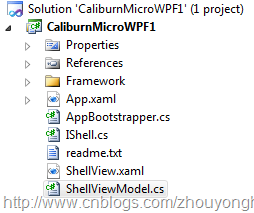
The Framework folder contains the Caliburn.Micro source code. ShellView is the main window; ShellViewModel is the DataContext of ShellView. This is a standard View–ViewModel pattern. AppBootstrapper is the startup loader and lets you configure how CM is loaded.
Bootstrapper
The Bootstrapper constructor looks like this:
public Bootstrapper()
{
    if (IsInDesignMode)
        StartDesignTime();
    else StartRuntime();
}
You can override StartDesignTime to provide design-time data for Blend and similar tools. At runtime, StartRuntime is called:
protected virtual void StartRuntime()
{
    Execute.InitializeWithDispatcher();
    AssemblySource.Instance.AddRange(SelectAssemblies());

    Application = Application.Current;
    PrepareApplication();

    Configure();
    IoC.GetInstance = GetInstance;
    IoC.GetAllInstances = GetAllInstances;
    IoC.BuildUp = BuildUp;
}
You can override PrepareApplication to listen to Application events, or override Configure to set up an IOC (Inversion of Control) container. The three static IoC fields at the end are especially interesting:
public static class IoC
{
    public static Func<Type, string, object> GetInstance;
    public static Func<Type, IEnumerable<object>> GetAllInstances;
    public static Action<object> BuildUp;

    public static T Get<T>()
    {
        return (T)GetInstance(typeof(T), null);
    }

    public static T Get<T>(string key)
    {
        return (T)GetInstance(typeof(T), key);
    }
}
IoC is a static class that provides IOC support; its Get methods look up a registered instance by type. A common approach is to define IoC as a virtual base class and let subclasses override Get with their own logic. The IoC class instead achieves polymorphism through three static Func fields. The AppBootstrapper uses MEF as the default IOC implementation. You can override Bootstrapper to use another IOC container such as Unity.
MEF
MEF (Managed Extensibility Framework) was formally introduced into the .NET Framework after .NET 4.0. By attaching simple Export and Import attributes that describe the “consumer” and “provider” relationships between components, MEF dynamically discovers and composes components under the hood. MEF makes it much easier to develop plugin-based application systems. This article is not a detailed MEF guide; as the default IoC implementation, Caliburn.Micro simply uses MEF.
Here we only adopt MEF by default—specifically, we use its CompositionContainer as the IoC container. CM itself has no hard dependency on MEF. Let’s keep our eyes on CM and step into Caliburn.Micro starting from the simplest possible application.
The First Application
Add a Button to ShellView, drag ActionMessage onto the Button from Blend — Assets, and set the Trigger’s EventName to Click. Switch to ShellViewModel and add a Show method:
public void Show()
{
    MessageBox.Show("Hello");
}
Back in ShellView, set the ActionMessage’s MethodName to Show, as shown below:
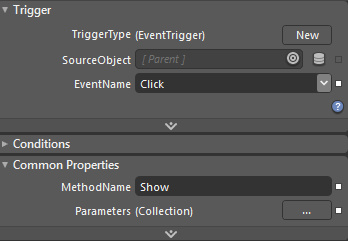
When the program runs and you click the Button, the Show method is invoked.
That is the simplest possible ActionMessage usage. Let’s walk through what happens.
Put simply, clicking the Button executes the method. The most primitive approach would be to put Click="HandleBtnClick" in the Button’s XAML and handle the event in code-behind. Later, as MVVM became popular, you would set ShellViewModel as the DataContext of ShellView, provide an ICommand—ShowCommand—in ShellViewModel, and bind the Button with Command="{Binding ShowCommand}".
ActionMessage does two things here:
- Match by name and automatically set
ShellViewModelas the DataContext ofShellView. - Use reflection to look up the method by name and invoke it.
The design is straightforward. The first step—name matching—is a distinctive CM Convention that automatically pairs XXViewModel with XXView. The second step looks up the MethodInfo named Show on the XXViewModel found earlier and invokes it via reflection.
ActionMessage
The design of ActionMessage is not complex. It inherits from TriggerAction<FrameworkElement> and can therefore act on a FrameworkElement. At runtime the TriggerAction is attached to its corresponding FrameworkElement. ActionMessage has two important properties: MethodName and Parameters. The former is the name of the method to execute; the latter is a collection of parameters to pass in. MethodName has already been introduced above—let’s look at how Parameters works.
The simplest usage is to change the ViewModel’s Show() method to Show(string message) and pass the argument through Parameters:
<cm:ActionMessage MethodName="Show">
    <cm:Parameter Value="woo~"/>
</cm:ActionMessage>
When Show executes, the woo~ argument is passed in. Parameters can also carry multiple arguments; if no matching method is found, an exception is thrown. CM extends the Parameter Value as well:
- Value supports binding, so you can write
Value="{Binding ElementName=XX, Path=XX}". - CM provides a
MessageBinderclass to parse messages. You can use$eventArgsto pass the method’sarg,$sourceto pass the bound UI element,$dataContextto pass the corresponding DataContext, and so on. You can extendMessageBinder.SpecialValuesto add more parsing rules; by default all special tokens start with$.
Message.Attach
The ActionMessage markup above was written as:
<Button>
    <i:Interaction.Triggers>
        <i:EventTrigger EventName="Click">
            <cm:ActionMessage MethodName="Show">
                <cm:Parameter Value="woo~"/>
            </cm:ActionMessage>
        </i:EventTrigger>
    </i:Interaction.Triggers>
</Button>
With the help of Blend’s Interaction, this wires the routed event Click to an ActionMessage. CM offers a more powerful Attach feature that lets you rewrite the code as:
<Button cm:Message.Attach="[Event Click] = [Action Show('woo~')]">
Message.Attach is an attached property defined by CM. CM parses the value of this property to generate the corresponding Action. To make parsing easier, CM defines a small syntax. For example, [Event Click] = [Action Show('woo~')] means: when the routed event Click occurs, execute the Show method with the argument woo~.
Special characters: square brackets [] denote an object; [Event Click] has a first parameter that says the object kind is Event and a second that names it Click; the equals sign = connects the Event to the ActionMessage; parentheses () hold the arguments. Semicolons separate multiple Event/ActionMessage pairs:
<Button cm:Message.Attach="[Event MouseEnter] = [Action Show('Enter')];
                           [Event MouseLeave] = [Action Show('Leave')]" />
This declares two Event/ActionMessage pairs.
When passing arguments inside parentheses you can use more than plain strings—you can also use bindings:
<TextBlock x:Name="txtBlock" Text="woo~"/>
<Button cm:Message.Attach="[Event Click] = [Action Show(txtBlock.Text)]">
Digging into Action
We have been talking about ActionMessage throughout; here is a detailed look at CM’s Action mechanism.
In short, Action means: when event A occurs, execute method C on object B.
- ActionMessage inherits from
TriggerAction<FrameworkElement>; TriggerAction comes from Blend’s Interactivity. When event A fires, ActionMessage’sInvokemethod is called. Blend’s TriggerBase is not the focus of this article—only note that Blend guarantees the “event A” step. - When the ActionMessage is created, the MethodName property identifies method C. So the key to the whole ActionMessage is how to find object B.
The Caliburn.Micro framework is based on MVVM; if MVVM holds no interest for you, feel free to ignore Caliburn.Micro. In MVVM (Model-View-ViewModel), operations on the View are passed to the VM through Commands. Object B here is the ViewModel. CM represents the target object B as Target; by default, Target equals the control’s DataContext. CM provides the Action.Target attached property to set Target explicitly:
<ListBox x:Name="lstBox"  SelectionMode="Extended">
    <ListBoxItem>123</ListBoxItem>
    <ListBoxItem>123</ListBoxItem>
    <ListBoxItem>123</ListBoxItem>
</ListBox>
<Button cm:Action.Target="{Binding ElementName=lstBox}" Focusable="False"
        cm:Message.Attach="[Event Click] = [Action SelectAll]">
This sets the Action’s Target to the ListBox; when the Button is clicked, the ListBox’s SelectAll method is called.
Here cm:Action.Target is equivalent to DataContext="{Binding …}": when Target is set, CM also sets the control’s DataContext. Sometimes you do not want to change the control’s DataContext. For that, Action provides TargetWithoutContext, which sets Target without syncing the control’s DataContext.
During Action execution, ActionMessage supplies an ActionExecutionContext as the execution context. That context is mainly used by another important feature—coroutines—and will not be covered in detail here.
Summary
This article introduced CM’s Action mechanism. Action is a highlight of the CM design: concise and powerful. Around Action, CM also provides other features such as coroutines. I hope everyone will grasp Action solidly as the starting point for working with CM.


Top comments (0)