


前言
本文基于Api12
所谓帧动画,就是类似播放电影一样,一帧一帧的进行播放,相对于属性动画,其每一帧,我们都可以进行设置相关的属性值,并且具有暂停播放,继续播放的优点,而且还具备事件的实时响应,需要说明的是,在性能上是远远不如属性动画的,所以如果能用属性动画实现的场景,还是主推属性动画。
实现帧动画
实现一个组件逐帧移动,并且可以进行暂停操作。
首先,帧动画是通过getUIContext().createAnimator来创建一个帧动画,并通过onFrame方法来接收到帧时回调,并在此方法中进行相关执行动画操作。
简单举例
@Entry
@Component
struct Index {
  @State animatorOptions: AnimatorResult | undefined = undefined
  animatorOption: AnimatorOptions = {
    duration: 3000, //动画播放的时长
    delay: 0, //动画延时播放时长
    easing: 'linear', //动画插值曲线
    iterations: 1, //动画播放次数
    fill: "forwards", //动画执行后是否恢复到初始状态
    direction: 'normal', //动画播放模式
    begin: 0, //动画插值起点
    end: 100//动画插值终点
  }
  @State translateX: number = 0
  @State translateY: number = 0

  onPageShow(): void {
    this.animatorOptions = this.getUIContext().createAnimator(this.animatorOption)
    this.animatorOptions.onFrame = (progress: number) => {
      //接收到帧时回调
      this.translateX = progress
    }
  }

  onPageHide(): void {
    this.animatorOptions = undefined
  }

  build() {
    RelativeContainer() {

      Text("1")
        .width(30)
        .height(30)
        .textAlign(TextAlign.Center)
        .backgroundColor(Color.Red)
        .margin({ top: 100 })
        .id("view1")
        .alignRules({
          top: { anchor: "__container__", align: VerticalAlign.Top },
          middle: { anchor: "__container__", align: HorizontalAlign.Center }
        })
        .translate({ x: this.translateX, y: this.translateY })


      Row() {
        Button("播放")
          .onClick(() => {
            this.animatorOptions?.play()
          })
        Button("暂停")
          .margin({ left: 10 })
          .onClick(() => {
            this.animatorOptions?.pause()
          })
        Button("重置")
          .margin({ left: 10 })
          .onClick(() => {
            this.translateX = 0
            this.translateY = 0
          })
      }
      .margin({ top: 10 })
      .alignRules({
        center: { anchor: "__container__", align: VerticalAlign.Center },
        middle: { anchor: "__container__", align: HorizontalAlign.Center }
      })
    }
    .height('100%')
    .width('100%')
  }
}
实际效果查看:
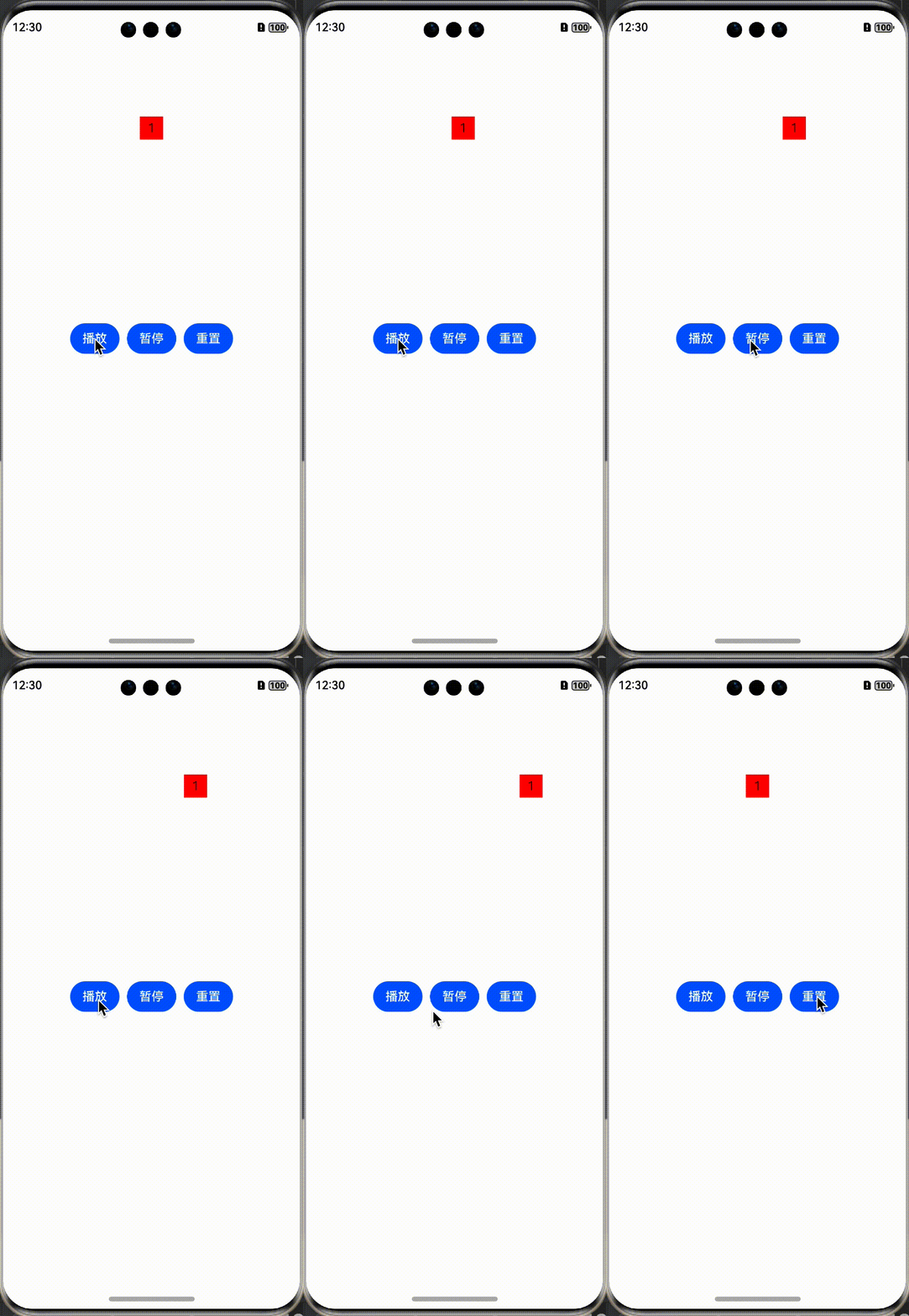
createAnimator方法会创建一个帧动画,并且返回一个AnimatorResult对象,通过AnimatorResult,我们可以实现很多功能,比如播放,暂停,取消,监听状态等等。
播放
this.animatorOptions?.play()
暂停
this.animatorOptions?.pause()
取消
this.animatorOptions?.cancel()
反转
this.animatorOptions?.reverse()
完成
this.animatorOptions?.finish()
动画完成回调
 //动画完成时执行方法
 this.animatorOptions!.onFinish = () => {

 }
动画取消回调
//动画取消时执行方法
this.animatorOptions!.onCancel = () => {

}
动画重复回调
this.animatorOptions!.onRepeat = () => {
}
设置期望的帧率范围
通过setExpectedFrameRateRange方法进行设置,Api必须在12及以上。
let expectedFrameRate: ExpectedFrameRateRange = {
  min: 0,
  max: 60,
  expected: 30
}
animatorResult.setExpectedFrameRateRange(expectedFrameRate)
图片帧动画
帧动画,运用最多的地方就是图片了,比如loading提示,一段简单的小动画等等,使用频率还是蛮高的,系统提供了ImageAnimator组件,方便我们进行实现。
简单举例
@Entry
@Component
struct Index {
  @State state: AnimationStatus = AnimationStatus.Running
  private images: Array<ImageFrameInfo> = [
    { src: $r("app.media.loading001") },
    { src: $r("app.media.loading002") },
    { src: $r("app.media.loading003") },
    { src: $r("app.media.loading004") },
    { src: $r("app.media.loading005") },
    { src: $r("app.media.loading006") },
    { src: $r("app.media.loading007") },
    { src: $r("app.media.loading008") },
    { src: $r("app.media.loading009") },
    { src: $r("app.media.loading010") },
    { src: $r("app.media.loading011") },
    { src: $r("app.media.loading012") }
  ]

  build() {
    RelativeContainer() {

      Column() {

        ImageAnimator()
          .images(this.images)
          .fixedSize(true)
          .fillMode(FillMode.None)
          .iterations(-1)
          .state(this.state)
          .width(40)
          .height(40)

      }
      .id("view1")
      .width(120)
      .height(120)
      .borderRadius(10)
      .backgroundColor("#80000000")
      .justifyContent(FlexAlign.Center)
      .alignRules({
        top: { anchor: "__container__", align: VerticalAlign.Top },
        middle: { anchor: "__container__", align: HorizontalAlign.Center }
      })
      .margin({ top: 50 })


      Row() {
        Button("播放")
          .onClick(() => {
            this.state = AnimationStatus.Running
          })
        Button("暂停")
          .margin({ left: 10 })
          .onClick(() => {

            this.state = AnimationStatus.Paused

          })
        Button("停止")
          .margin({ left: 10 })
          .onClick(() => {
            this.state = AnimationStatus.Stopped
          })
      }
      .margin({ top: 10 })
      .alignRules({
        center: { anchor: "__container__", align: VerticalAlign.Center },
        middle: { anchor: "__container__", align: HorizontalAlign.Center }
      })
    }
    .height('100%')
    .width('100%')
  }
}
效果查看:
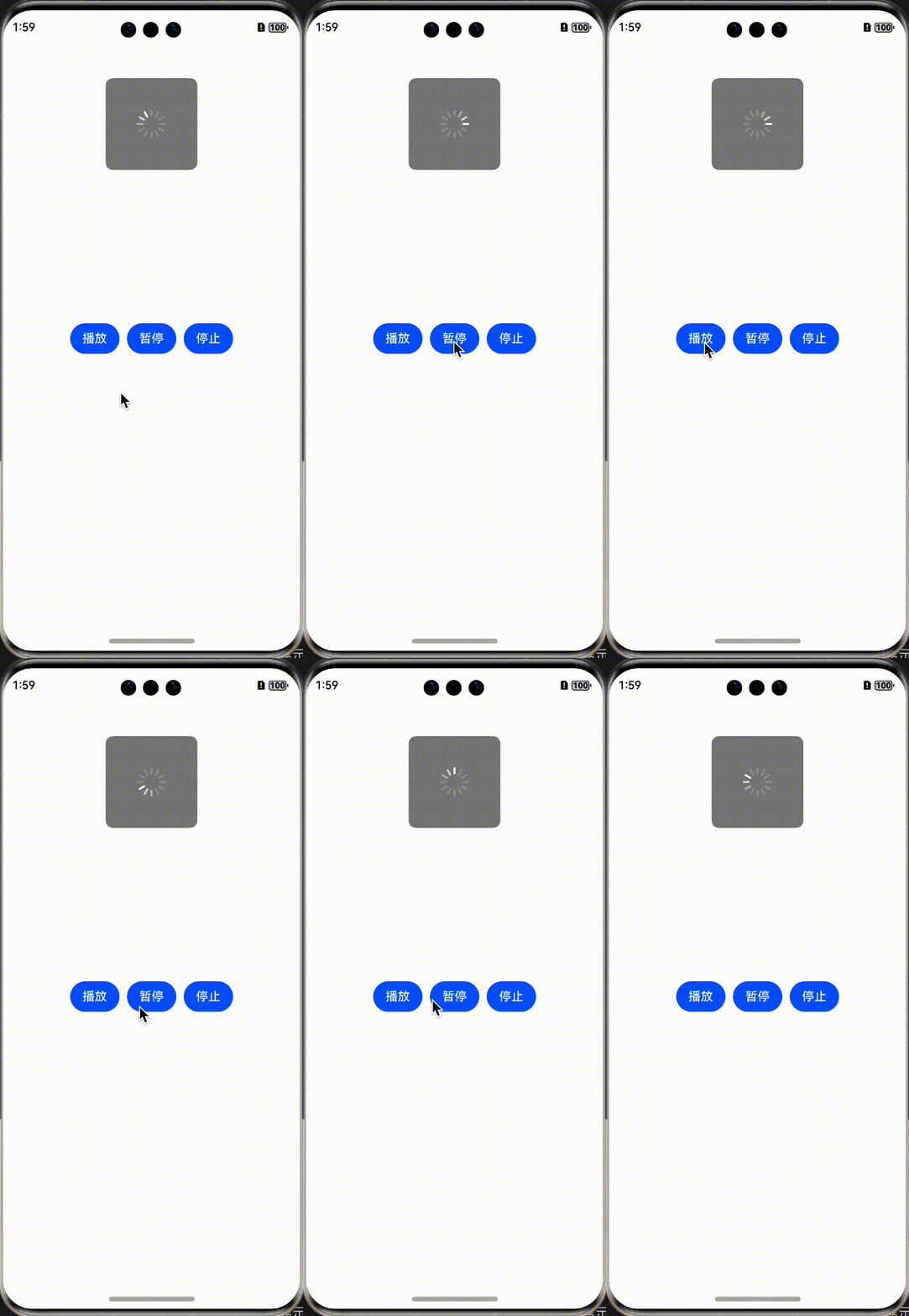
除了正常的Resource资源播放,也支持播放PixelMap动画,唯一区别就是在设置数据的时候。
  imagePixelMap: Array<PixelMap> = []
  @State images:Array<ImageFrameInfo> = []

  async aboutToAppear() {
    this.imagePixelMap.push(await this.getPixmapFromMedia($r('app.media.icon')))
    this.images.push({src:this.imagePixelMap[0]})
  }

private async getPixmapFromMedia(resource: Resource) {
    let unit8Array = await getContext(this)?.resourceManager?.getMediaContent({
      bundleName: resource.bundleName,
      moduleName: resource.moduleName,
      id: resource.id
    })
    let imageSource = image.createImageSource(unit8Array.buffer.slice(0, unit8Array.buffer.byteLength))
    let createPixelMap: image.PixelMap = await imageSource.createPixelMap({
      desiredPixelFormat: image.PixelMapFormat.RGBA_8888
    })
    await imageSource.release()
    return createPixelMap
  }
ImageAnimator常用属性
| 属性 | 类型 | 概述 |
|---|---|---|
| images | Array<ImageFrameInfo> | 设置图片帧信息集合。不支持动态更新。 |
| state | AnimationStatus | 控制播放状态 |
| duration | number | 设置播放时长 |
| reverse | boolean | 设置播放方向 |
| fixedSize | boolean | 设置图片大小是否固定为组件大小 |
| fillMode | FillMode | 设置当前播放方向下,动画开始前和结束后的状态 |
| iterations | number | 设置播放次数 |
相关总结
在设置图片帧信息集合的时候,是不支持动态更新的,这一点大家需要知道,还有最重要的一点就是,在性能上是不如属性动画的,也就是说能用属性动画实现的,尽量使用属性动画。


Top comments (0)