


🚀 Git- Git Basics for Beginners
*👨💻 By Sakthivel R
Hey developers! 👋
Here’s a beginner-friendly walk-through of basic Git commands, perfect if you're just starting out or brushing up for placements or projects. This was part of my Day assignment, and I thought it’d be helpful to share it with the dev community too. Let’s go! 💻✨
🔧 Step-by-Step Git Commands
1️⃣ Initialize a Git Repository
git init
This command initializes a new Git repository in your current directory. For example, it creates a repo in a folder like 24MCR086.
2️⃣ Add a File to Staging Area
git add 24MCR086.txt
This stages a specific file (24MCR086.txt) for commit.
Want to stage everything in the folder? Use:
git add .
3️⃣ Commit the File
git commit -m "Added Personal Details"
This creates a commit with a custom message. Make your commit messages meaningful so others can follow your changes easily.
4️⃣ Check Git Status
git status
This shows the current state of your working directory and staged files. For example, it will show if 24MCR086.txt is modified but not staged.
5️⃣ View Commit Log
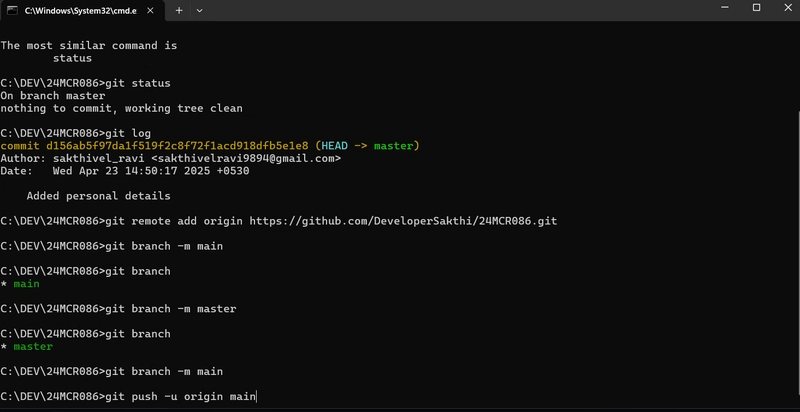
git log
Want to see the history of commits? This command displays all your previous commits.
6️⃣ Add Remote GitHub Repository
git remote add origin https://github.com/DeveloperSakthi/24MCR086.git
This links your local Git repo to a remote GitHub repository. (Replace with your repo URL.)
7️⃣ Check the Current Branch
git branch
Displays your current branch. Initially, it might show master.
8️⃣ Rename Branch from master to main
git branch -M main
Renames the current branch from master to main.
Want to rename back to master? You can use:
git branch -M master
9️⃣ Set Global Git Config (One-time Setup)
git config --global user.email "sakthivelravi9894@gmail.com"
git config --global user.name "DeveloperSakthi"
This sets your identity for all Git projects on your system. You only need to do this once!
🔟 Push Code to Remote Repo
git push -u origin main
Pushes the local main branch to GitHub and sets it to track the remote branch.
🔁 Making More Changes?
Once you've made more changes or added new files, you can follow this pattern again:
git add .
git commit -m "Your next update message"
git push origin main
💡 Final Thoughts
That’s it for Day 1! These are your Git essentials. Trust me, once you get these basics down, version control becomes your best friend — especially in collaborative coding or project development 🚀
If you found this helpful or want me to share more Git or dev-related content, drop a ❤️ or comment!
Happy coding! 👨💻💥
– Sakthivel R


Top comments (1)
Nice content Sakthi 🙌🏽