

In this guide, we will show you the ways to Convert a Single Column or Row to Ranges/Vice Versa in Excel Office 365 using Kutools. Get an official version of MS Excel from the following link: https://www.microsoft.com/en-in/microsoft-365/excel
Note: kutools for Excel has more than 180 features which are used to complete the difficult task with several clicks. If you want to use Kutools, you need to install it from Excel’s official website.
Convert a Column to Multiple Columns:
To convert a column to multiple columns in Excel, do as follows.
- You need to select a single column that you want to convert.

- On the Kutools Tab, select the Range option, choose the Transform Range option from the menu.

- Then, it will display the Transform Range ** Dialog box.**
- Data to be transformed – You need to select the input range.
- Transform type – In this section, you need to select the Single column to range option.
- Rows per record – Here, you can choose the Blank cell delimits records option or Fixed value option.
- Then, click the OK button.

Note:
- *Blank cell delimits records – * You can check this option if you have selected a column with a blank cell as a separator and you want to use the blank cells as a separator to convert the column.
Fixed value – It will start a new row after how many cells specified in the drop-down list.
It will open the Transform Range dialog box , you need to select the output range (single-cell) to display the result and click the OK button.

- Now, you will get the result as shown in the below image.

Transform a Row to Multiple Rows:
If you want to transform a single row to multiple rows in the Excel worksheet, do as follows.
- You need to select a single row that you want to convert into multiple rows.

- Go to the Kutools Tab, select the Range option, choose the Transform Range option from the menu.
- Then, it will open the Transform Range ** Dialog box.**
- Data to be transformed – You need to select the input range.
- Transform type – In this section, you need to select the Single row to range option.
- Rows per record – Here, you can choose the Blank cell delimits records option or Fixed value option.
- Then, click the OK button.

Note:
- *Blank cell delimits records – * You can check this option if you have selected a row with a blank cell as a separator and you want to use the blank cells as a separator to convert the rows.
Fixed value – It will start a new column after how many cells specified in the drop-down list.
It will open the Transform Range dialog box , you need to select the output range (single-cell) to display the result and click the OK button.
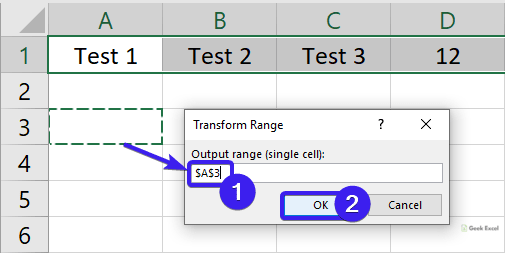
- At last, you will get the output as shown in the below screenshot.

Convert Multiple Columns to a Single Column:
You can easily convert multiple columns to a single column in Excel. To do this, follow the below steps.
- First, you need to select a range that you want to convert to a single column.

- On the Kutools Tab, select the Range option, choose the Transform Range option from the menu.
- Then, it will display the Transform Range ** Dialog box.**
- Data to be transformed – You need to select the input range.
- Transform type – In this section, you need to select the Range s** ingle column** option.
- Then, click the OK button.

- It will display the Transform Range dialog box , you need to select the output range (single-cell) to display the result and click the OK button.

- Finally, you will get the output as shown in the below image.

Transform Multiple Rows to a Single Row:
To transform multiple rows into a single row in an Excel worksheet, do as follows.
- You need to select a range that you want to convert to a single row.

- Go to the Kutools Tab, select the Range option, choose the Transform Range option from the menu.
- Then, it will open the Transform Range ** Dialog box.**
- Data to be transformed – You need to select the input range.
- Transform type – In this section, you need to select the Range to Single row option.
- Then, click the OK button.

- It will display the Transform Range dialog box , you need to select the output range (single-cell) to display the result and click the OK button.

- Now, you will get the result as shown in the below image.

Sum-Up:
In this guide, you can easily understand the steps to Convert a Single Column or Row to Ranges/Vice Versa in Excel Office 365 using Kutools. ** Leave your **queries/suggestions in the below comment section. Thanks for visiting Geek Excel. Keep Learning!


Top comments (0)