


While Visual Studio Code supports OpenType features for its code editor well, configuring those features can be complex as it relies on understanding related CSS syntax. On top of this, additional configuration may be required. Because of this purpose, we have introduced an official MonoLisa extension for VS Code (Open VSX). Depending on the version you have installed, it guides you in configuration. On top of this, we have included a couple of our color themes and allowed customizing them to your liking. Essentially this extension moves configuration from figuring out which configuration parameters to use to making the font look the way you want which is a good step forward.
Start with a live preview
After installing the extension, run MonoLisa: Open Configuration from the Command Palette. The configuration panel uses your installed MonoLisa fonts when it finds them. If they are not available yet, bundled Trial faces keep the preview useful, so you can explore the typeface and the panel before changing your editor.
The coding-font section puts controls and a live code sample side by side. You can adjust size, weight, and line height while switching the preview between JavaScript, CSS, PHP, Python, and Markdown. With a supported full variable font, the weight control is continuous; the Trial correctly limits the choice to its included Regular and Bold cuts.
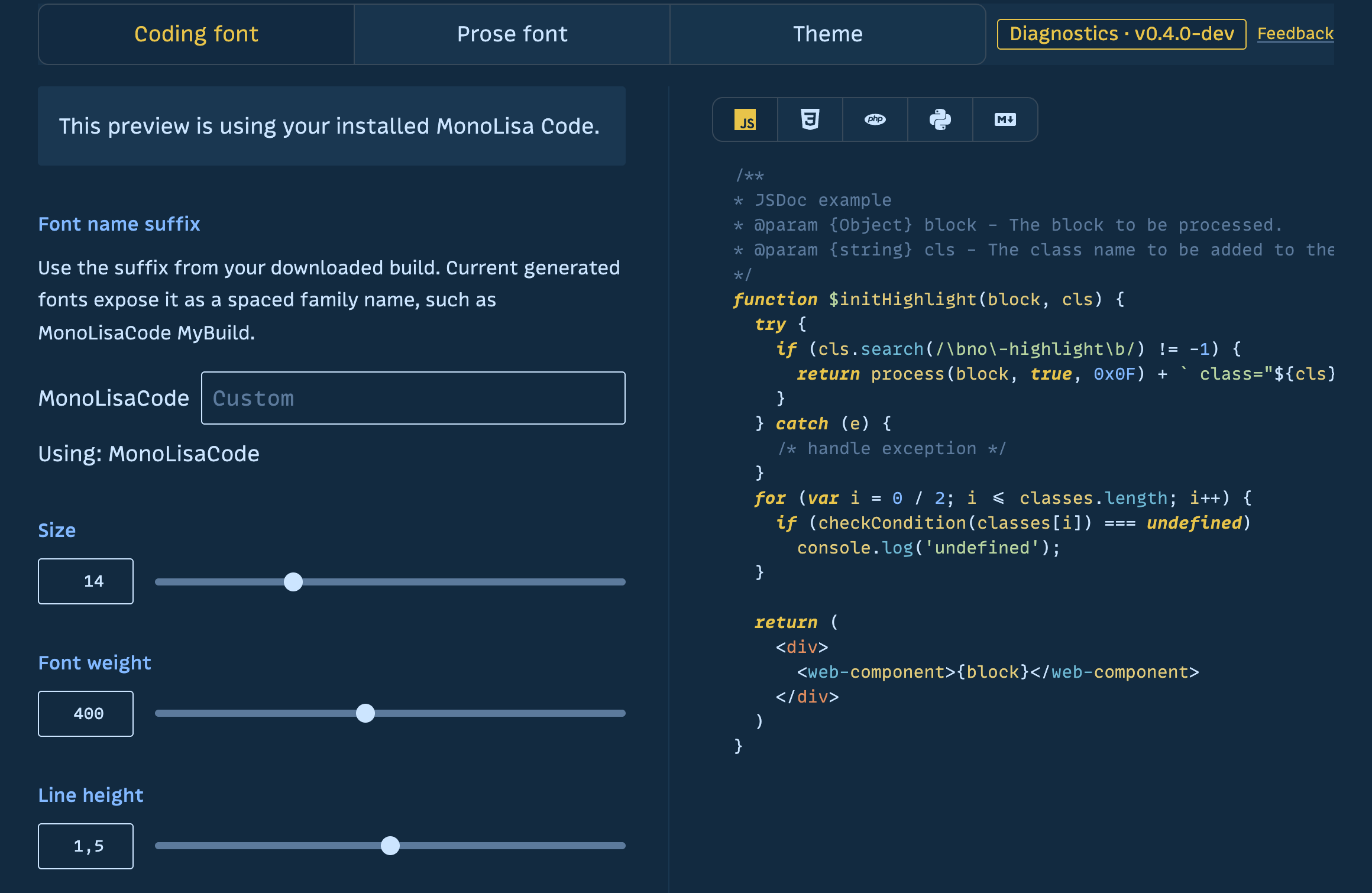
MonoLisa Code in detail: upright code alongside italic keywords.

The extension checks the capabilities of the MonoLisa installation instead of presenting controls that may do nothing. It also supports renamed or customized builds: enter the suffix from a downloaded MonoLisa build and let the panel rescan it.
Bundled preview fonts are not installed as system fonts, and commercial font files are not included in the extension. To use the Trial throughout VS Code, run MonoLisa: Get Trial Fonts, complete the Trial flow on the MonoLisa website, install the fonts for your operating system, and reload VS Code. MonoLisa: Apply Trial Setup then configures the relevant editor surfaces. If you already own MonoLisa, install your fonts and use the configuration panel or the conservative Apply Commercial Setup preset.
Shape MonoLisa Code around the way you read code
Font family and size are only the beginning. MonoLisa contains OpenType features for ligatures, character variants, alternate zeroes, arrows, brackets, and many other details. The coding-font panel exposes the features supported by the detected build and renders each option directly in the selector, making the choice visual instead of asking you to remember tags such as cv08 or ss03.
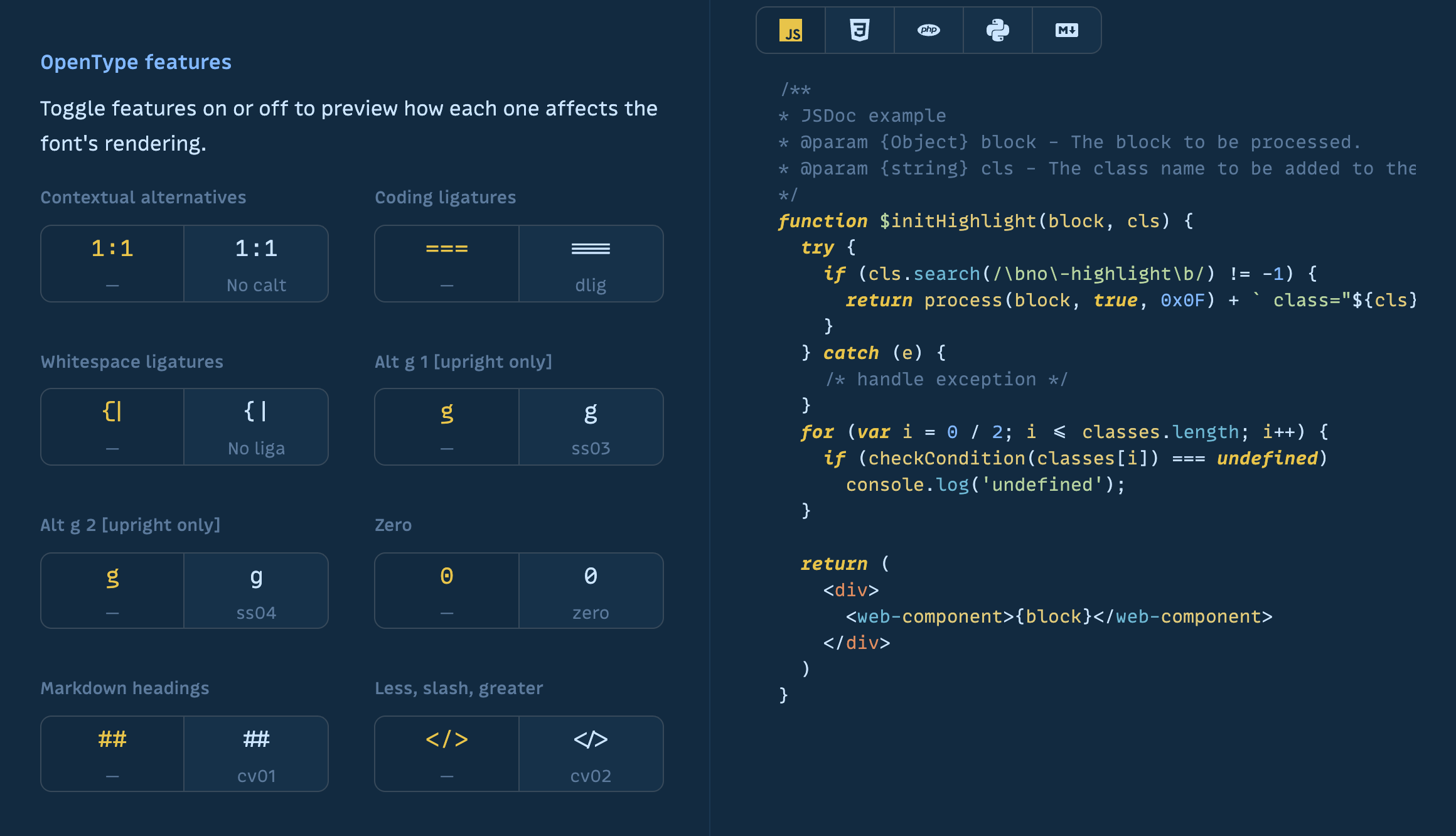
A closer look at the selectors shows the coding ligature, alternate g forms, and zero styles.

There is also a dedicated script-style control. It can keep everything upright, italicize comments only, or extend MonoLisa's alternate script glyphs across code. The live preview makes the difference visible before the setting reaches the editor.
When applied, the coding configuration covers more than the main editor. It can set MonoLisa Code for the integrated terminal, debug console, source-control input, and code blocks in chat as well. The panel keeps the generated settings visible at the bottom, so it is clear which parts of VS Code the current choice affects.
Pair MonoLisa Code with MonoLisa Text
MonoLisa version 3 introduced MonoLisa Text, a proportional companion for reading and writing outside monospaced code. The extension brings that pairing into VS Code by configuring MonoLisa Text for the rendered Markdown Preview. Sadly VS Code does not allow replacing its UI font completely yet so this was the best we could do in this department.
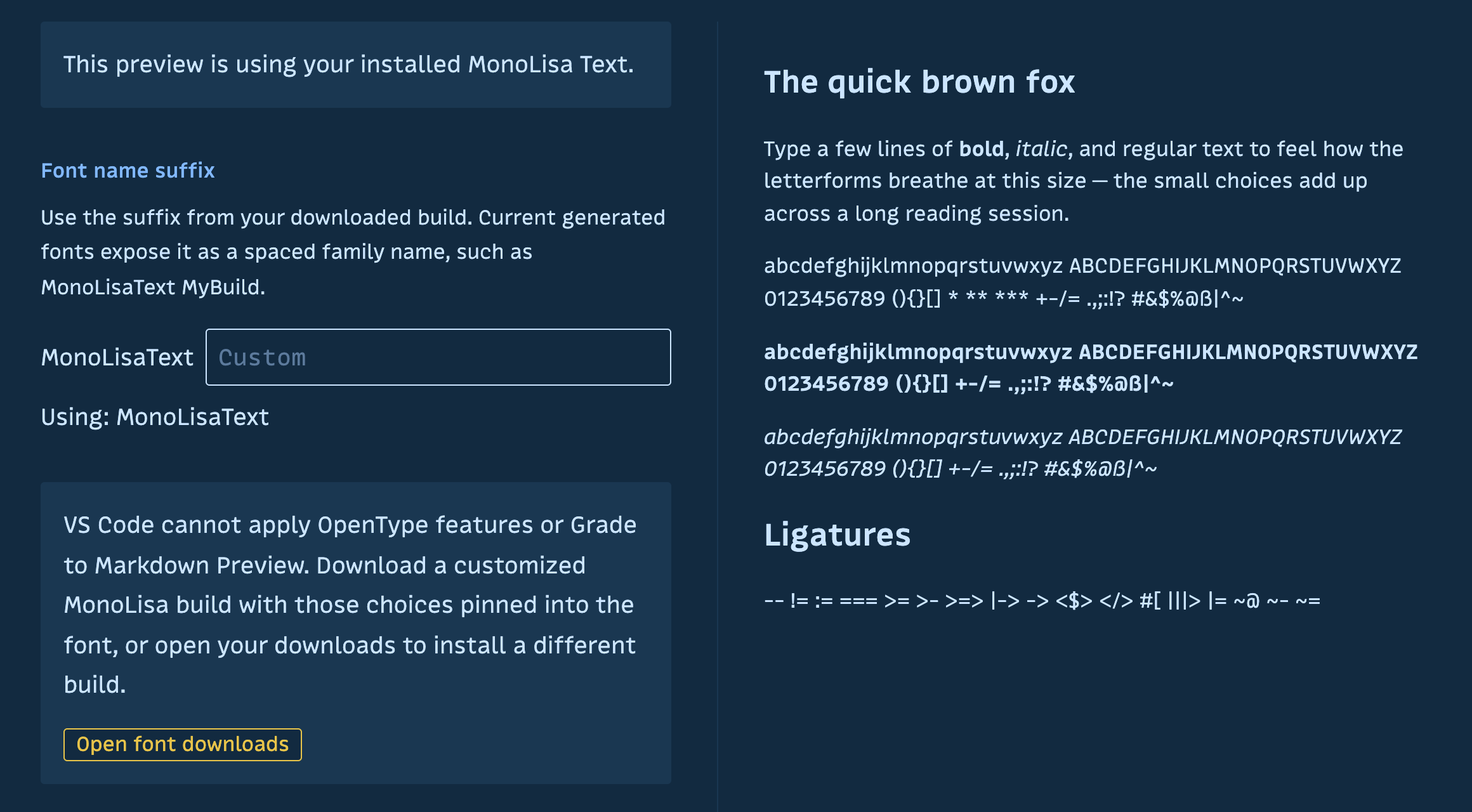
MonoLisa Text in detail: proportional spacing in regular, bold, and italic text.

The prose section includes a sample with headings, paragraphs, bold, italic, character sets, and ligatures. Size and line height can be tuned independently of the coding font. The panel is deliberately explicit about the boundary: this setting affects Markdown: Open Preview, not Markdown source in the editor, the terminal, or chat.
VS Code does not currently expose OpenType and Grade controls for Markdown Preview in the same way it does for the code editor. For those choices, the extension points to MonoLisa downloads, where a customized build can have the desired features pinned into the font itself.
Choose and tune a MonoLisa theme
The extension ships with four themes that cover a range of working environments:
- MonoLisa Dark uses a deep surface with warm accents.
- MonoLisa Dusk offers a softer blue-dark palette.
- MonoLisa Dawn is a cool, low-glare light theme.
- MonoLisa Light uses a clean, bright background.
Selecting a theme immediately re-themes the configuration panel, providing a larger preview before it is applied to VS Code. Each theme can also be tuned along three practical dimensions: soft, balanced, or crisp contrast; muted, balanced, or vivid color; and subtle or clear comments. A small editor preview responds to each choice.
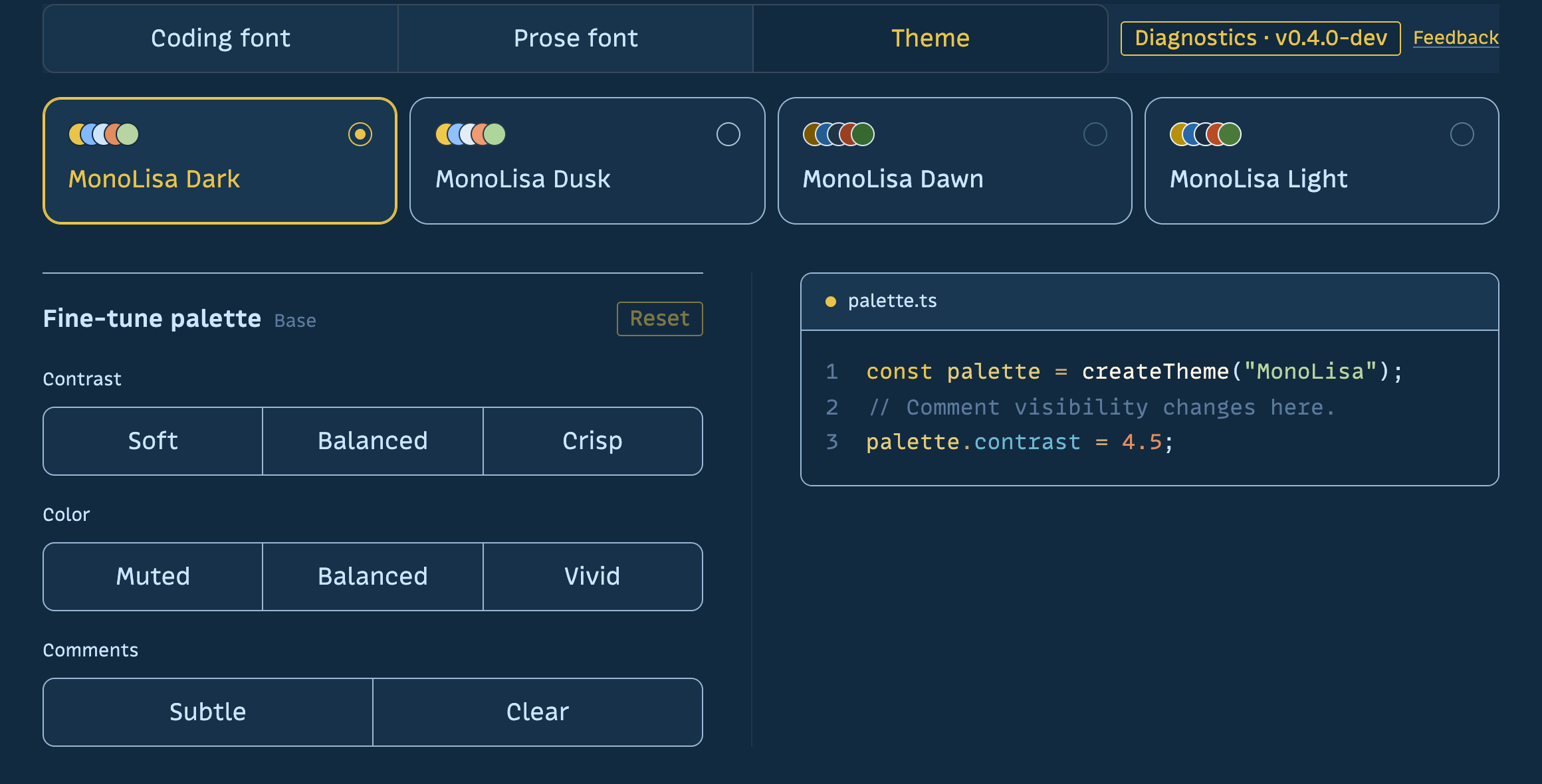
These controls are intended to make a theme adaptable without turning theme configuration into a color-by-color project. Start from the palette you prefer, make a few broad adjustments, and reset to the base palette at any time.
Dark and Light themes were derived from the site themes while Dusk and Dawn were added as lighter options to give more variety similar to the popular catppuccin theme.
Review the settings, then apply them where they belong
Every section owns its own proposed configuration. A review area fixed to the bottom of the panel shows the exact VS Code settings generated by the current controls. Press Apply configuration, then choose whether the change belongs in your global User settings or only in the active Workspace.
Keeping selection, preview, review, and application in the same panel shortens the feedback loop. It also avoids hiding a large preset behind a single button: you can inspect the output first and apply the coding font, prose font, and theme as separate decisions.
For quick setup and later adjustments, the extension also provides focused Command Palette actions:
- MonoLisa: Open Configuration opens the full guided panel.
- MonoLisa: Get Trial Fonts starts the Trial acquisition flow.
- MonoLisa: Apply Trial Setup applies the Trial family preset after the fonts are installed.
- MonoLisa: Apply Commercial Setup applies a conservative preset for purchased fonts.
- MonoLisa: Enable Script Comments enables the script-style comment treatment directly.
- MonoLisa: Select Theme opens the standard theme choice without entering the full panel.
Try it and tell us what is missing
Install MonoLisa for VS Code from the Visual Studio Marketplace or Open VSX, then open the Command Palette and run MonoLisa: Open Configuration.
MonoLisa for VS Code is an initial release, and the configuration panel is meant to grow with real workflows. Try it with the MonoLisa Trial, or install your existing MonoLisa Code and Text fonts and let the extension detect them. If a font build, editor surface, or configuration choice does not behave as expected, please open an issue in the MonoLisa feedback tracker.
We think the extension is a good step forward in making the typeface more accessible to people. Ideally you would not even need the extension, but it is good to have it there for now.


Top comments (1)
Some comments may only be visible to logged-in visitors. Sign in to view all comments.