


Salesforce Email Sync is one of those features that looks straightforward on the surface but has enough technical depth to trip up even experienced admins. If you're building on top of Salesforce or configuring it for a sales or support team, understanding how email activity sync in Salesforce actually works under the hood will save you hours of debugging and a lot of user complaints.
This article walks through the architecture, setup, common failure points, and best practices for getting Salesforce Email Sync working reliably across Gmail and Outlook environments.
What Is Salesforce Email Sync?
Salesforce Email Sync is the mechanism by which email activity from external mail clients (Gmail, Outlook, etc.) is captured and stored as activity records inside Salesforce CRM. Rather than requiring reps to manually log every email they send or receive, sync creates a two-way or one-way bridge between the mail client and the CRM.
At the data model level, synced emails are stored as EmailMessage or Task records (depending on configuration) and are associated with matching Contact, Lead, or custom object records via email address matching.
Salesforce offers two primary frameworks for this:
- Einstein Activity Capture (EAC): Salesforce's native, cloud-based sync engine
- Salesforce Inbox: A more feature-rich layer built on top of EAC, with additional productivity tools
There is also the older Email to Salesforce feature (via a BCC address), which is simpler but less automated. Depending on your org's edition and requirements, you may be working with one or all three.
How Salesforce Email Sync Works
Data Flow Architecture
The sync process follows this general flow:
Mail Client (Gmail / Outlook)
        |
        v
OAuth 2.0 Authentication
        |
        v
Salesforce Sync Service (Einstein Activity Capture)
        |
        v
Email Matching Engine (by email address)
        |
        v
Activity Records in Salesforce (EmailMessage / Task)
        |
        v
Associated to: Contact, Lead, Account, Opportunity
When a user connects their Gmail or Outlook account, Salesforce requests OAuth 2.0 scopes to read mail metadata and content. EAC then continuously polls or listens for new activity and pushes matched records into the org.
Email Address Matching
This is where a lot of sync issues originate. Salesforce matches incoming emails to CRM records using the Email field on Contact and Lead objects. If an email address in a thread doesn't match any record in the org, the email still syncs but won't be automatically associated to a record. It lands in the activity timeline only for the connected user.
// Example: Querying EmailMessage records synced via EAC
List<EmailMessage> syncedEmails = [
    SELECT Id, Subject, FromAddress, ToAddress, ActivityId, RelatedToId
    FROM EmailMessage
    WHERE CreatedDate = LAST_N_DAYS:7
    AND Incoming = true
    LIMIT 50
];

for (EmailMessage em : syncedEmails) {
    System.debug('From: ' + em.FromAddress + ' | Related To: ' + em.RelatedToId);
}
Note that RelatedToId will be null if no matching record was found. This is useful for diagnosing unmatched sync records.
Supported Platforms
| Platform | Sync Method | Notes |
|---|---|---|
| Gmail | OAuth 2.0 via Google API | Requires Google Workspace |
| Outlook / Microsoft 365 | OAuth 2.0 via Microsoft Graph API | Works with Exchange Online |
| Outlook on-premise (Exchange) | EWS (Exchange Web Services) | Limited support, check version |
| Apple Mail | Not natively supported | Use BCC to Salesforce as workaround |
Key Features of Salesforce Email Sync
1. Automatic Email Logging
With EAC enabled, emails are logged without any action from the user. The sync engine runs in the background, typically with a sync interval of a few minutes. Importantly, EAC stores email data in a separate data store (not standard Salesforce storage), which has implications for SOQL queries and data retention. More on that in the troubleshooting section.
2. Activity Tracking
Beyond just logging, Salesforce Email Sync captures:
- Open tracking (if Salesforce Inbox is enabled)
- Link click tracking
- Reply detection
- Calendar event sync (meetings, invites)
These events feed into the Activity Timeline on record pages and can be referenced in reports via the ActivityHistory related list.
3. Contact and Calendar Sync
EAC also supports bi-directional sync of:
- Contacts: New contacts created in Gmail or Outlook can sync into Salesforce and vice versa
-
Events: Calendar events are synced as
Eventrecords in Salesforce
Both can be configured independently. You can enable email sync without enabling contact or calendar sync if your use case requires it.
## Benefits of Salesforce Email Sync

From a technical standpoint, the benefits translate to cleaner data architecture:

- **Reduced null fields on activity records:** Manual logging leads to incomplete records. Automated sync enforces consistent data capture.
- **Accurate `LastActivityDate` on Leads and Contacts:** This field drives a lot of automation logic (lead aging, re-engagement workflows). Sync keeps it current without relying on rep behavior.
- **Better signal for automation:** With reliable email activity data, Process Builder and Flow automations that depend on activity history become far more trustworthy.
- **Reporting accuracy:** Email engagement metrics in Salesforce reports reflect actual behavior rather than manually entered data.

---

## How to Set Up Salesforce Email Sync

### Prerequisites

- Salesforce edition with Einstein Activity Capture included (Sales Cloud, some Professional and above editions)
- Connected App configured in Google Workspace or Microsoft 365 Admin Center
- Salesforce admin access

### Step 1: Enable Einstein Activity Capture

Navigate to:
Setup > Einstein Activity Capture > Settings > Enable Einstein Activity Capture
Choose your email provider (Google or Microsoft) and follow the OAuth configuration steps. You'll need to register Salesforce as an authorized application in your mail provider's admin console.

### Step 2: Configure Sync Settings
Setup > Einstein Activity Capture > Settings > Configuration
**Key decisions here:**

- Sync direction: One-way (mail to Salesforce only) or bi-directional
- Excluded
- email addresses: Add internal domains to prevent internal emails from syncing (this is critical for data hygiene)
- Who can use it: Assign via profiles or permission sets
// Verify EAC is enabled via Apex (useful for automated config checks)
Organization org = [SELECT Id, IsSandbox FROM Organization LIMIT 1];
System.debug('Org ID: ' + org.Id + ' | Sandbox: ' + org.IsSandbox);
// Check connected users via ConnectedApplication or OAuthToken (via REST API)
// EAC user assignments are managed via Setup UI or Metadata API
### Step 3: Assign Users

Users must explicitly connect their email account via:
User Settings > Einstein Activity Capture > Connect Account
This is a per-user action. Admins cannot connect accounts on behalf of users due to OAuth requirements.

### Step 4: Configure Sharing Settings

EAC emails are private by default. Configure sharing so that managers and team members can see synced activity where appropriate:
Setup > Einstein Activity Capture > Settings > Sharing
Options: Private, Internal Only, Everyone.

**Common Challenges and Troubleshooting**

**Sync Delays**
EAC is not real-time. Typical sync latency is 2 to 10 minutes, but can be longer under load. If users report missing emails, first check:

1. Is the user's account still connected? (OAuth tokens expire or get revoked)
2. Is the email address on the email matching a record in Salesforce?
3. Is the email being filtered by an exclusion rule?

**SOQL Limitations on EAC Data**

This is a common gotcha. EAC stores emails in an external data store, not in standard Salesforce objects. This means:
`// This will NOT return EAC-synced emails in many configurations
List emails = [SELECT Id FROM EmailMessage WHERE ...];
// Use ActivityHistory or the UI timeline to verify synced data
// For programmatic access, use the Connect REST API:
// GET /services/data/vXX.0/einstein/activity/activities`
Standard SOQL doesn't reach EAC's data store directly. Use the Einstein Activity Capture REST API for programmatic access.
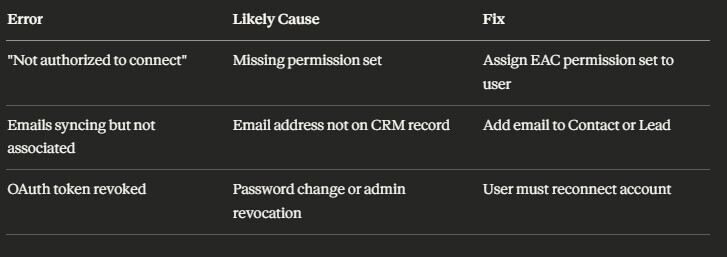
**Permission Issues**
Common permission errors:
**Data Privacy Considerations**
EAC syncs email content, not just metadata. This has GDPR and CCPA implications:
- Exclude personal email domains in sync settings
- Define a data retention policy. EAC data is retained for 24 months by default
- Review Salesforce's data processing agreements if operating in regulated industries
**Best Practices for Salesforce Email Sync**
1. Always configure email exclusion lists before going live. Internal addresses, HR systems, and legal domains should never be synced.
2. Use permission sets, not profiles, to manage EAC access. This gives you more granular rollout control.
3. Monitor OAuth token health programmatically or via Salesforce Health Check. Expired tokens are the number one cause of sync outages.
4. Set sync to one-way initially. Bi-directional sync introduces complexity. Validate data quality in one direction before enabling the reverse.
5. Document your matching logic. Know which objects and fields EAC uses to match emails to records. If your org uses custom email fields, you may need supplemental automation to handle association.
6. Test in a sandbox first. EAC can be enabled in sandboxes with test Google or Microsoft accounts. Always validate exclusion rules and sharing settings before production deployment.
7. Plan for EAC's storage model. Because EAC data lives outside standard Salesforce storage, your standard data export and backup tools may not capture it. Account for this in your data governance documentation.
**Conclusion**
Salesforce Email Sync, when configured correctly, is a genuinely useful piece of infrastructure that keeps CRM data current with minimal friction for end users. But the combination of OAuth dependencies, a non-standard data store, and email matching logic means it requires careful setup and ongoing monitoring.
The key things to get right upfront are your exclusion rules, sharing settings, and a clear understanding of how EAC's data model differs from standard Salesforce objects. Get those three things locked down and the rest of the implementation is straightforward.
For teams with more complex requirements, such as high email volume, custom object associations, or deliverability concerns on outbound campaigns, native EAC may not be sufficient on its own. In those cases, it is worth evaluating purpose-built Salesforce email tools that extend EAC's capabilities or replace it with a more robust sync architecture.


Top comments (0)