

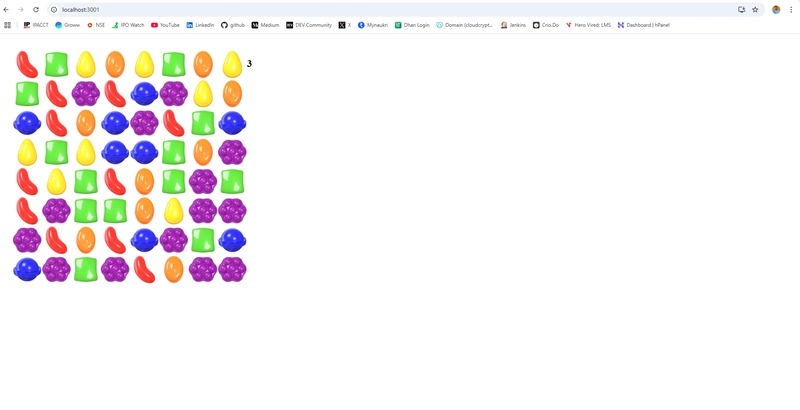
When containerizing applications, the image size and security considerations play a significant role in deployment efficiency. Ever wondered why some Docker images are massive while others are lightweight and secure? In this post, we’ll explore three different ways to Dockerize a Candy Crush-like app, highlighting their impact on size and security.
1. Basic Approach: Large Docker Image
This is the simplest method, using an official Node.js image. While it’s easy to implement, it results in a large image size.
# Use Node.js LTS version as the base image
FROM node:16

# Set the maintainer information
LABEL maintainer="gupta.surender.1990@gmail.com"

# Set the working directory in the container
WORKDIR /app

# Copy package.json and package-lock.json to the container
COPY package.json /app/

# Install project dependencies
RUN npm install

# Copy the entire project files to the container
COPY . /app/

# Build the Next.js application for production
RUN npm run build

# Expose the port used by your Next.js app (if needed)
EXPOSE 3000

# Define the default command to start the Next.js app
CMD ["npm", "start"]
Drawbacks:
- Large image size: The full Node.js image contains unnecessary tools.
- Runs as root: Potential security vulnerability.
2. Optimized Approach: Alpine Base with Non-Root User
Using the lightweight Alpine image significantly reduces size while improving security by running as a non-root user.
# Use a minimal and secure Node.js LTS image
FROM node:20-alpine

# Set the maintainer information
LABEL maintainer="gupta.surender.1990@gmail.com"

# Set a non-root user for security
RUN addgroup -S appgroup && adduser -S appuser -G appgroup

# Set the working directory in the container
WORKDIR /app

# Copy package.json and package-lock.json to the container
COPY package.json ./

# Install project dependencies using a clean install to avoid cache issues
# RUN npm ci --omit=dev && npm cache clean --force ## workonlu when package-lock.json is present
RUN if [ -f package-lock.json ]; then npm ci --omit=dev; else npm install --omit=dev; fi && npm cache clean --force

# Copy only necessary application files
COPY . ./

# Set appropriate file permissions
RUN chown -R appuser:appgroup /app

# Switch to the non-root user
USER appuser

# Set environment variable to fix OpenSSL error
ENV NODE_OPTIONS="--openssl-legacy-provider"

# Build the Next.js application for production
RUN npm run build

# Expose the port used by your Next.js app
EXPOSE 3000

# Define the default command to start the Next.js app
CMD ["npm", "start"]
Benefits:
- Smaller size: Alpine images are lightweight.
- Enhanced security: Runs as a non-root user.
3. Efficient and Secure: Node + Nginx Alpine
For production, serving the frontend separately with Nginx improves performance while keeping the backend optimized.
# Use a minimal and secure Node.js LTS image for building
FROM node:18-alpine AS builder

# Set the working directory in the container
WORKDIR /app

# Copy package.json and package-lock.json to the container
COPY package.json ./

# Install project dependencies using a clean install to avoid cache issues
# RUN npm ci --omit=dev && npm cache clean --force ## workonlu when package-lock.json is present
RUN if [ -f package-lock.json ]; then npm ci --omit=dev; else npm install --omit=dev; fi && npm cache clean --force

# Copy only necessary application files
COPY . ./

# Set environment variable to fix OpenSSL error
# Allow Webpack 4 to work with OpenSSL 3
ENV NODE_OPTIONS="--openssl-legacy-provider"

# Build the Next.js application for production
RUN npm run build

# Use a minimal runtime image
FROM nginx:alpine

# Set the maintainer information
LABEL maintainer="gupta.surender.1990@gmail.com"

# Ensure required directories exist and set correct permissions
RUN mkdir -p /var/cache/nginx /var/run /var/tmp/nginx && \
    chmod -R 777 /var/cache/nginx /var/run /var/tmp/nginx

# Remove user directive from nginx config (if necessary)
RUN sed -i '/^user/d' /etc/nginx/nginx.conf

# Set a non-root user for security
RUN addgroup -S appgroup && adduser -S appuser -G appgroup

# Set the working directory in the container
WORKDIR /app

# Copy only the necessary build artifacts from the builder stage
COPY --from=builder /app/build /usr/share/nginx/html

# Set appropriate file permissions
RUN chown -R appuser:appgroup /app

# Switch to the non-root user
USER appuser

# Expose the port used by your nginx app
EXPOSE 80

# Define the default command to start the Next.js app
CMD ["nginx", "-g", "daemon off;"]
Advantages:
- Minimal image size: The combination of Alpine and Nginx keeps it small.
- Performance boost: Nginx efficiently serves static assets.
- Improved security: Runs as a non-root user.
Comparison Table
| Approach | Image Base | Security | Performance | Approximate Size |
|---|---|---|---|---|
| Basic | Node.js (Full) | Runs as root | Standard | Large (~2.16GB) |
| Optimized | Node.js Alpine | Non-root user | Good | Medium (~1.13GB) |
| Best Practice | Node.js Alpine + Nginx | Non-root user | High | Small (~83.29MB) |

Conclusion
By optimizing our Docker images:
- The basic approach resulted in a large, root-user container.
- The Alpine-based approach reduced size and improved security.
- Combining Node.js with Nginx provided the best balance of size, security, and performance.
Using these strategies, you can build secure and efficient containerized applications. Which approach do you prefer? Let’s discuss in the comments!


Top comments (0)