

Contrast Themes on Windows 11 : While standard Windows 11 themes focus on appearance, Contrast Themes on Windows 11 prioritize visibility and usability. Contrast Themes on Windows 11 is an accessibility feature designed to significantly increase the visual difference between foreground elements, such as texts, borders, icons, and background surfaces. These themes can modify system colors at a deep level so that text remains readable , controls remain visible , and focus indicators are always obvious across the entire operating system.
Why Contrast Themes on Windows 11 Exist?

Contrast Colors on Windows 11
Unlike regular themes (both light and dark themes), Contrast Themes on Windows 11 focus on Aesthetics and are engineered to make every screen element clearly distinguishable. Windows 11 includes a small set of built-in contrast themes because they operate at a system level. These themes apply consistent rules across the operating system to maintain readability and usability. Each built-in theme uses a different color palette but follows the same high contrast principles. This limited number ensures stability, predictability, and compatibility with accessibility technologies.
Who can benefit from Contrast Themes on Windows 11?
- Contrast Themes are particularly helpful for people with visual impairments. Users with low vision, partial sight, or age-related vision decline often have difficulty distinguishing fine details and subtle color changes. High contrast color combinations make text sharper and interface boundaries clearer.
- People with color vision deficiency also benefit because contrast themes avoid relying on color alone to convey meaning, instead emphasizing brightness and separation.
- Long hours of screen use, harsh lighting conditions, or sensitivity to glare can make standard themes uncomfortable. In such cases, Contrast Themes can protect users from Eye strain or Fatigue.
- For accessibility and power users , contrast themes improve keyboard navigation and screen reader interaction. Focus outlines, selection highlights, and active fields are more clearly defined, which helps users who navigate without a mouse.
At winsides.com, we strongly support accessibility and inclusivity in technology. Features such as contrast themes play a crucial role in empowering visually impaired users, individuals with color vision deficiency, physically challenged users, elderly users, and anyone who faces difficulty interacting with standard user interfaces. Technology should be usable by everyone, regardless of physical or visual limitations. By highlighting and explaining accessibility features, we aim to promote digital equality and encourage awareness of tools that make computing more comfortable, independent, and accessible for all users.
How to Enable Contrast Themes on Windows 11?
The recommended way to enable contrast themes is to use the Windows Settings.
- You can access the Windows Settings using the keyboard shortcut WinKey + R. You can also access the Personalization directly by right-clicking on the Desktop and selecting Personalize.

Right-click on the Desktop and click on Personalize
- Once you are on the Windows Settings, from the left pane , click on Personalization.
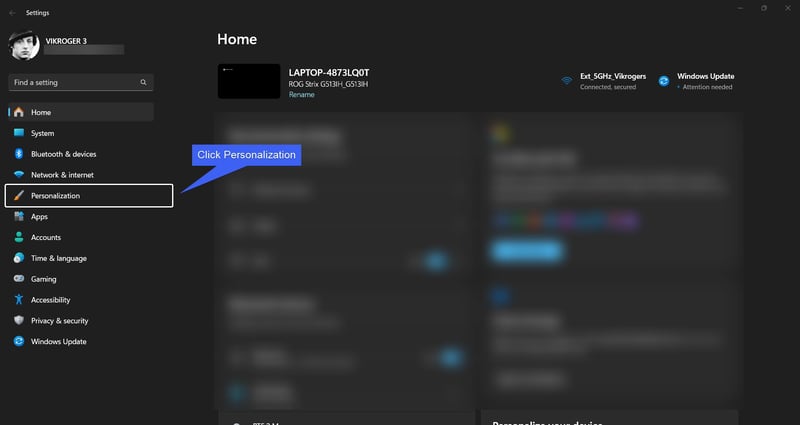
Click Personalization
- Select Themes.

Click on Themes
- Under Related Settings , click on Contrast themes.

Select Contrast Themes
- Here, you can find various options related to Contrast themes. Windows 11 offers a few Contrast themes. Aquatic , Desert, Dusk , and Night sky.

Select your Contrast Theme
- You can drop-down contrast themes and select the theme accordingly.
Aquatic Contrast Theme on Windows 11

Aquatic Contrast Theme
Aquatic is a contrast theme designed to feel calm and cool while still maintaining strong readability. It typically uses dark backgrounds combined with bright cyan or teal accents for text, highlights, and interactive elements. This theme works well for users who prefer cooler color tones and want high contrast without aggressive brightness.
Desert Contrast Theme on Windows 11

Desert Contrast Theme
Desert uses warm, earthy color tones to create contrast. Backgrounds are usually dark brown or deep gray, while text and UI elements appear in yellow or amber shades. This theme is helpful for users who are sensitive to blue light or who find warm colors easier on the eyes.
Dusk Contrast Theme on Windows 11

Dusk Contrast Theme
Dusk is a balanced contrast theme that sits between light and dark extremes. It commonly combines dark gray or muted purple backgrounds with light text and subtle accent colors. Dusk is designed for users who want strong contrast but also a softer visual transition between elements.
Night Sky Contrast Theme on Windows 11

Night sky Contrast Theme
Night Sky is the highest contrast and darkest option among the four themes. It usually features a near-black background with bright white or yellow text and very sharp focus outlines. This theme maximizes visibility and clarity, making it ideal for users with severe low vision or those working in very dark environments.
How to Edit Contrast Theme on Windows 11?
Apart from selecting the Contrast Theme for better readability, we can also customize these contrast themes on Windows 11. To do so, kindly follow the steps.
- For explanation, let’s select Night Sky Contrast Theme.
- Click on Edit.

Click Edit
- Now, you can edit various color options like Background, Text, Hyperlink, Inactive text, Selected Text, and Button text.

Edit Contrast Theme options
Take Away
All four contrast themes follow the same accessibility rules but differ mainly in color temperature and visual intensity. Additionally, you can also edit these contrast themes on Windows 11. This article provides detailed information on how to Enable High Contrast Theme on Windows 11. For more interesting articles, stay tuned to Winsides.com. Happy Computing! Peace out!


Top comments (0)