

Picking up where we left off, the previous article introduced the Dispatcher in WPF. Because there were so many concepts, it may not have been easy to follow. This article continues the discussion, and I hope we can finally make threads and the Dispatcher clear.
Where Do We Start?
As usual, before diving into a problem we look for an entry point, and I hope that entry point will be easy for readers to understand.
Create a new Win32 window program with the following code:
int WINAPI _tWinMain(HINSTANCE hInstance, HINSTANCE hPrevInstance, LPTSTR lpCmdLine, int nCmdShow)
{
    RegisterWindowClass(hInstance); // 1
    HWND hWnd = CreateWindow(szWindowClass, szTitle, WS_OVERLAPPEDWINDOW, // 2
        CW_USEDEFAULT, 0, CW_USEDEFAULT, 0, NULL, NULL, hInstance, NULL);
    ShowWindow(hWnd, nCmdShow);
    MSG msg; // 3
    while (GetMessage(&msg, NULL, 0, 0))
    {
        TranslateMessage(&msg);
        DispatchMessage(&msg);
    }
    return (int) msg.wParam;
}
And RegisterWindowClass:
WORD RegisterWindowClass(HINSTANCE hInstance)
{
    WNDCLASSEX wcex;
    wcex.lpszClassName = szWindowClass;
    wcex.lpfnWndProc = WndProc;
    ...
}

LRESULT CALLBACK WndProc(HWND hWnd, UINT message, WPARAM wParam, LPARAM lParam)
{
    switch (message)
    {
        case WM_PAINT:
            ...
    }
}
The process of creating a window and showing it looks like this:
- Call RegisterWindowClass to register the window class and associate the window procedure WndProc with it.
- Call CreateWindow to create the window and display it.
- The main thread enters the GetMessage loop, and after obtaining a message calls DispatchMessage to dispatch it.
The GetMessage loop here is the so-called message pump. Like a water pump, it continuously pulls messages from the thread's message queue and then calls DispatchMessage to dispatch them to each window, handing them to that window's WndProc for processing.
A diagram of this process:

- A mouse click occurs.
- The lower layers of the operating system learn of the click, walk the registered windows based on the click position to find the corresponding Hwnd, construct a window message MSG, and add it to the message queue of the thread that created that Hwnd.
- The application's main thread is in the GetMessage loop. Each call to GetMessage retrieves one message. If the thread's message queue is empty, the thread is suspended until a message arrives, at which point it is reactivated.
- DispatchMessage dispatches MSG. MSG holds an Hwnd field that specifies which Hwnd the message should go to; the operating system sets this value when it builds the MSG in step 2.
- The message is sent to the Hwnd; the operating system calls back into the window procedure WndProc associated with that Hwnd, and WndProc handles the message.
This is a simplified window message-handling flow. Going into full detail would make the story very long. Let's turn our attention back to WPF and see what WPF — and the Dispatcher we are about to introduce — do on top of this foundation, and what is particularly elegant about it.
Still Starting from Main
As the application entry point, we still enter WPF from the Main function.
Create a new WPF project:
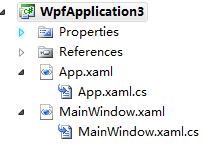
In a default WPF project you will not find a traditional Program.cs file. The build action of App.xaml is ApplicationDefinition; after compilation the compiler generates App.g.cs automatically, which contains the Main function:
[System.STAThreadAttribute()]
[System.Diagnostics.DebuggerNonUserCodeAttribute()]
public static void Main()
{
    WpfApplication3.App app = new WpfApplication3.App();
    app.InitializeComponent();
    app.Run();
}
Here we meet the Application class. As MSDN describes it: "Application is a class that encapsulates WPF application-specific functionality, including: application lifetime; application-scoped windows, properties, and resource management; command-line argument and exit-code handling; navigation," and so on.
After calling app.Run(), following the Win32 steps above the application should enter a GetMessage-style message pump. For a WPF application, what does that message pump look like, and how is it related to the Dispatcher?
Entering the Dispatcher
The Dispatcher constructor is private. Calling Dispatcher.CurrentDispatcher returns the Dispatcher for the current thread; Dispatcher internally holds a static list of all Dispatchers. Because the constructor is private, Dispatcher can only be obtained via CurrentDispatcher, which guarantees that only one Dispatcher is created for a given thread.
Dispatcher provides a Run method to start the message pump. The core code inside is familiar:
while (frame.Continue)
{
    if (!GetMessage(ref msg, IntPtr.Zero, 0, 0))
        break;
    TranslateAndDispatchMessage(ref msg);
}
A concept called Frame appears here; we will leave it aside for now and look at what Dispatcher improves over the traditional message loop.
What Is New in Dispatcher
In a WinForms message loop:
- For thread safety, calling a Control's Invoke or BeginInvoke methods runs a delegate on the thread that created the control; their return values are object and IAsyncResult respectively. Although you can poll or wait for the delegate using IAsyncResult's IsCompleted and AsyncWaitHandle, that granularity is not enough for task control: you cannot cancel a delegate task after BeginInvoke has been called, and you cannot swap the execution order of two BeginInvoke calls.
- Friendlier interface support: in Windows programming, adding hooks into a window message loop is a common need. Dispatcher provides a DispatcherHooks class that exposes events such as OperationAborted, OperationCompleted, and OperationPosted in event form.
The Operation referred to here is DispatcherOperation. To better control the message loop, WPF introduces DispatcherOperation to encapsulate window messages. The shape of DispatcherOperation:
public sealed class DispatcherOperation
{
    public Dispatcher Dispatcher { get; }
    public DispatcherPriority Priority { get; set; }
    public object Result { get; }
    public DispatcherOperationStatus Status { get; }
    public event EventHandler Aborted;
    public event EventHandler Completed;
    public bool Abort();
    public DispatcherOperationStatus Wait();
    public DispatcherOperationStatus Wait(TimeSpan timeout);
}
The DispatcherOperation class looks fairly simple and clear: it exposes Result and Status as properties, and uses events to indicate when the Operation finishes or is cancelled. The interesting one is the Priority property — on the surface it represents the DispatcherOperation's priority, and it has both get and set accessors, meaning the priority can be changed at runtime. What is this priority all about, and how does the Dispatcher process DispatcherOperation objects? Let's dig into DispatcherOperation and see how it is handled.
Digging into DispatcherOperation (DO)
"Digging in" needs a clear target. Let's examine DispatcherOperation from three angles:
- How DispatcherOperation is created.
- When DispatcherOperation is executed.
- How DispatcherOperation is executed.
Dispatcher provides BeginInvoke and Invoke. BeginInvoke returns a DispatcherOperation, and Invoke calls BeginInvoke internally — that is, DispatcherOperation objects are created in these two methods. We can call these methods to create new DOs; WPF also calls them internally to turn window messages into DispatcherOperations, as shown below:
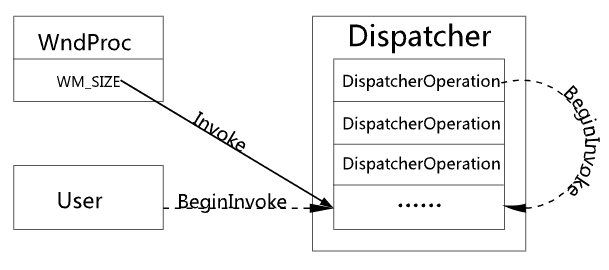
- The window procedure WndProc receives a window message and calls Dispatcher's Invoke method, creating a DispatcherOperation. Dispatcher holds a queue of DispatcherOperations for all created operations. By default a DO is added to this queue after creation. WndProc's call to Invoke is special: it passes DispatcherPriority.Send. Send is a special priority — when Invoke is called with Send priority, WPF executes the DO immediately without adding it to the queue.
- Users can also call Invoke or BeginInvoke at any time to add new DOs. While processing a DispatcherOperation, BeginInvoke may also be called to add new DOs.
Once a DO is added to the Dispatcher's queue, when is that queue processed? When Dispatcher is created, it creates a hidden window. After a DO is added to the queue, Dispatcher posts a custom window message (DispatcherProcessQueue) to its own hidden window. When that message is received, the first DO is taken from the queue by priority and queue order and executed:
- The user calls BeginInvoke.
- Dispatcher creates a DO, adds it to the DO queue, and posts the custom message (DispatcherProcessQueue) to its hidden window.
- When the hidden window is created, its messages are hooked; when the message DispatcherProcessQueue is received, a DO is taken from the queue by priority and executed.
Each time a DO is added, processing of the DO queue is requested; the DO queue is also processed when a DO's priority (DispatcherPriority) is changed. A DO declares its priority at creation time, and that priority affects the order in which the queue is processed.
DispatcherTimer
Because of thread affinity, when you need a Timer that also accesses UI objects, DispatcherTimer is commonly used. A simple use of DispatcherTimer:
var dispatcherTimer = new System.Windows.Threading.DispatcherTimer();
dispatcherTimer.Tick += new EventHandler(dispatcherTimer_Tick);
dispatcherTimer.Interval = new TimeSpan(0, 0, 1);
dispatcherTimer.Start();
Inside DispatcherTimer, the Timer's Tick event handler is also wrapped as a DispatcherOperation and joined to the Dispatcher via BeginInvoke. After that DO is executed, if DispatcherTimer's state is still Enabled, DispatcherTimer continues by calling BeginInvoke to add a new DO. For timer scheduling, Dispatcher calls SetTimer on its own hidden window and computes the interval. Of course, because DispatcherOperation has a priority, you cannot guarantee that the DO runs exactly at the interval — the execution time will be later than the expected time, never earlier.
UI Thread and Dispatcher
Typically a WPF application starts with two threads: one for rendering (Render) and one for managing the UI. For the Render thread, see the previous article. This UI-managing thread is commonly called the UI thread. In WPF, the base class of all UI objects is DispatcherObject; WPF performs thread-affinity checks before operating on any DispatcherObject, and a UI object can only be accessed on the thread that created it.
As mentioned above, because the Dispatcher constructor is private, a thread can have at most one Dispatcher. For the UI thread, the Dispatcher's main role is to queue work items (DispatcherOperation). For UI objects, DispatcherObject has a Dispatcher property that returns the Dispatcher of the thread that created the UI object. This design unifies operations on UI objects through the Dispatcher, isolating the relationship between UI objects and threads from the API surface.
Multithreading
Multithreading here can be simply divided into two kinds: multiple worker threads, and multiple UI threads. Multiple worker threads plus multiple UI threads is the same idea and is omitted.
The default main thread at application start is the UI thread. After calling Application.Run (that is, Dispatcher.Run), it enters a GetMessage loop, responds to window messages, and builds and executes DispatcherOperations one by one. By default, operations on UI objects all happen on this main thread. A long-running operation will keep the UI thread from continuing to process window messages for a long time, causing UI freezes and other responsiveness problems. Long operations generally need a worker thread; when the operation finishes, the result is Invoked back to the UI thread via the Dispatcher:
TextBlock textBlock = new TextBlock()
{
    Text = "1"
};

Thread thread = new Thread(new ThreadStart(() =>
{
    // Do some time-consuming work; here we simulate with a 10-second sleep
    Thread.Sleep(TimeSpan.FromSeconds(10));
    textBlock.Dispatcher.Invoke(new Action(() =>
    {
        textBlock.Text = "2";
    }));
}));
thread.Start();
Of course, besides creating a new worker thread, you can also use BackgroundWorker or a thread-pool thread for long operations. When the operation finishes you must call the UI object's Dispatcher Invoke or BeginInvoke methods to touch the UI; otherwise an InvalidOperationException is thrown, telling you that UI objects cannot be accessed across threads.
Multiple worker threads are very common; the multithreading most of us discuss is usually multiple worker threads with a single UI thread. So how do you create a program with multiple UI threads?
Multiple UI Threads
Before talking about multiple UI threads, let's talk about when you would use them.
Most of the time we do not need multiple UI threads. "Multiple UI threads" means two or more threads create UI objects. The benefit is that two UI threads each enter their own GetMessage loop. If you need several UIs that monitor real-time data, or use event-heavy programs such as some DirectShow scenarios, creating an extra UI thread (GetMessage loop) can reduce the pressure on a single message pump. Of course there are many downsides: UI objects on different UI threads need Invoke to communicate. To address this, WPF provides VisualTarget for connecting an object tree on one thread to another object tree across threads, for example:
public class VisualHost : FrameworkElement
{
    public Visual Child
    {
        get { return _child; }
        set
        {
            if (_child != null)
                RemoveVisualChild(_child);

            _child = value;

            if (_child != null)
                AddVisualChild(_child);
        }
    }

    protected override Visual GetVisualChild(int index)
    {
        if (_child != null && index == 0)
            return _child;

        else
            throw new ArgumentOutOfRangeException("index");
    }

    protected override int VisualChildrenCount
    {
        get { return _child != null ? 1 : 0; }
    }

    private Visual _child;
}
And VisualTarget on another UI thread:
Window win = new Window();
win.Loaded += (s, ex) =>
{
    VisualHost vh = new VisualHost();
    HostVisual hostVisual = new HostVisual();
    vh.Child = hostVisual;
    win.Content = vh;

    Thread thread = new Thread(new ThreadStart(() =>
    {
        VisualTarget visualTarget = new VisualTarget(hostVisual);

        DrawingVisual dv = new DrawingVisual();
        using (var dc = dv.RenderOpen())
        {
            dc.DrawText(
                new FormattedText(
                    "UI from another UI thread",
                    System.Globalization.CultureInfo.GetCultureInfo("en-us"),
                    FlowDirection.LeftToRight,
                    new Typeface("Verdana"),
                    32,
                    Brushes.Black),
                new Point(10, 0));
        }

        visualTarget.RootVisual = dv;

        Dispatcher.Run(); // Start the Dispatcher
    }));
    thread.SetApartmentState(ApartmentState.STA);
    thread.IsBackground = true;
    thread.Start();
};
win.Show();
Of course, this multi-UI-thread sample is mainly to clarify the relationships between threads; real-world examples of this are not that common.
Summary
Dispatcher is a very important concept in WPF; all WPF UI objects run on a Dispatcher. Some of Dispatcher's design ideas, including Invoke and BeginInvoke, have existed since the WinForm era — Dispatcher simply encapsulates these thread-level operations. Remaining concepts, such as Freezable for cross-thread communication and the detailed priority order of DispatcherPriority, are not covered in detail here and will be introduced gradually in future articles. Your continued support is appreciated. Thanks.


Top comments (0)