

When working with Word documents, text formatting is a fundamental and essential task. Whether creating professional reports, designing polished documents, or generating standardized files in bulk, controlling fonts, sizes, colors, and various text effects is an indispensable skill. This article provides a detailed guide on how to use Python to apply different text formats and styles in Word documents, including basic font settings, advanced text effects, and paragraph style applications.
Why Programmatic Text Formatting Is Needed
Manually setting text formats in Word is intuitive but can be inefficient in the following scenarios:
- Batch Document Processing: Applying consistent formatting standards across hundreds of documents.
- Dynamic Content Generation: Automatically generating formatted document content based on data sources.
- Format Standardization: Ensuring that all output documents have uniform fonts and styles.
- Automated Reporting: Extracting data from databases and generating visually formatted report documents.
By using Python to control text formatting programmatically, repetitive tasks can be automated, significantly improving efficiency.
Environment Setup
Before getting started, you need to install a Python library that supports Word document operations. Spire.Doc for Python provides a comprehensive API for manipulating DOCX files, including full text formatting capabilities.
pip install Spire.Doc
After installation, you can import the necessary modules in your Python scripts to begin editing documents.
Core Concepts: Document Object Model
Before manipulating Word documents with Spire.Doc, it is important to understand its basic object hierarchy:
- Document: Represents the entire Word document.
- Section: Represents a section in the document, used to organize different parts.
- Paragraph: Represents a paragraph object that contains text and other elements.
- TextRange: Represents a text range, used for character-level formatting.
- CharacterFormat: Represents character formatting properties, including font and style attributes.
The typical workflow is: create or load a document → access sections and paragraphs → obtain text ranges → apply character formatting → save the document.
Basic Font Settings
The most fundamental text formatting includes setting the font name, size, and color. The following example demonstrates how to modify font properties in an existing Word document:
from spire.doc import *

# Load the document
doc = Document()
doc.LoadFromFile("Sample.docx")

# Access the first section
section = doc.Sections[0]

# Access a specific paragraph
paragraph = section.Paragraphs[1]

# Create a CharacterFormat object
characterFormat = CharacterFormat(doc)

# Set font properties
characterFormat.FontName = "Arial"
characterFormat.FontSize = 16
characterFormat.TextColor = Color.get_Blue()

# Apply the character format to all child objects in the paragraph
for i in range(paragraph.ChildObjects.Count):
    childObj = paragraph.ChildObjects.get_Item(i)
    if isinstance(childObj, TextRange):
        childObj.ApplyCharacterFormat(characterFormat)

# Save the document
doc.SaveToFile("SetFont.docx", FileFormat.Docx)
doc.Close()
The resulting document:

Key points:
-
CharacterFormatis the core class for text formatting. -
FontNamespecifies the font family (e.g., Arial, Calibri). -
FontSizesets the font size in points. -
TextColorcan use predefined colors or custom RGB values. -
ApplyCharacterFormat()applies the formatting to a text range.
Advanced Text Effects
Beyond basic settings, Spire.Doc supports a wide variety of visual text effects, including strikethrough, shadow, outline, emboss, and more:
from spire.doc import *

# Create a new document
document = Document()
sec = document.AddSection()

# Add a title
titleParagraph = sec.AddParagraph()
titleParagraph.AppendText("Demonstration of Font Styles and Effects")
titleParagraph.ApplyStyle(BuiltinStyle.Title)

# Add various text effects
paragraph = sec.AddParagraph()

# Strikethrough
tr = paragraph.AppendText("Strikethrough text ")
tr.CharacterFormat.IsStrikeout = True

paragraph.AppendBreak(BreakType.LineBreak)

# Shadow
tr = paragraph.AppendText("Shadow text ")
tr.CharacterFormat.IsShadow = True

paragraph.AppendBreak(BreakType.LineBreak)

# Small caps
tr = paragraph.AppendText("Small caps text ")
tr.CharacterFormat.IsSmallCaps = True

paragraph.AppendBreak(BreakType.LineBreak)

# Double strikethrough
tr = paragraph.AppendText("Double strikethrough text ")
tr.CharacterFormat.DoubleStrike = True

paragraph.AppendBreak(BreakType.LineBreak)

# Outline
tr = paragraph.AppendText("Outlined text ")
tr.CharacterFormat.IsOutLine = True

paragraph.AppendBreak(BreakType.LineBreak)

# All caps
tr = paragraph.AppendText("All caps text ")
tr.CharacterFormat.AllCaps = True

paragraph.AppendBreak(BreakType.LineBreak)

# Subscript and superscript
tr = paragraph.AppendText("H")
tr = paragraph.AppendText("2")
tr.CharacterFormat.SubSuperScript = SubSuperScript.SubScript

tr = paragraph.AppendText(" and E=mc")
tr = paragraph.AppendText("2")
tr.CharacterFormat.SubSuperScript = SubSuperScript.SuperScript

paragraph.AppendBreak(BreakType.LineBreak)

# Emboss
tr = paragraph.AppendText("Embossed text ")
tr.CharacterFormat.Emboss = True
tr.CharacterFormat.TextColor = Color.get_White()

paragraph.AppendBreak(BreakType.LineBreak)

# Hidden text
tr = paragraph.AppendText("Visible text: ")
tr = paragraph.AppendText("Hidden text ")
tr.CharacterFormat.Hidden = True

paragraph.AppendBreak(BreakType.LineBreak)

# Engrave
tr = paragraph.AppendText("Engraved text ")
tr.CharacterFormat.Engrave = True
tr.CharacterFormat.TextColor = Color.get_White()

# Save the document
document.SaveToFile("AdvancedTextEffects.docx", FileFormat.Docx)
document.Close()
The resulting document:

These special effects can be used in the following scenarios:
- Strikethrough: Mark items that have been deleted or completed
- Shading and Embossing: Emphasize important information or create visual hierarchy
- Superscript and Subscript: Professional documents such as mathematical formulas and chemical molecular formulas
- Hidden Text: Store notes without displaying them in printed documents
Font Combinations and Complex Formatting
In practical applications, it is often necessary to apply multiple formatting effects simultaneously or assign different font families for Western and East Asian text:
```python id="0b7sd7"
Set fonts for mixed text
tr = paragraph.AppendText("Mixed fonts: Calibri for English + SimSun for Chinese ")
tr.CharacterFormat.FontNameAscii = "Calibri"
tr.CharacterFormat.FontNameNonFarEast = "Calibri"
tr.CharacterFormat.FontNameFarEast = "Simsun"
paragraph.AppendBreak(BreakType.LineBreak)
Bold and italic combination
tr = paragraph.AppendText("Bold italic text ")
tr.CharacterFormat.Bold = True
tr.CharacterFormat.Italic = True
paragraph.AppendBreak(BreakType.LineBreak)
Underline styles
tr = paragraph.AppendText("Underlined text ")
tr.CharacterFormat.UnderlineStyle = UnderlineStyle.Single
paragraph.AppendBreak(BreakType.LineBreak)
Highlight
tr = paragraph.AppendText("Highlighted text ")
tr.CharacterFormat.HighlightColor = Color.get_Yellow()
paragraph.AppendBreak(BreakType.LineBreak)
Background color
tr = paragraph.AppendText("Text with background color ")
tr.CharacterFormat.TextBackgroundColor = Color.get_Green()
paragraph.AppendBreak(BreakType.LineBreak)
Text border
tr = paragraph.AppendText("Text with border ")
tr.CharacterFormat.Border.BorderType = BorderStyle.Single
paragraph.AppendBreak(BreakType.LineBreak)
Text scaling
tr = paragraph.AppendText("Text scaled to 150% ")
tr.CharacterFormat.TextScale = 150
paragraph.AppendBreak(BreakType.LineBreak)
Character spacing
tr = paragraph.AppendText("Character spacing 2pt ")
tr.CharacterFormat.CharacterSpacing = 2
The resulting document:
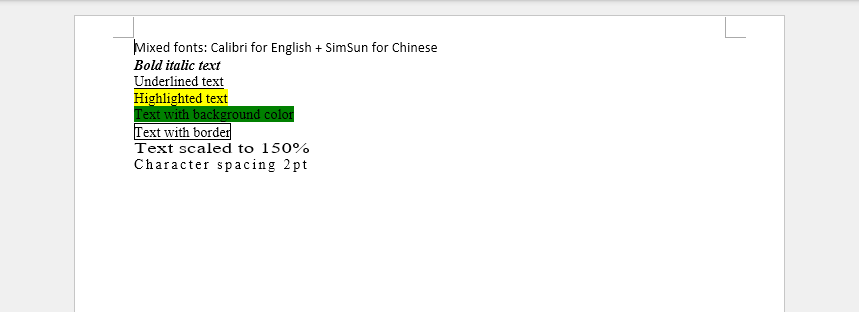
Key techniques:
* **Separate fonts for Western and East Asian text**: `FontNameAscii` controls Latin characters, `FontNameFarEast` controls CJK characters.
* **Combined formatting**: Bold, Italic, Underline, etc., can be applied simultaneously.
* **Borders and shading**: Enhance visual appearance with background color and borders.
* **Scaling and spacing**: Fine-tune character width and spacing for optimal layout.
## Using Built-in Styles
Besides manual character formatting, Spire.Doc allows applying Word's built-in styles, which is a more efficient way to format content:
```python id="e0d5ko"
from spire.doc import *
document = Document()
section = document.AddSection()
# Apply title style
titlePara = section.AddParagraph()
titlePara.AppendText("Main Title")
titlePara.ApplyStyle(BuiltinStyle.Title)
# Apply subtitle style
subtitlePara = section.AddParagraph()
subtitlePara.AppendText("Subtitle")
subtitlePara.ApplyStyle(BuiltinStyle.Subtitle)
# Apply Heading 1 style
heading1Para = section.AddParagraph()
heading1Para.AppendText("Heading 1")
heading1Para.ApplyStyle(BuiltinStyle.Heading1)
# Apply normal style
normalPara = section.AddParagraph()
normalPara.AppendText("This is a normal paragraph using standard style.")
normalPara.ApplyStyle(BuiltinStyle.Normal)
document.SaveToFile("BuiltInStyles.docx", FileFormat.Docx)
document.Close()
The resulting document:

Advantages of using built-in styles:
- Consistency: Ensures uniform formatting across the document.
- Quick application: Apply a complete set of formatting with a single line of code.
- Hierarchical structure: Automatically maintains heading levels and table of contents.
- Easy updates: Modifying the style definition updates all text using that style.
Practical Tips and Best Practices
When applying text formatting in real projects, the following practices can improve development efficiency:
1. Create Reusable Format Templates
```python id="cr2lqe"
def create_heading_format(doc, size=14, bold=True, color=None):
"""Create a reusable heading format"""
format = CharacterFormat(doc)
format.FontName = "Arial"
format.FontSize = size
format.Bold = bold
if color:
format.TextColor = color
return format
Example usage
heading_format = create_heading_format(doc, size=16, bold=True, color=Color.get_DarkBlue())
### 2. Batch Formatting Text

To apply the same format to multiple instances of text in a document, iterate through all paragraphs and text ranges:


```python id="5x3yft"
# Apply formatting to all paragraphs in the document
for section in doc.Sections:
    for para in section.Paragraphs:
        for i in range(para.ChildObjects.Count):
            childObj = para.ChildObjects.get_Item(i)
            if isinstance(childObj, TextRange):
                # Apply uniform format
                childObj.CharacterFormat.FontSize = 12
3. Conditional Formatting
Apply different formatting dynamically based on the text content:
```python id="v9e0xr"
Highlight keywords dynamically
keywords = ["Important", "Notice", "Warning"]
for section in doc.Sections:
for para in section.Paragraphs:
for i in range(para.ChildObjects.Count):
childObj = para.ChildObjects.get_Item(i)
if isinstance(childObj, TextRange):
text = childObj.Text
if any(keyword in text for keyword in keywords):
childObj.CharacterFormat.HighlightColor = Color.get_Yellow()
childObj.CharacterFormat.Bold = True
## Conclusion

This article has provided a comprehensive guide to setting text formats and styles in Word documents using Python, covering everything from basic font settings to advanced text effects. By mastering these techniques, you can:

* Precisely control fonts, sizes, colors, and other basic attributes.
* Apply strikethrough, shadow, emboss, and other visual effects.
* Handle complex scenarios with mixed Western and East Asian text.
* Quickly standardize document formatting using built-in styles.
* Enhance automation through batch and conditional formatting.

These skills are particularly useful for scenarios requiring bulk document generation, dynamic report systems, or automated document formatting. Leveraging Python’s capabilities can transform tedious manual formatting tasks into efficient, reusable automated workflows.

Further learning directions include paragraph formatting (alignment, indentation, line spacing), customizing and modifying styles, and creating and applying document templates for more advanced document processing techniques.


Top comments (0)