
title: [iThome Cloud Summit Lab][Python] Creating a Travel Assistant LINE ChatBot with Cloud Function + Firebase and Gemini Pro Vision
published: false
date: 2024-07-01 00:00:00 UTC
tags:
canonical_url: https://www.evanlin.com/linebot-cloudsummit2024-workshop/
---
# Preface:
This article mainly covers the course content of the iThome Cloud Summit 2024 Lab:
##### Course Objectives
This workshop is suitable for developers, students, or any technology enthusiasts interested in ChatBot development, cloud services, or machine learning. Whether you want to expand your skill set or have unique ideas for building a smart travel assistant, this workshop will provide you with practical experience and in-depth knowledge.
##### Course Outline
Part 1: Understanding the Basics
Introduction to Cloud Function and Firebase: Learn the basic concepts of these platforms and how they work together to support the backend of an application.
LINE ChatBot Operation Principles: Gain an in-depth understanding of the architecture and API of LINE ChatBot, and how to interact with users.
Part 2: Hands-on Practice
Setting up the Firebase Environment: Practical operation, creating a Firebase project and configuring the required services.
Developing Cloud Function: Learn how to write and deploy Cloud Function to handle the ChatBot's logic and data access.
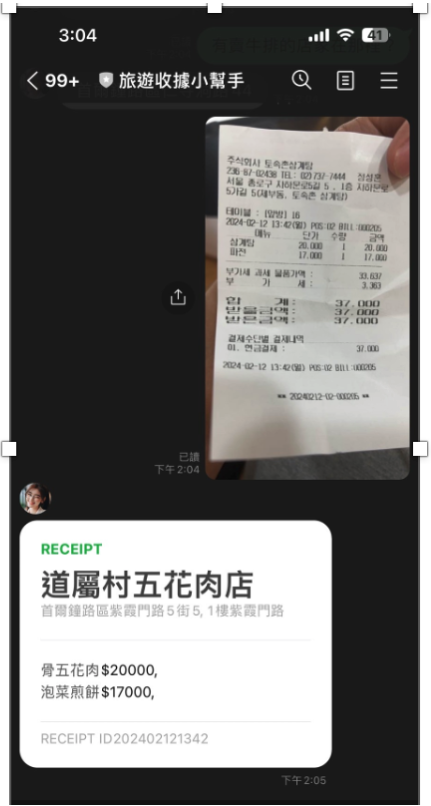
Integrating Gemini Pro Vision API: Explore how to use the Gemini Pro Vision API for image recognition and apply it to receipt management.
Part 3: ChatBot Feature Development
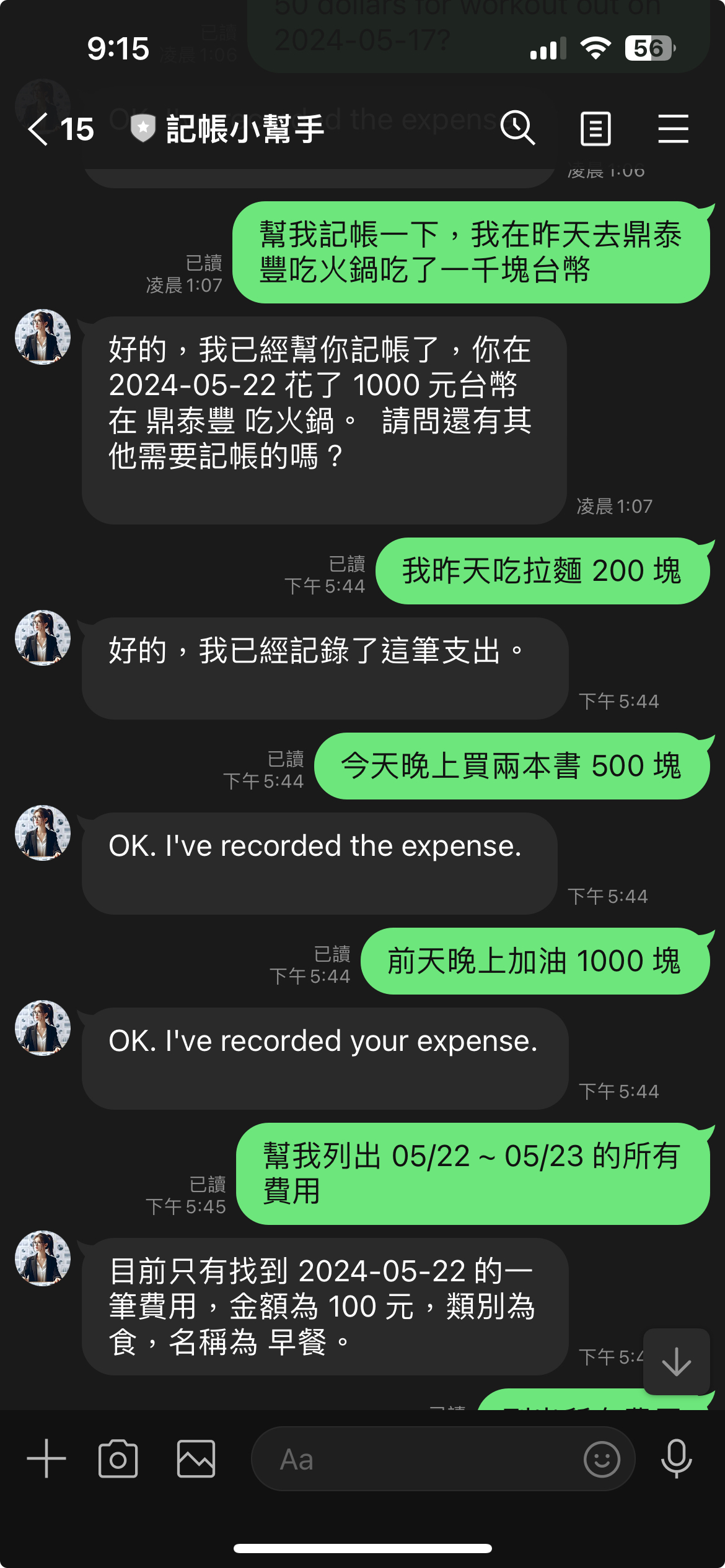
Travel Information Query: Implement a function that allows users to query travel-related information through the ChatBot.
Receipt Upload and Recognition: Develop a system that allows users to upload receipt images and automatically recognize and organize receipt information using Gemini Pro Vision technology.
Part 4: Deployment and Monitoring
ChatBot Deployment: Learn how to deploy the ChatBot to a production environment, allowing real users to start using it.
Monitoring and Maintenance: Introduce how to monitor the ChatBot's operation status and perform necessary maintenance.
##### Student-Provided Devices
1. A laptop with internet access
2. Google Cloud account
3. LINE account
##### Student Basic Skill Requirements
Python
Cloud Deployment
# Preparation:
- **[LINE Developer Account](https://developers.line.biz/en/)**: You only need a LINE account to apply for a developer account.
- [**Google Cloud Functions**](https://cloud.google.com/functions?hl=zh_cn): The **deployment platform** for Python code, generating a webhook address for LINEBot use.
- [**Firebase**](https://firebase.google.com/): Create a **Realtime database**, LINE Bot can remember your previous conversations, and even answer many interesting questions.
- **[Google AI Studio](https://aistudio.google.com/)**: You can get the Gemini Key here.
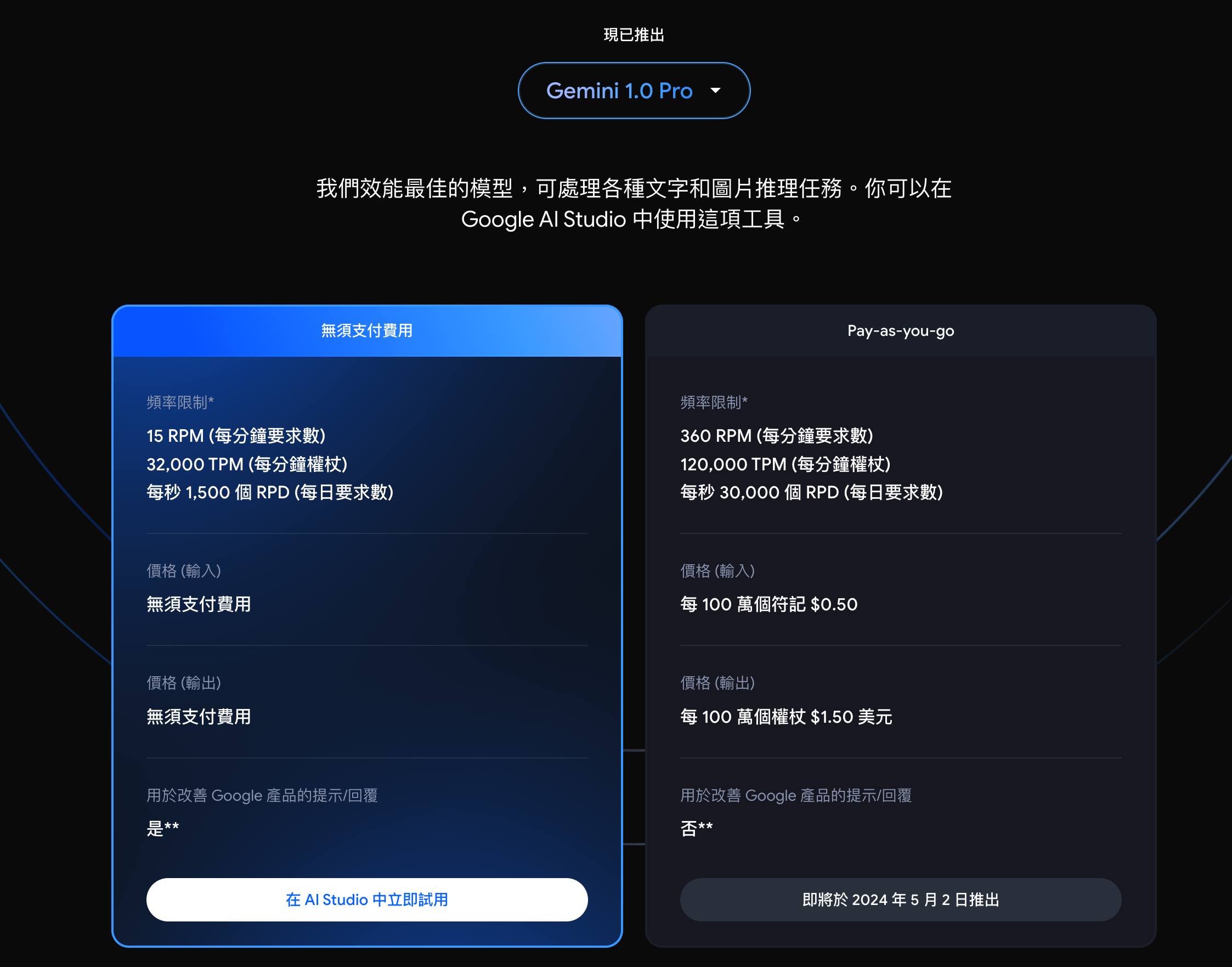
## About Gemini API Price
According to the official website: [https://ai.google.dev/pricing?hl=zh-tw](https://ai.google.dev/pricing?hl=zh-tw)
## Apply for Gemini API Key
- Go to Google AI Studio [https://aistudio.google.com/](https://aistudio.google.com/)
- Click “Get API Key”
- Choose the paid account that you have already linked your credit card to get the API Key 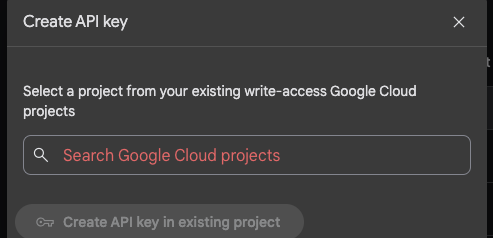
# Apply for a LINE Chatbot (Messaging API)
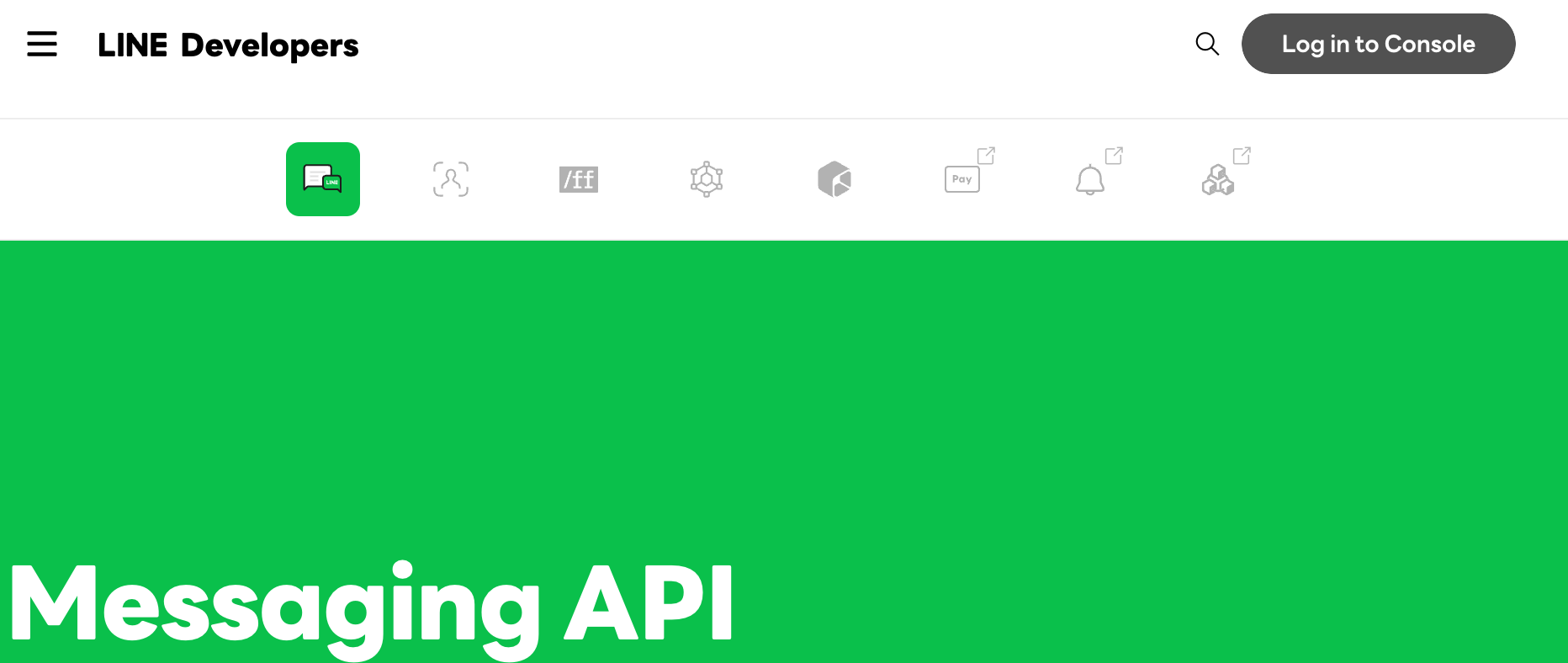
- Go to [LINE Developer Console](https://developers.line.biz/en/services/messaging-api/) and log in 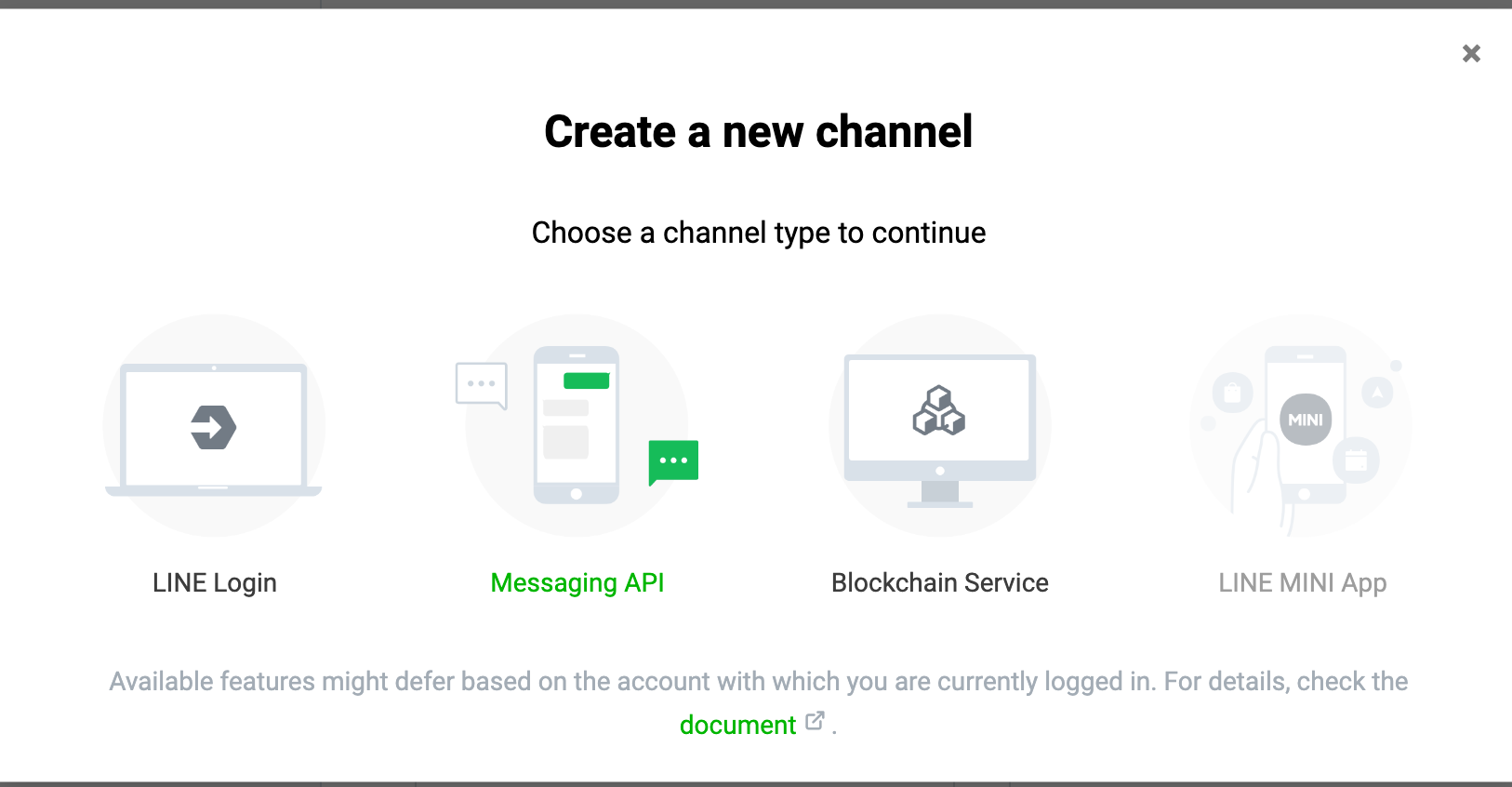
- When choosing a Channel, if you want to apply for a LINE Chatbot (official account), you need to apply for Messaging API 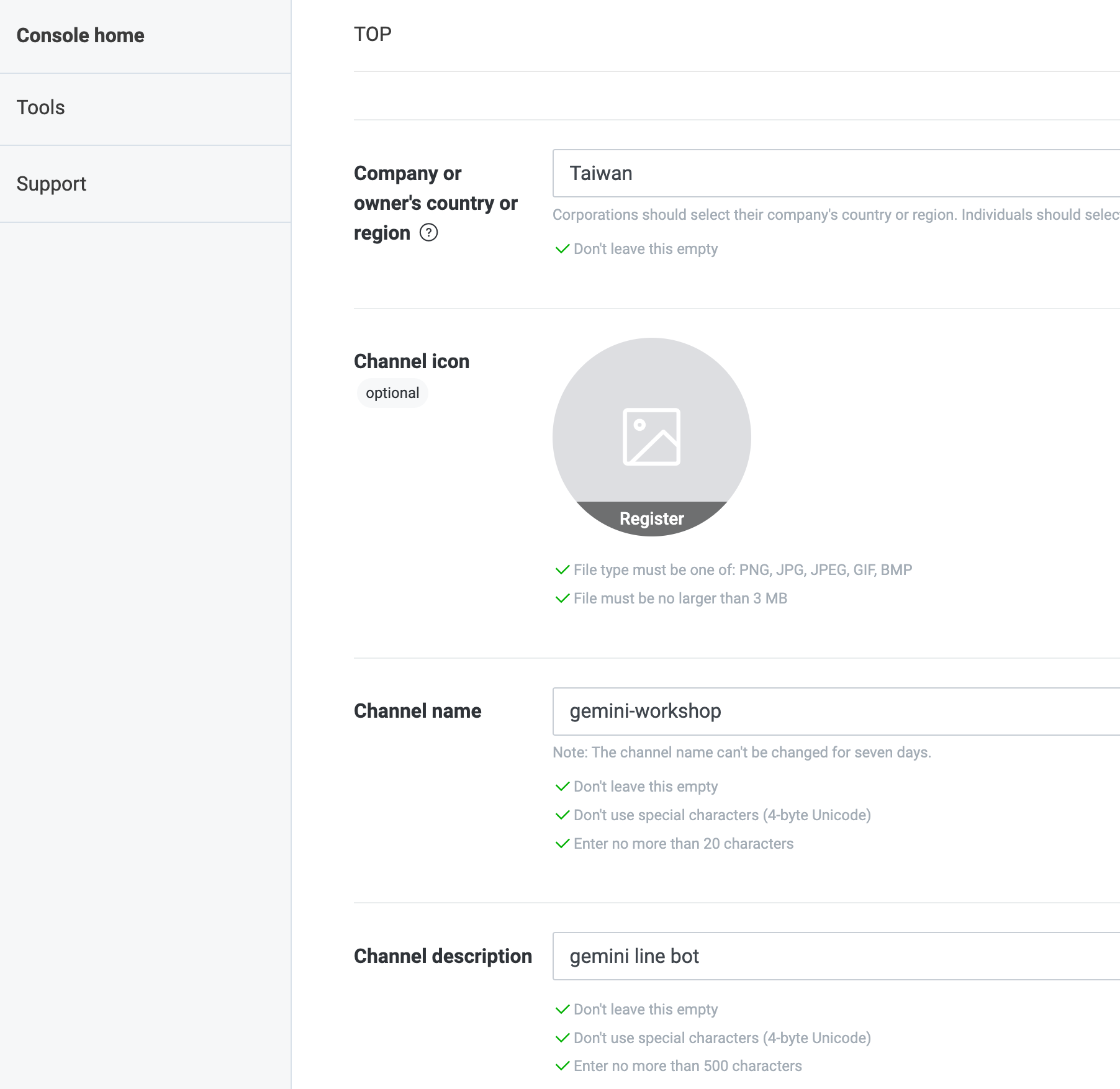
- Regarding the information to be filled in:
- **Cmpany or owner’s country or region**:
- **Channel Name**: That is, your LINE Bot name.
- **Channel description**: Related descriptions to describe what your LINE Bot does.
- Other fields can be filled in at will.
- Next, go to the Messaging API Tab to perform the following settings:
- **Auto-reply messages**: Turn it off 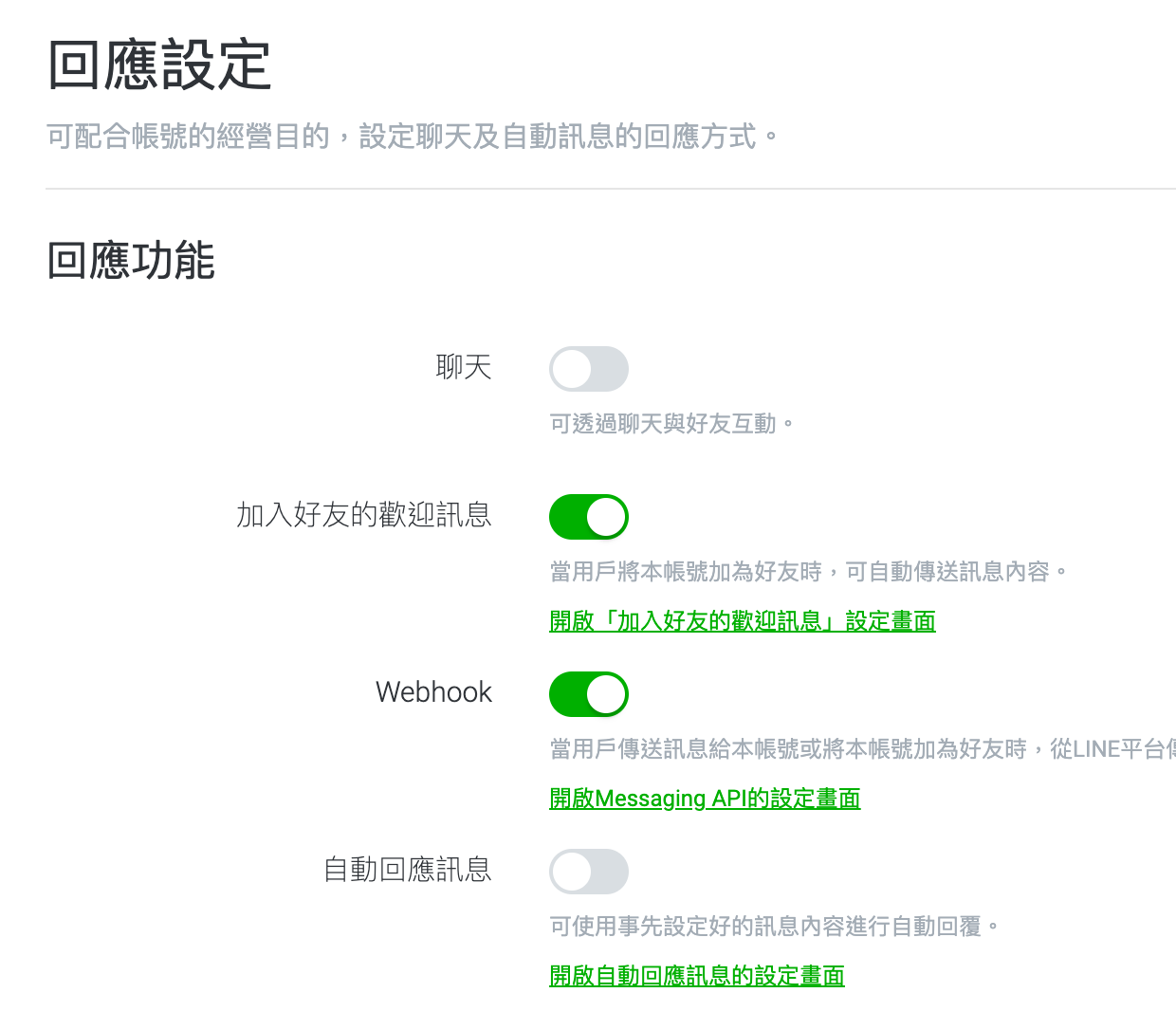
- Next, you need to get two important parameters:
- `Channel secret` under the **Basic Setting** Tab 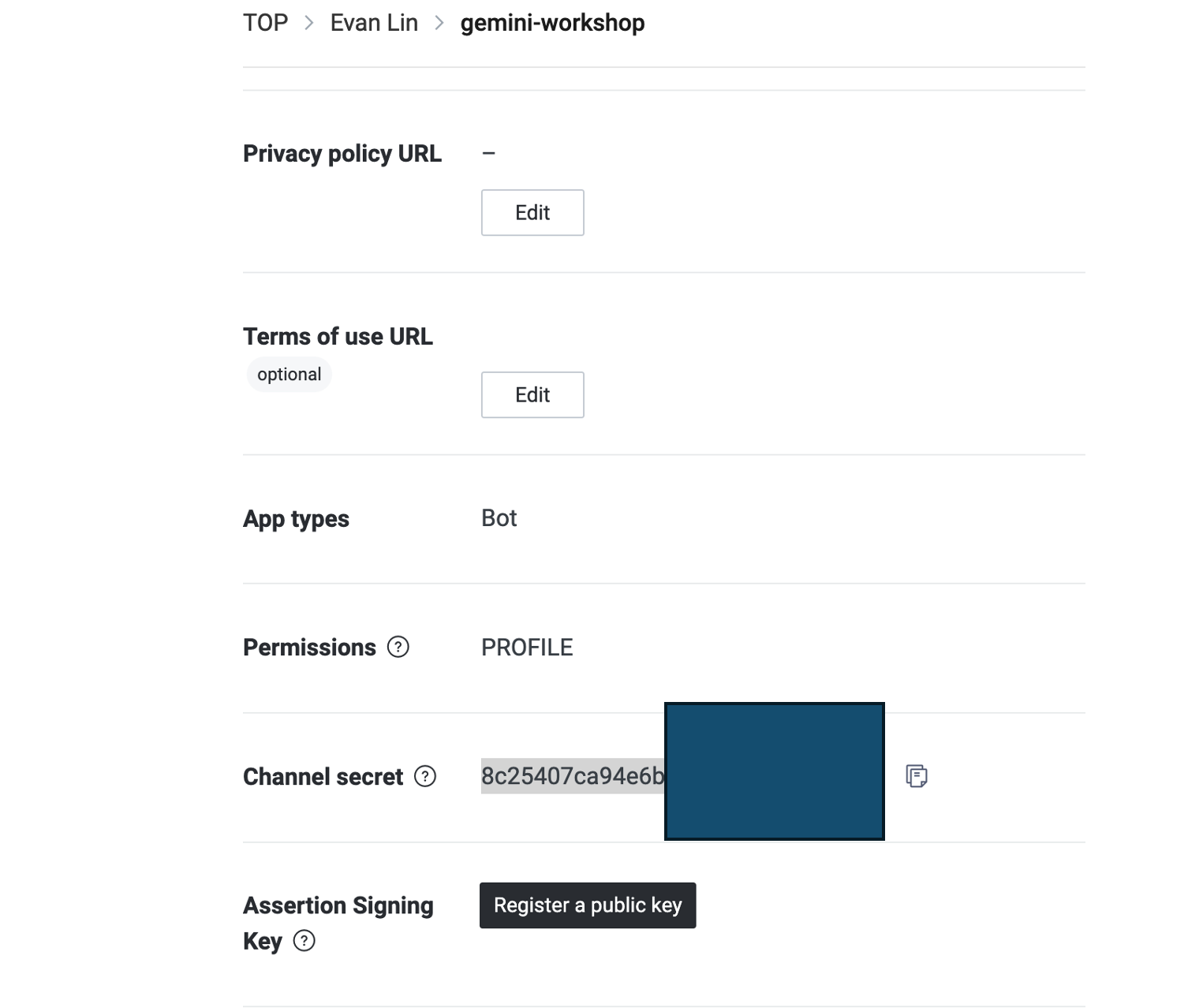
- `Channel access token (long-lived) ` under the **Messaging API** Tab 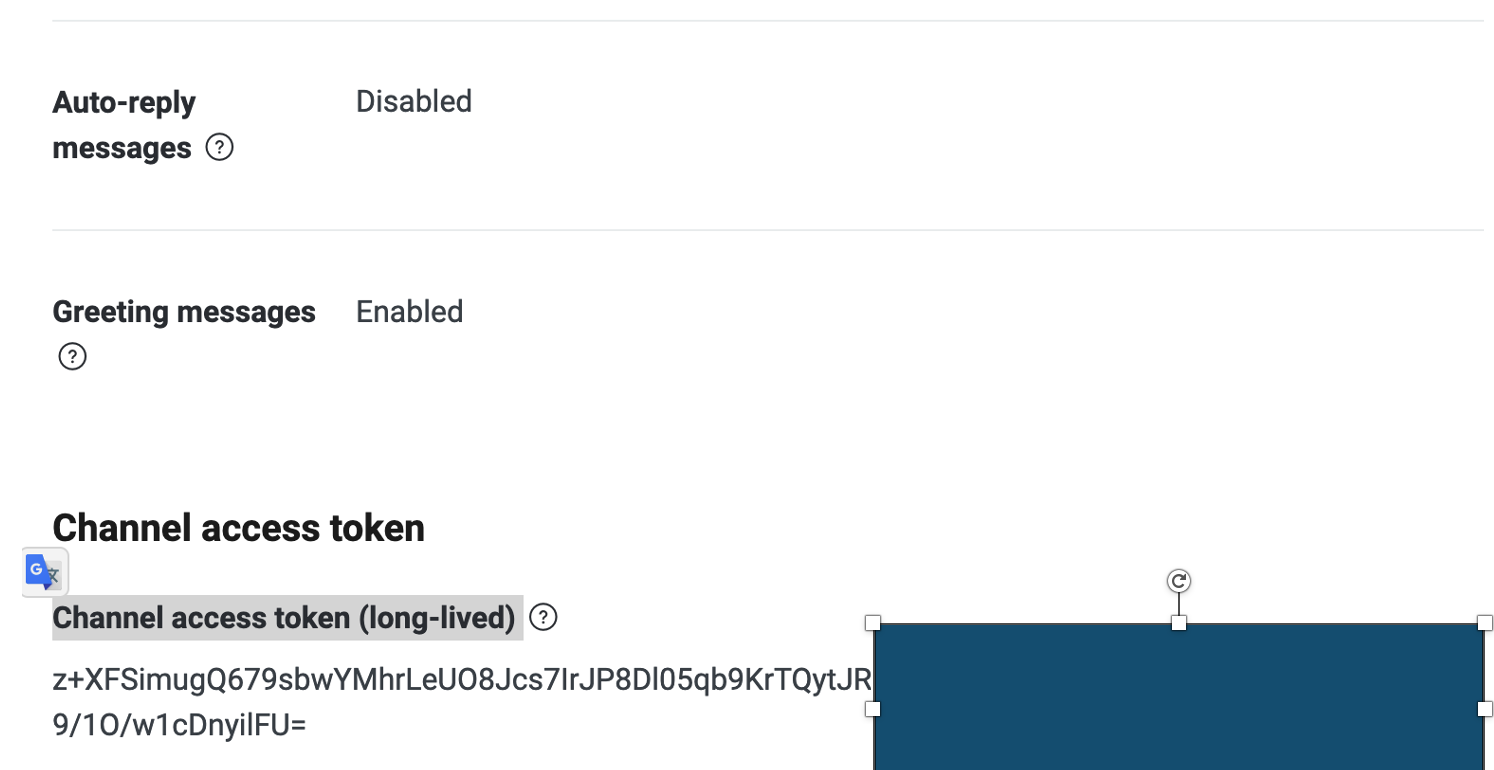
- For now, that's it. You will come back later to set up the relevant Webhook.
## Apply for Firebase Database Service
- Remember to go to [Firebase Console](https://console.firebase.google.com/), and directly select the project you currently have. (Maybe called My First Project?)
- Create a Firebase Realtime Database that will be used later
- Select the region as the United States
- Start in “lock mode”
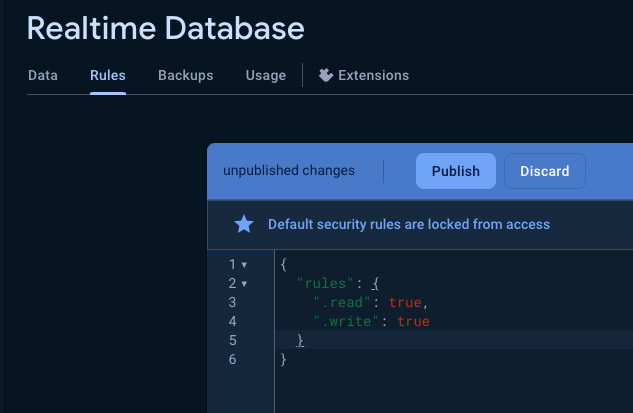
- For ease of development, set it to read and write in “Rules”. Please pay attention:
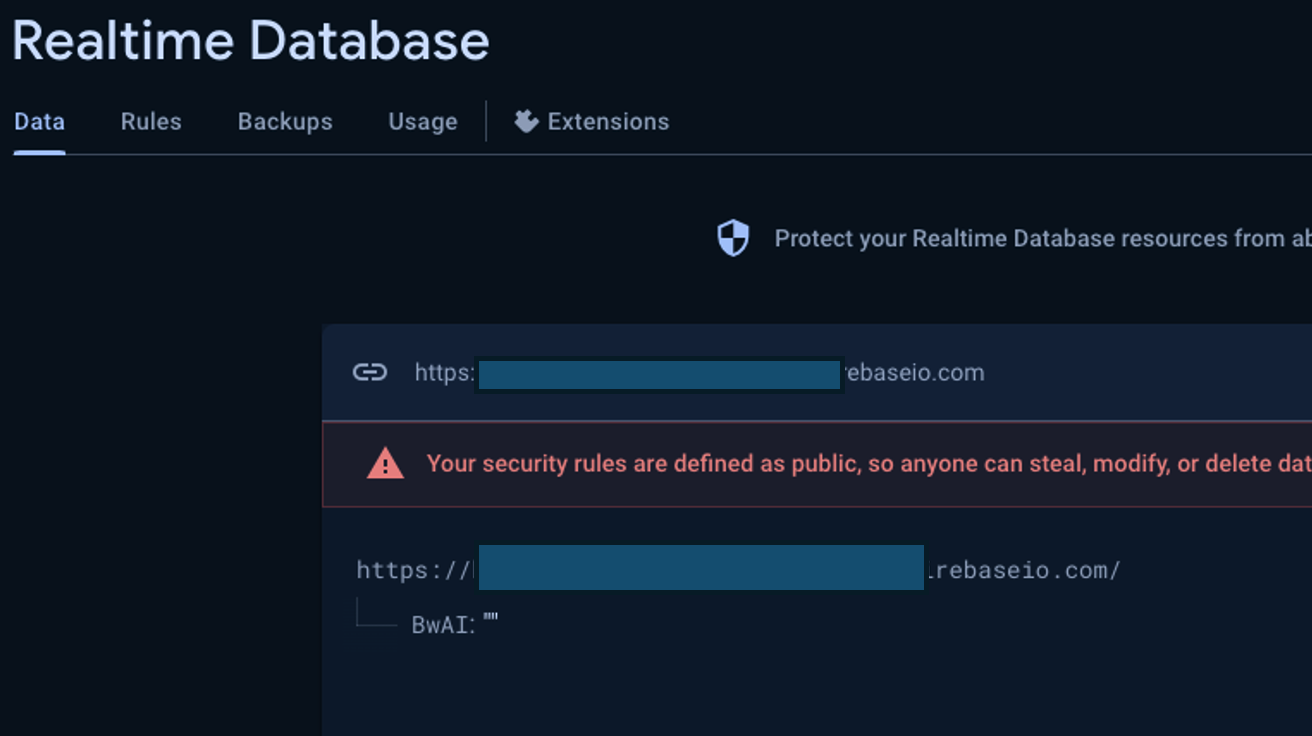
- Remember the URL (Note! **You need to change the permissions back when you officially go live**), and add an item: “ **BwAI** ”
# Create a Cloud Run service
- First, fork [https://github.com/kkdai/linebot-receipt-gemini](https://github.com/kkdai/linebot-receipt-gemini) to your own repo
- Create a new [Cloud Run project](https://console.cloud.google.com/run/create?hl=en)
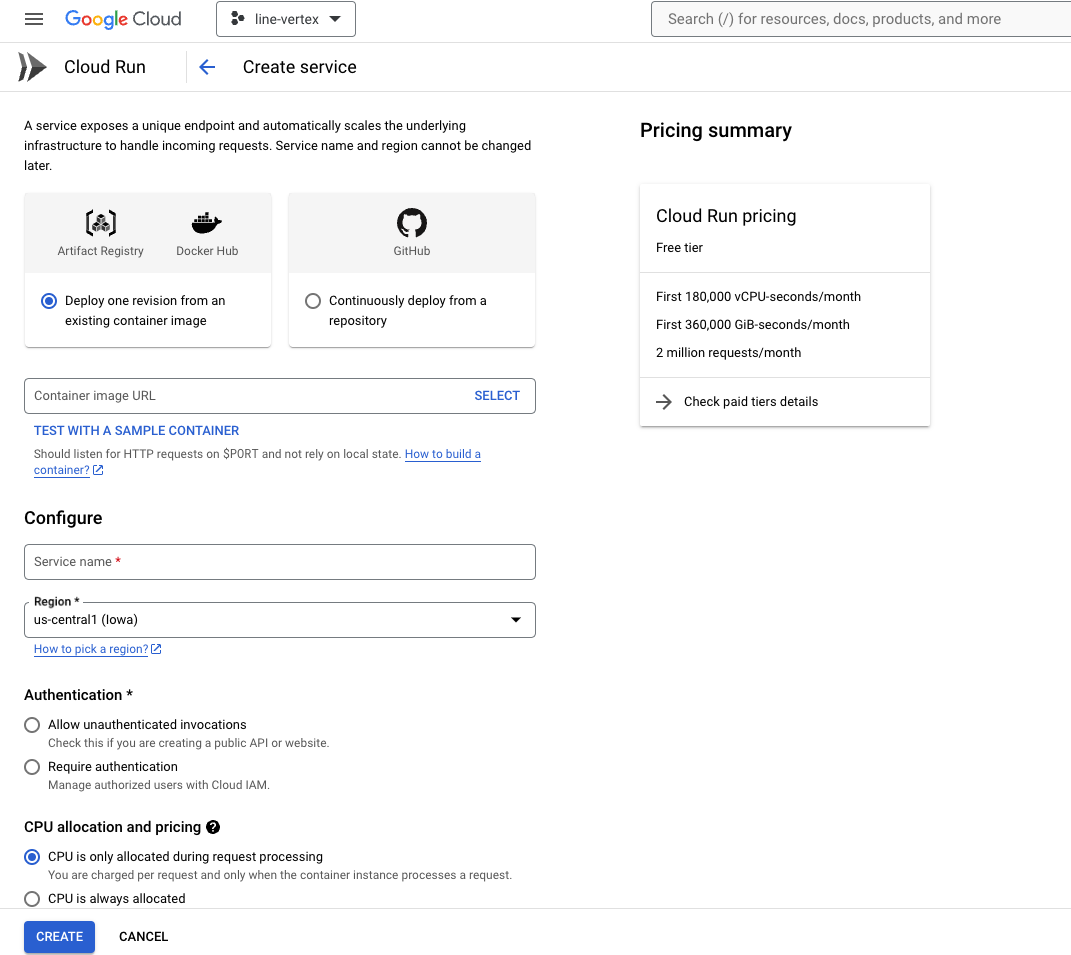
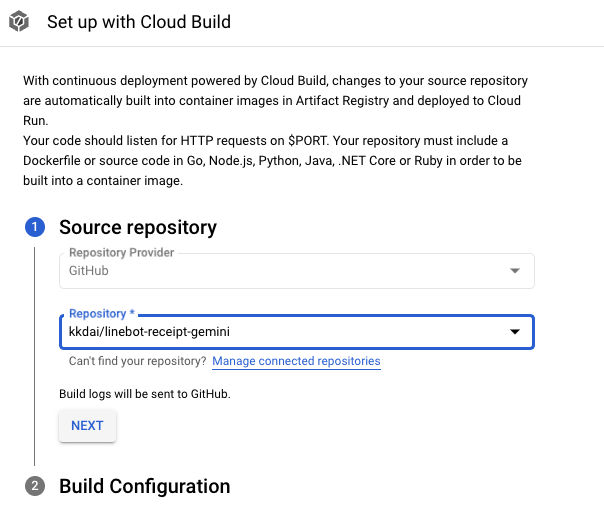
- Choose the Source Repository (should be your own name)
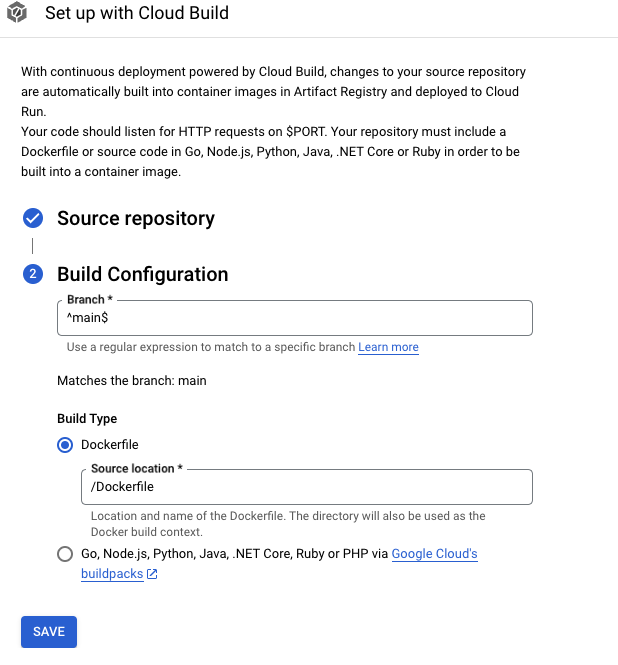
- Start via Dockerfile
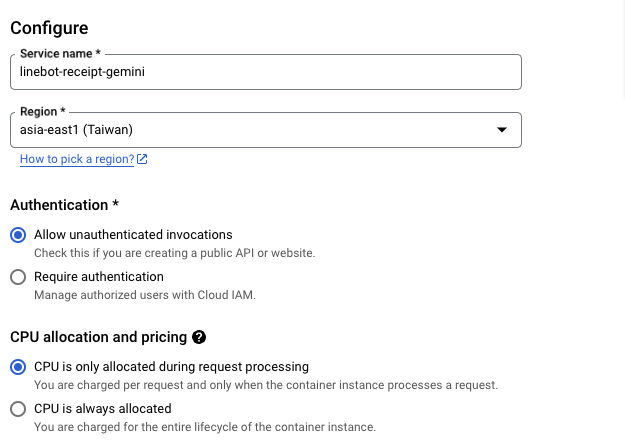
- Machine settings can choose any region, but `Authentication` must choose `Allow unauthenticated invocations`
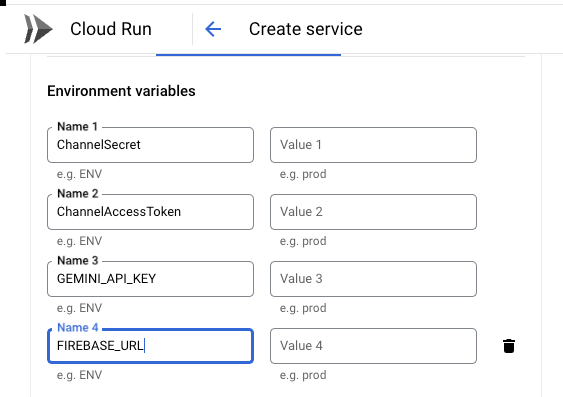
- Container(s), Volumes, Networking, Security related settings, you need to write the environment parameters into it.
- `ChannelSecret`: Your LINE channel secret.
- `ChannelAccessToken`: Your LINE channel access token.
- `GEMINI_API_KEY`: Your Gemini API key for AI processing.
- `FIREBASE_URL`: Your Firebase database URL.
# LINE Bot completes the final settings
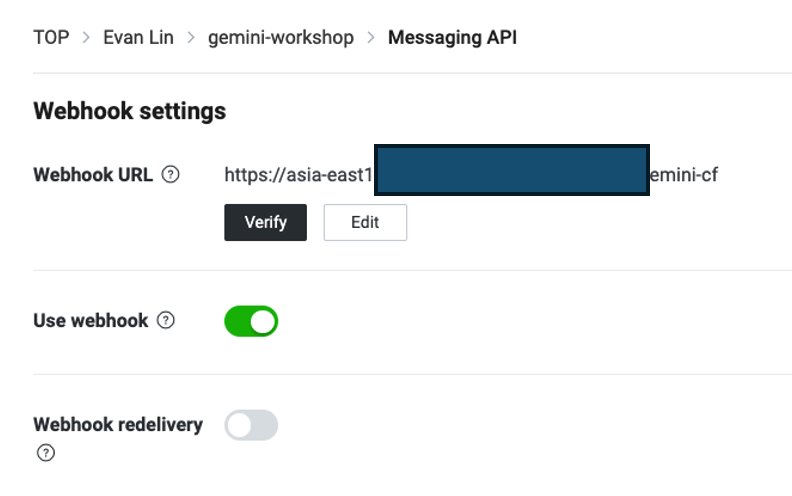
- Go to the “Messaging API” Tab
- Fill in the “Webhook URL” value, and fill in the "trigger address" you just got
- After updating, use “Verify” to see if there are any setting errors.
- If there is no problem, you can open **“Use webhook”**
# Important Notes:
### 1. Pay attention to whether the server opened by Cloud Function / Cloud Run Instance is large enough

- If you put too much data in Firebase, be careful that the memory may not be enough. Remember that the Cloud Function (Cloud Run) memory should be large enough.
### 2. Remember to regularly clean up Artifact Registry space - set up House Keeping strategy directly through Artifact Registry
- Go to [Artifact Registry](https://console.cloud.google.com/artifacts/browse/)
- Click on the largest size, and then select **Edit Repository** above
- At the bottom, select **Cleanup Policies**
- Select “Keep most Recent versions”
- “Keep count” select 1 (can also be 2)
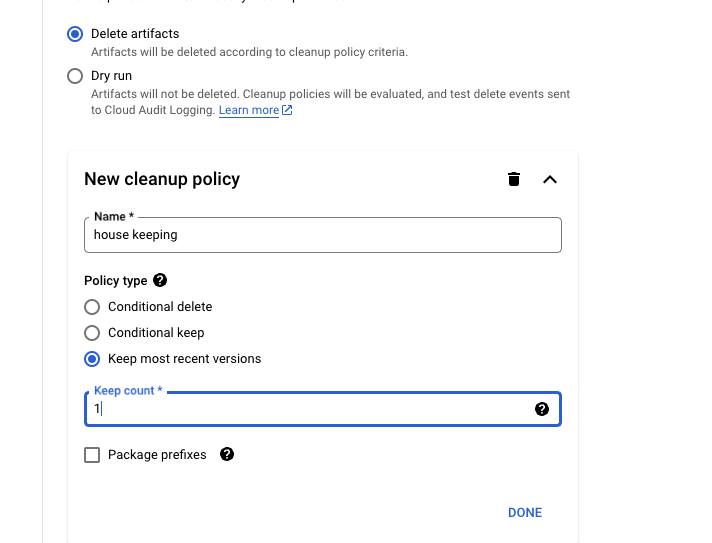
**If you are afraid of deleting too much, you can use Dry run to see the results.**
# Complete Source Code
You can find the relevant open source code here: [https://github.com/kkdai/linebot-receipt-gemini](https://github.com/kkdai/linebot-receipt-gemini)
# Extended Applications
Through Cloud Run / Cloud Function, you can quickly deploy services to Google Cloud and quickly get your LINE Bot online. Here are some related applications you can refer to:
- [Business Card Helper](https://github.com/kkdai/linebot-namecard-firebase) 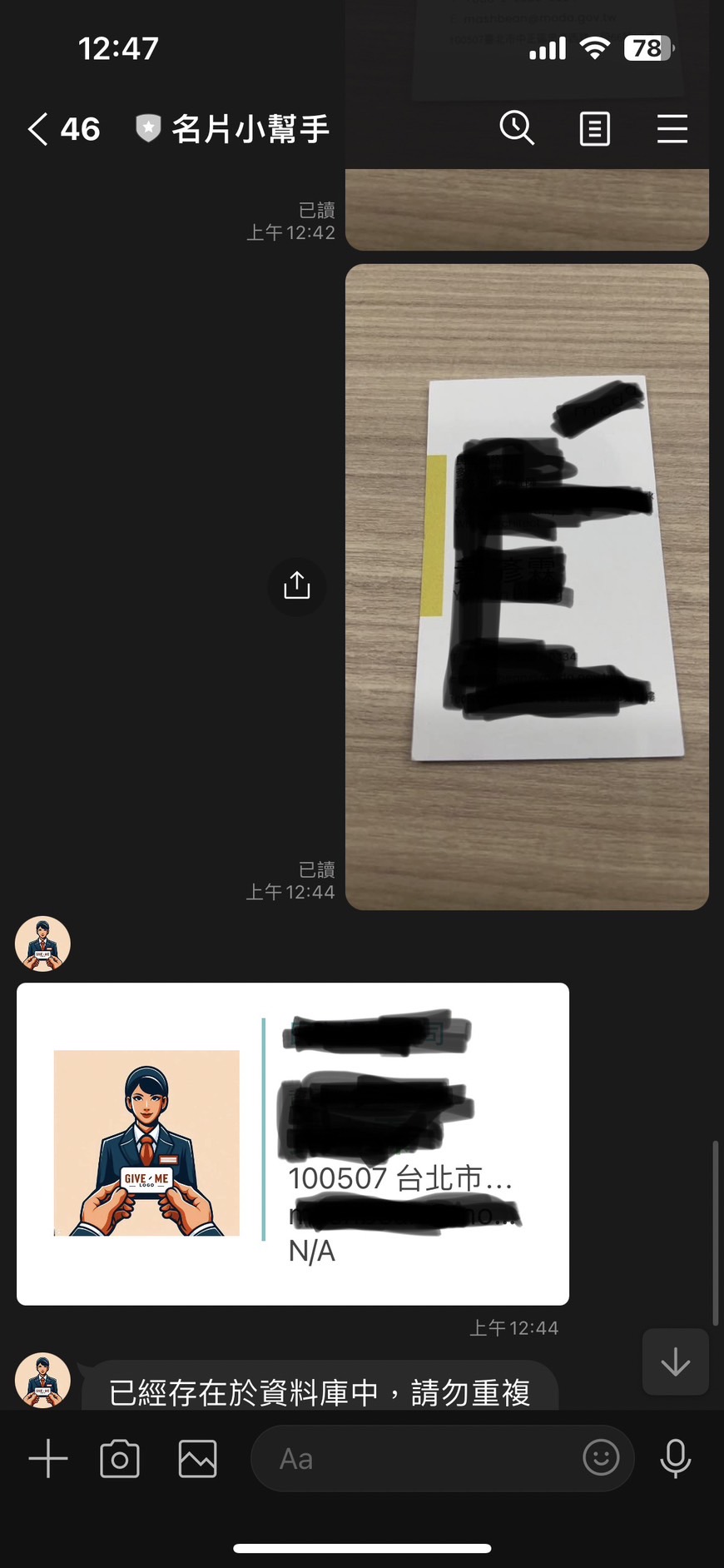
- [Food Helper](https://github.com/kkdai/linebot-food-enthusiast) 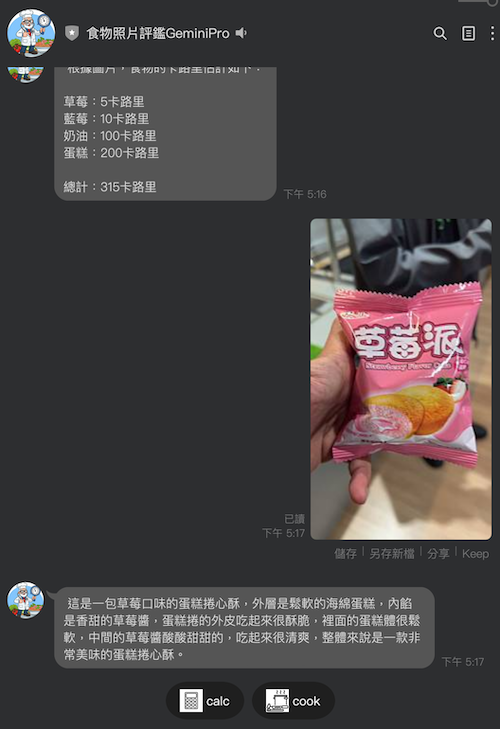

Evan Lin
Posted on Originally published at evanlin.com on
Building a Travel Assistant LINE Chatbot with Cloud Functions, Firebase, and Gemini Pro Vision
For further actions, you may consider blocking this person and/or reporting abuse


Top comments (0)