

title: LINE Messaging API New Feature Introduction: Mark as Read API Lets Your Chatbot Mark Messages as Read
published: false
date: 2025-11-10 00:00:00 UTC
tags:
canonical_url: https://www.evanlin.com/linebot-mark-as-read/
---
# LINE Messaging API New Feature Introduction: Mark as Read API Lets Your Chatbot Mark Messages as Read
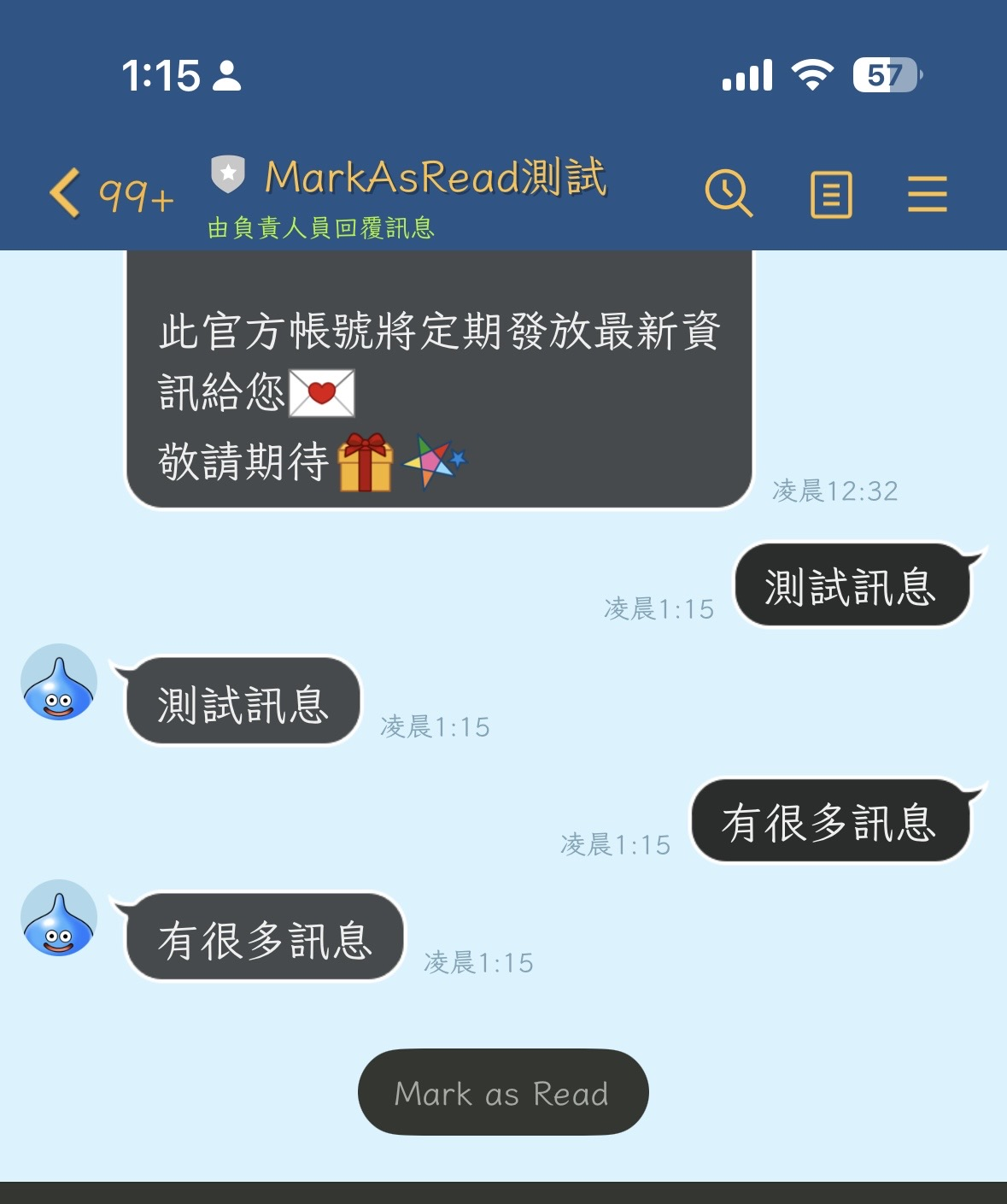
[On November 5, 2025, the LINE Messaging API launched a new feature](https://developers.line.biz/en/news/2025/11/05/mark-as-read/), allowing chatbots to mark messages sent by users as read. The launch of this feature allows developers to provide users with a better interactive experience, and users can clearly know whether the bot has "seen" their messages.
## Preface
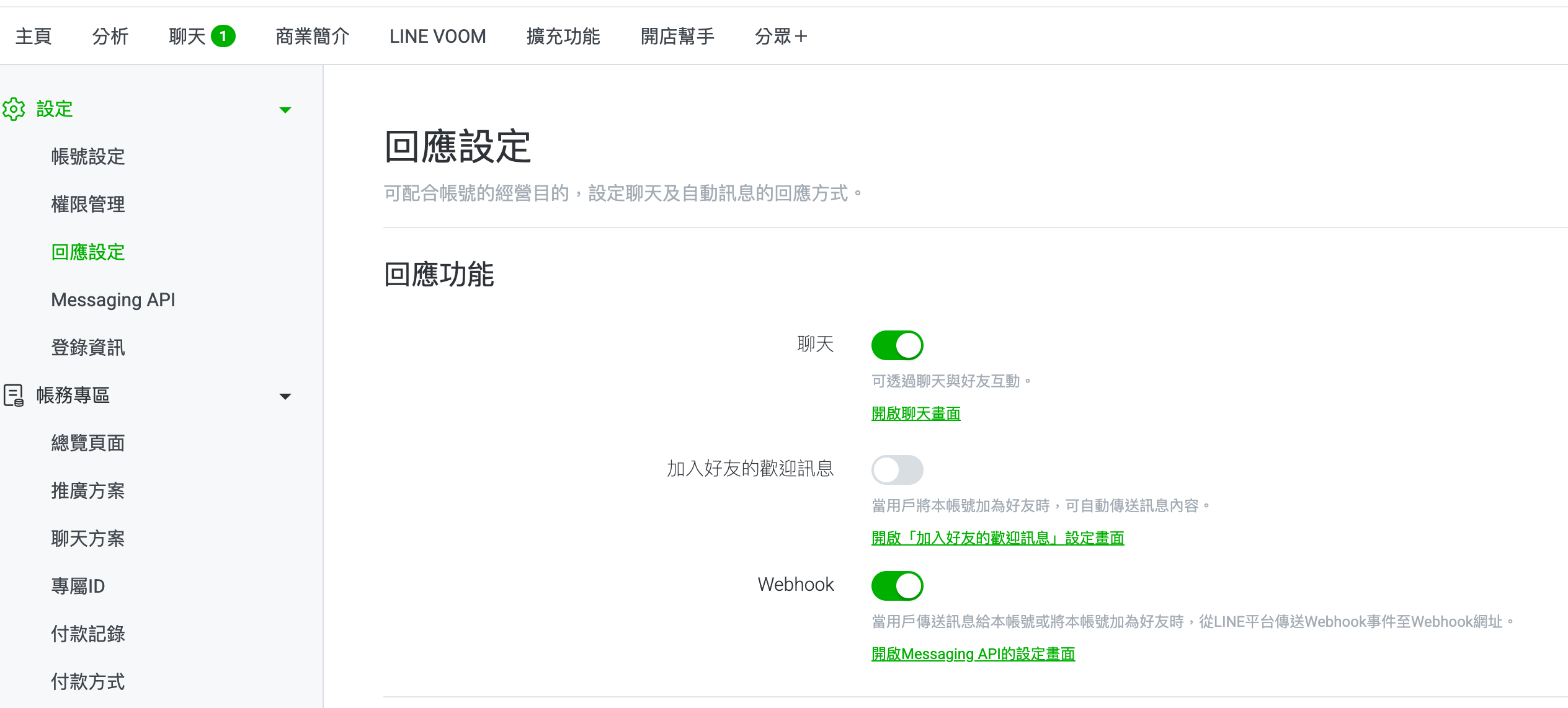
In the past, in the response settings, if you opened the chat and wanted to use a real person to reply to the customer. At this time, because the system allows "real person chat" and "chatbot" to coexist. But if this chat option is turned on, even if the customer's message has been processed by the chatbot, it will not be marked as "read" until the real person opens the chat window.
This article will share with you how to apply this new API after this new feature is open.
## New API Feature Introduction
### Mark as Read Function
When a user sends a message to the LINE official account, the bot can now proactively mark the message as read. This allows users to see a "read" indicator on the chat interface, just like a regular 1-on-1 chat. This feature is especially suitable for:
- **Customer service bots**: Let users know that their questions have been received and processed by the bot
- **Order notification bots**: Confirm that the user's order inquiry has been read
- **Interactive Q&A bots**: Provide a more natural conversational experience
### SDK Version Requirements
- **line-bot-sdk-go/v8**: v8.18.0 or later
- **Go**: 1.24 or later
### New API Specifications
The LINE Messaging API adds two APIs for marking as read:
1. **MarkMessagesAsRead**
2. **MarkMessagesAsReadByToken** (This article's focus)
## New API Field Introduction
### markAsReadToken Field
LINE Messaging API v8.18.0 adds the `markAsReadToken` field in various message contents:
- **TextMessageContent.markAsReadToken**: Read mark token for text messages
- **StickerMessageContent.markAsReadToken**: Read mark token for sticker messages
- **ImageMessageContent.markAsReadToken**: Read mark token for image messages
- **VideoMessageContent.markAsReadToken**: Read mark token for video messages
- **AudioMessageContent.markAsReadToken**: Read mark token for audio messages
- **FileMessageContent.markAsReadToken**: Read mark token for file messages
- **LocationMessageContent.markAsReadToken**: Read mark token for location messages
Each message will have a unique `markAsReadToken`, and the bot can use this token to mark the message as read.
## How to use Golang to develop related parts
The following is a complete example code for implementing the Mark as Read function using Golang: (Please note that github.com/line/line-bot-sdk-go/v8 needs to be updated to 8.18.0 or later)
Example code at: [https://github.com/kkdai/linebot-mark-as-read](https://github.com/kkdai/linebot-mark-as-read)
### Implementation Method: Using Quick Reply + Postback
This example uses a user-friendly interaction method: adding a "Mark as Read" quick reply button to each reply message, allowing users to actively choose which messages to mark as read.
### Step 1: Receive the message and extract markAsReadToken
case webhook.TextMessageContent:
// 從訊息內容中取得 markAsReadToken
markAsReadToken := message.MarkAsReadToken
log.Printf("Received text message with markAsReadToken: %s\n", markAsReadToken)
// 建立 Quick Reply,將 token 儲存在 postback data 中
quickReply := &messaging_api.QuickReply{
    Items: []messaging_api.QuickReplyItem{
        {
            Type: "action",
            Action: &messaging_api.PostbackAction{
                Label: "Mark as Read",
                Data: fmt.Sprintf("action=markasread&token=%s", markAsReadToken),
                DisplayText: "Marked as read",
            },
        },
    },
}

// 回覆訊息,附帶 Quick Reply 按鈕
if _, err = bot.ReplyMessage(
    &messaging_api.ReplyMessageRequest{
        ReplyToken: e.ReplyToken,
        Messages: []messaging_api.MessageInterface{
            messaging_api.TextMessage{
                Text: message.Text,
                QuickReply: quickReply,
            },
        },
    },
); err != nil {
    log.Print(err)
} else {
    log.Println("Sent text reply with Quick Reply button.")
}
### Step 2: Handle Postback events and call the Mark as Read API
case webhook.PostbackEvent:
// 當使用者點擊 "Mark as Read" 按鈕時觸發
log.Printf("Postback event: data=%s\n", e.Postback.Data)
// 解析 postback data 取得 action 和 token
// 格式: "action=markasread&token=xxxxx"
values, err := url.ParseQuery(e.Postback.Data)
if err != nil {
    log.Printf("Failed to parse postback data: %v\n", err)
} else {
    action := values.Get("action")
    markAsReadToken := values.Get("token")

    if action == "markasread" && markAsReadToken != "" {
        log.Printf("Marking messages as read with token: %s\n", markAsReadToken)

        // 呼叫 Mark as Read By Token API
        _, err := bot.MarkMessagesAsReadByToken(
            &messaging_api.MarkMessagesAsReadByTokenRequest{
                MarkAsReadToken: markAsReadToken,
            },
        )
        if err != nil {
            log.Printf("Failed to mark messages as read: %v\n", err)
        } else {
            log.Println("Successfully marked messages as read using token")
        }
    }
}
### Explanation

The process of this implementation is as follows:

1.  **Receive message**: When a user sends a message, extract `markAsReadToken` from the message content of the webhook event
2.  **Store token**: Encode the token in the `postback data` of the Quick Reply button (format: `action=markasread&token={token}`)
3.  **Reply message**: The bot replies to the message, with the "Mark as Read" quick reply button
4.  **User interaction**: The user sees the button and can choose to click it
5.  **Trigger Postback**: Trigger `PostbackEvent` after clicking the button
6.  **Parse token**: Use `url.ParseQuery()` to parse the postback data to get the token
7.  **Call API**: Use `bot.MarkMessagesAsReadByToken()` to mark the message as read
8.  **Display read**: The user sees the message marked as read on the LINE chat interface

### Key technical points

-   **Quick Reply**: Provides a user-friendly interaction interface
-   **PostbackAction**: Button action that can carry data (data)
-   **url.ParseQuery**: Safely parses postback data in query string format
-   **MarkMessagesAsReadByToken**: Use tokens to precisely mark specific messages

This design allows users to choose which messages to mark as read, providing a better user experience.

## Future Prospects

With the launch of the Mark as Read API, developers can explore more innovative application scenarios:

1.  **Smart Customer Service System**: When the customer service bot has finished processing the user's question, it automatically marks the message as read, letting the user know that the question has been processed. Combined with automatic replies and human intervention, it provides a more complete customer service experience.

2.  **Order Tracking Bot**: When users check the order status, the bot can mark the message as read after the query is complete, giving the user immediate feedback. This is especially helpful for improving the customer experience on e-commerce platforms.

3.  **Interactive Teaching Bot**: In online teaching scenarios, when students submit assignments or questions, the bot can mark as read after checking or answering, letting the students know that the teacher (or AI) has seen their messages.

4.  **Task Management Bot**: Task management bots used internally by companies can mark messages as read when receiving task assignments or status updates, ensuring that team members know that the message has been recorded by the system.

5.  **Conditional Read Marking**: Developers can design more complex logic, such as:
    -   Mark as read only after successful processing
    -   Decide whether to mark based on the message type
    -   Delay marking for a period of time (simulating human reading)
    -   Combine with other APIs (such as Typing indicator) to provide more natural interaction
6.  **Data Analysis and Optimization**: Track which messages are marked as read, analyze user behavior patterns, understand user interaction habits with the bot, and further optimize response strategies and user experience.

### Technical Extension

Developers can also consider:

-   **Combine AI decision-making**: Use Gemini or other AI to decide when to mark messages as read
-   **Batch processing**: Batch mark read status when processing a large number of messages
-   **Status management**: Record the read status in the database to avoid repeated marking
-   **Error handling**: Implement a retry mechanism when API calls fail

These application scenarios can not only improve the user experience, but also bring more business value to the company. Although the Mark as Read API is a simple function, combined with creative usage, it can greatly improve the interaction quality of the chatbot, making the bot's behavior closer to a real person, and providing a better user experience.


Top comments (0)