


WHAT DOCLING OCR?
Docling OCR is an open-source document processing library developed by IBM research. It is designed to parse and convert complex multilingual documents into json or markdown. Most documents need to be parsed before translating.
What is OCR.
OCR stands for Optimal Character Recognition ability.
It allows to exract text from:
- images
- scanned pdfs
- multilingual documents.
I'll be taking you through the steps of parsing scanned multilingual documents.
Creating a folder and a virtual environment
mkdir your_foldername
cd your_foldername
The first step is to always create a folder where you'll store your files. Then cd that folder. Finally, create a virtual environment and activate it.
Fedora

Windows

Install docling and easyocr using python package manager
NB; Docling takes sometime to install
pip install docling
Fedora
docling install

easy ocr install
pip install easyocr

Windows

Check for the versions of both docling and easyocr.
Fedora
docling --version
pip show easyocr

Windows

Look for scanned multilingual or non-english pdf.
I would recomend this site here for your scanned multilingual documents.
Create an account and log in and search for the documents you would like to use.
Finally, download them using pdf format and save them into a folder.
Converting document into html or markdown using docling.
Start by creating a folder where you will save your output files.
mkdir your_output_folder
cd your_output_folder
Then run the following codes using Docling CLI
docling original_scanned_pdfs/hindu_scanned.pdf  #your pdf
--ocr   #enables ocr since you have a scanned documment
--ocr-engine easyocr   #specifies the ocr engine
--ocr-lang hi  #specifies the language in my case it's hindu
--to md   #specifies output format md markdown
--output ./markdown_output/  #where the output will be saved
- Here's the output Fedora

Here are some of the languages abbreviations you can use in the easyocr-lang;
- English: en
- Hindi: hi
- French: fr
- German: de
- Spanish: es
- Portuguese: pt
- Italian: it
- Dutch: nl
- Russian: ru
- Chinese (Simplified): ch_sim
- Chinese (Traditional): ch_tra
- Japanese: ja
- Korean: ko
- Arabic: ar
Now let's try other OCR-engines;
1. Rapid ocr
- As the name itself says it is very fast.
- It converts the languages into html or markdown really fast. code steps:
- install rapidocr using pip
pip install rapidocr
pip show rapidocr #to get the version

- But like seen below you must install onnxruntime
pip install onnxruntime

- Then run your codes to get your output; eg my arabic pdf;
docling   # we are using docling cli
--ocr     # ocr
--force-ocr
--ocr-engine rapidocr  #specify your ocr engine
--to md                # to markdown format
--output ./markdown_outputs_rapidocr  #save in this folder
./original_scanned_pdfs/arabic_scanned.pdf #arabic pdf
Outputs

2. Tesseract
- Install the OCR engine:
pip install tesseract
pip show --version

- Requires one to install packages for every language.eg for arabic.
curl -L https://github.com/tesseract-ocr/tessdata/raw/main/ara.traineddata -o ~/Documents/docling_ocr/tessdata/ara.traineddata
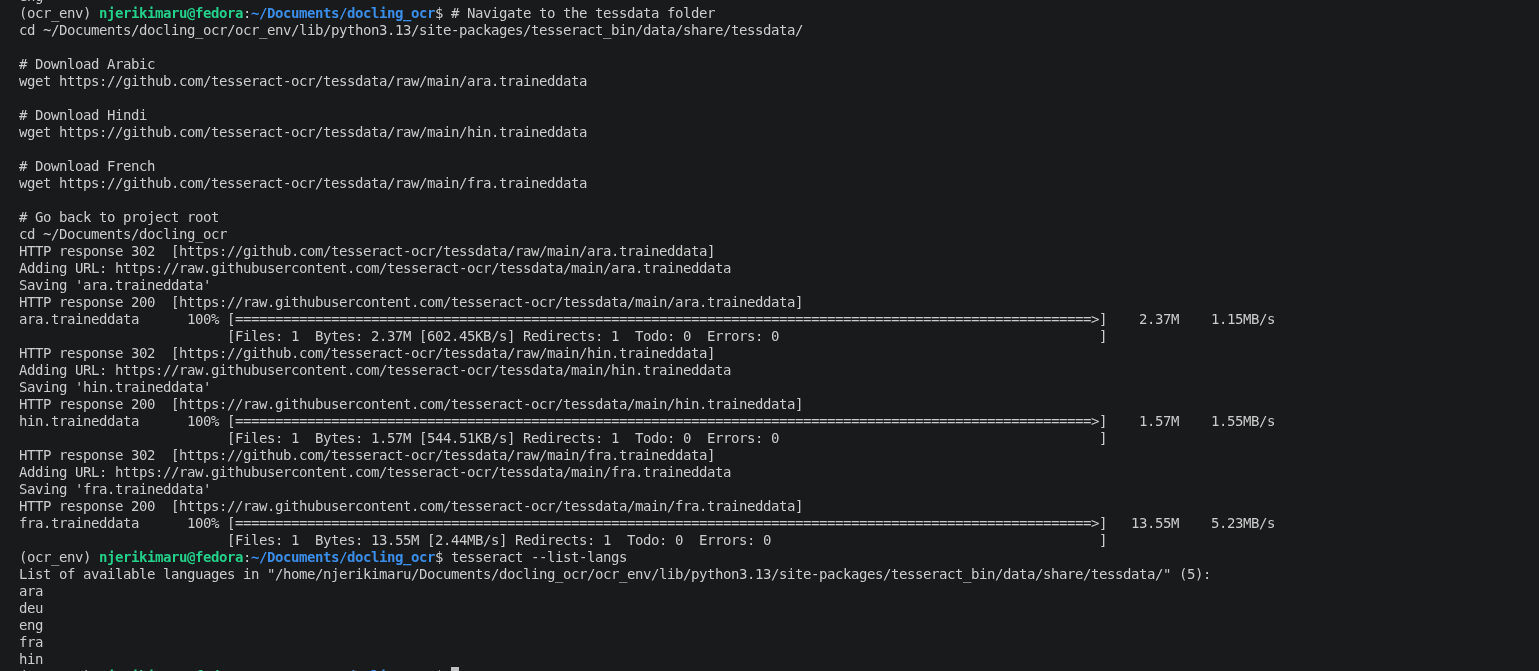
- Then run the parsing codes and save them in a folder
docling # we are using docling cli
--ocr # ocr
--force-ocr
--ocr-engine tesseract #specify your ocr engine
--to md # to markdown format
--output ./markdown_outputs_tesserocr #save in this folder
./original_scanned_pdfs/arabic_scanned.pdf #arabic pdf
Here are the outputs;

3. Tesserocr OCR
- install the ocr and check the version.
pip install tesserocr
pip show --version
- install the ocr and check the version.

- Requires one to install each language package
wget -P /directory-to-where-you-want-to-store/tessdata \
  https://github.com/tesseract-ocr/tessdata/raw/main/eng.traineddata \
  https://github.com/tesseract-ocr/tessdata/raw/main/swa.traineddata

- parse the documents and save them in a tesserocr folder
- docling   # we are using docling cli
--ocr     # ocr
--force-ocr
--ocr-engine tesserocr  #specify your ocr engine
--to md                # to markdown format
--output ./markdown_outputs_tesserocr  #save in this folder
./original_scanned_pdfs/arabic_scanned.pdf #arabic pdf
- Here's the output

Let's analyse these different OCR-engines.
1. Easyocr
- It is easy to use you just install easyocr then input your parsing code and that's it.
- However, it takes a lot of time to parse your document, it is realy slow.
2. Rapidocr
- You have to install onnxruntime.
- As the word itself says it is really fast and installation is not complex at all.
3. Tesseract
- You have to install a lot more packages hence the installation is really complex.
- For every language you must upload it's own package.
- Give really good results.
4. Tesserocr
- Uses tesseract internally.
- A bit complex when installing.
5 Ocrmac
- Requires mac to install.

Result Findimgs
- Other than differing character changes in the french document outputs, the ocr-engines gave almost similar results for the scanned pdfs.
easy ocr combines only the listed languages

using html


Top comments (0)