


iPhone Duo introduces Vertical Bars, moving back buttons and tab bars to the side of the screen.
That changes the layout and the experience more than I expected. How much? App Store screenshot specifications now include iPhone Duo alongside the existing iPhone and iPad requirements. It seems Apple sees this as a distinct experience, too.
As app developers, we need to account for it. So I built a way to adapt an existing Ionic app to Duo. Take a look:
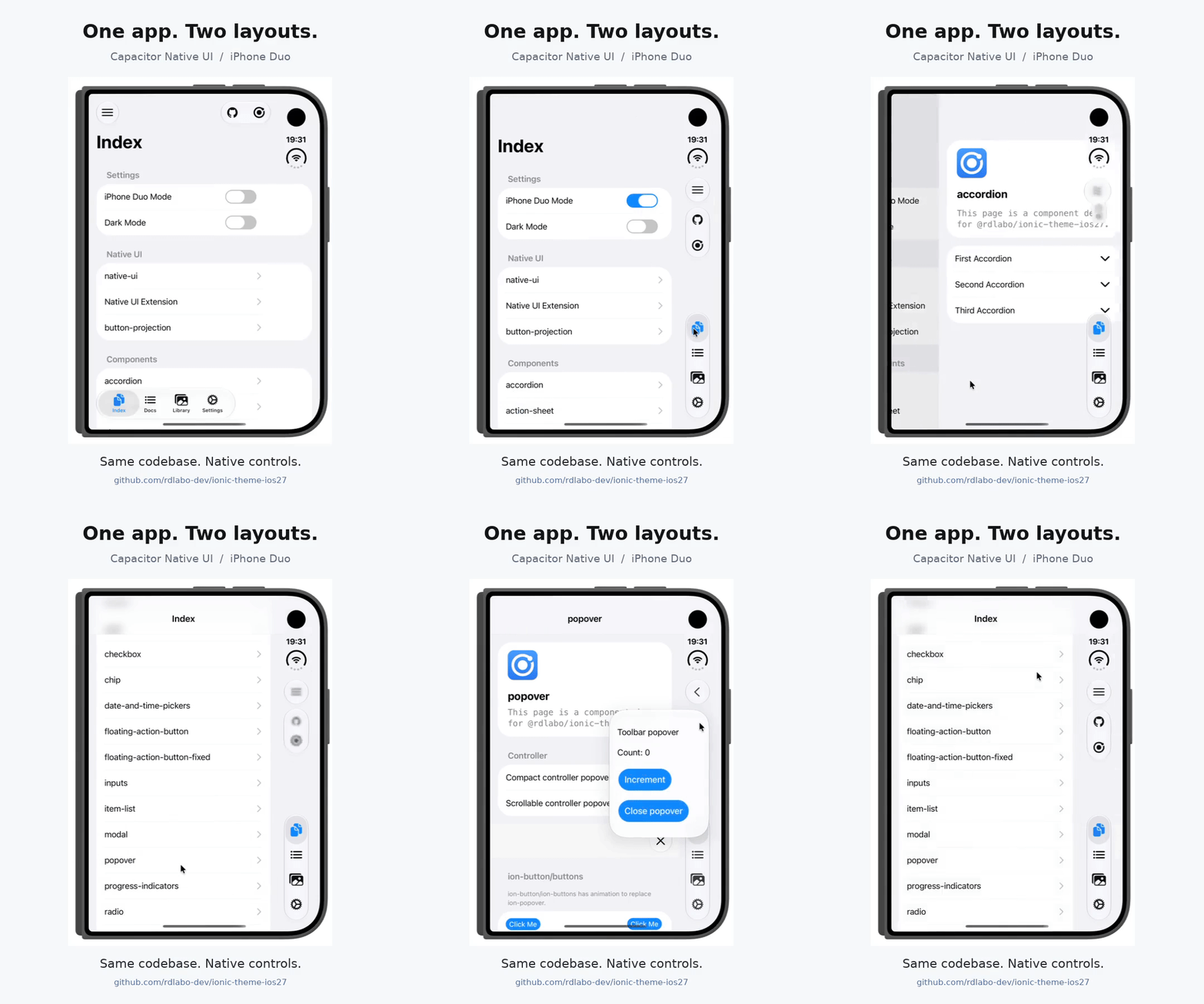
The switch in this demo enables the vertical layout.
It's the same Ionic app, with its tab bar and back button moved to the side. These aren't HTML and CSS recreations. They're real native UI rendered by UIKit and SwiftUI.
The web screens and application logic stay in place. Native UI handles the navigation controls.
In my previous article (in Japanese), I explored how Duo behaves. This time, I'll show how to bring that behavior to an existing app. This also works with Capacitor apps that don't use Ionic.
How Duo changes navigation and safe areas
Back buttons and tab bars move to the side
On Duo's outer display, and on its inner display in landscape, back buttons and tab bars move into Vertical Bars at the side. Here's the same Ionic app before and after adapting to that layout.
| Before | After |
|---|---|
 |
 |
Same Duo, same screen. Only the vertical layout has been enabled.
On the right, the buttons and tab bar have moved to the side, and the content stays clear of the bars. Moving the controls also changes how the content beside them fits on screen.
What belongs inside the safe area changes, too
Safe areas need some attention here. This isn't just a matter of moving padding from the top and bottom to the left and right. Compare these two Apple explanations:

Left: Building Apps for iPhone X (9:43). Right: Prepare your app for iPhone Duo (6:55).
In the earlier iPhone example on the left, the yellow cell backgrounds extend beyond the safe area, while text and controls stay inside it. In the Duo example on the right, entire cards and lists sit inset from the bars, as shown by the blue region.
The background fills the screen; lists and cards stay inset. That's a change in how we apply safe areas between iPhone and iPhone Duo, and one to keep in mind when adapting an app.
Shared UI makes small differences stand out
Vertical Bars come with many iOS-defined constraints: width, button order, grouping, and animations. You can include custom views, but they need to adapt to the fixed width and vertical layout. Apple's walkthrough explains those rules.
Other apps follow the same rules. That makes small differences easier to notice when we recreate something similar on the web.
I've tried to reproduce iOS 26/27 UI with web technologies, down to the pixel. But did I really match the way Liquid Glass changes shape and animates? That's harder to say.
For UI shared across apps, like Vertical Bars, I wanted to hand that part over to real native controls.
Make just the Vertical Bars native
That's why I built @rdlabo/capacitor-native-ui. It connects native UI with a WebView so they can coexist. Here, we'll use it to rearrange existing navigation buttons and tab bars as native controls for Vertical Bars.
When you use the native tab bar, its actions are passed to the original web components, and your web screens switch as before. The back button works the same way. The appearance and interaction change, while the application logic behind them stays in place.
We can also use the device's layout information to keep the background full-screen and the content inset from the bars. Let's add this to an existing app.
Add it to an existing Ionic app
With the setup below, the plugin reads your existing ion-tab-bar and ion-back-button and renders their native counterparts. Those controls support Duo's Vertical Bars, so you don't need to substantially rebuild your navigation.
npm install @rdlabo/capacitor-native-ui @rdlabo/ionic-theme-ios27 @erkamyaman/capacitor-foldable
Add the vertical-layout CSS to your global Sass so web content stays inset from the bars. You can keep your existing theme.
@use '@rdlabo/ionic-theme-ios27/dist/css/vertical-bars.css';
If your page transitions aren't already integrated with native UI, wrap the existing transition animation with withNativeUITransition and assign it to navAnimation before initializing Ionic.
Initialize native UI once for the app. After ion-app is mounted, handle the device's layout information at the app root and start with verticalOnly. Here's that part of the setup:
import { Foldable, type BarPlacement } from '@erkamyaman/capacitor-foldable';
import { setVerticalBarsLayout } from '@rdlabo/ionic-theme-ios27';
import { enableNativeUI } from '@rdlabo/capacitor-native-ui';

const applyPlacement = ({ verticalBarEdge, inset }: BarPlacement) =>
  setVerticalBarsLayout({ edge: verticalBarEdge, inset });

const listener = await Foldable.addListener(
  'barPlacementChange', applyPlacement
);
applyPlacement(await Foldable.getBarPlacement());
const rail = await enableNativeUI({ controls: 'verticalOnly' });
verticalOnly limits native rendering to Vertical Bars. The placement handler reflects the device's bar placement and insets in the web layout, so existing screens adapt to both vertical and regular layouts.
When the component that owns this setup is destroyed, clean up with listener.remove() and rail.destroy(). If you're already initializing native UI, integrate this into that existing setup.
Build the web app, run npx cap sync ios, then build and run the iOS app on Duo. The integration guide includes transition examples and explains where the setup belongs in each framework.
Add it to an app without Ionic
If you don't use Ionic, the plugin can display native buttons in Vertical Bars based on your existing HTML buttons. Here, the native back button at the side returns to a web-based list:
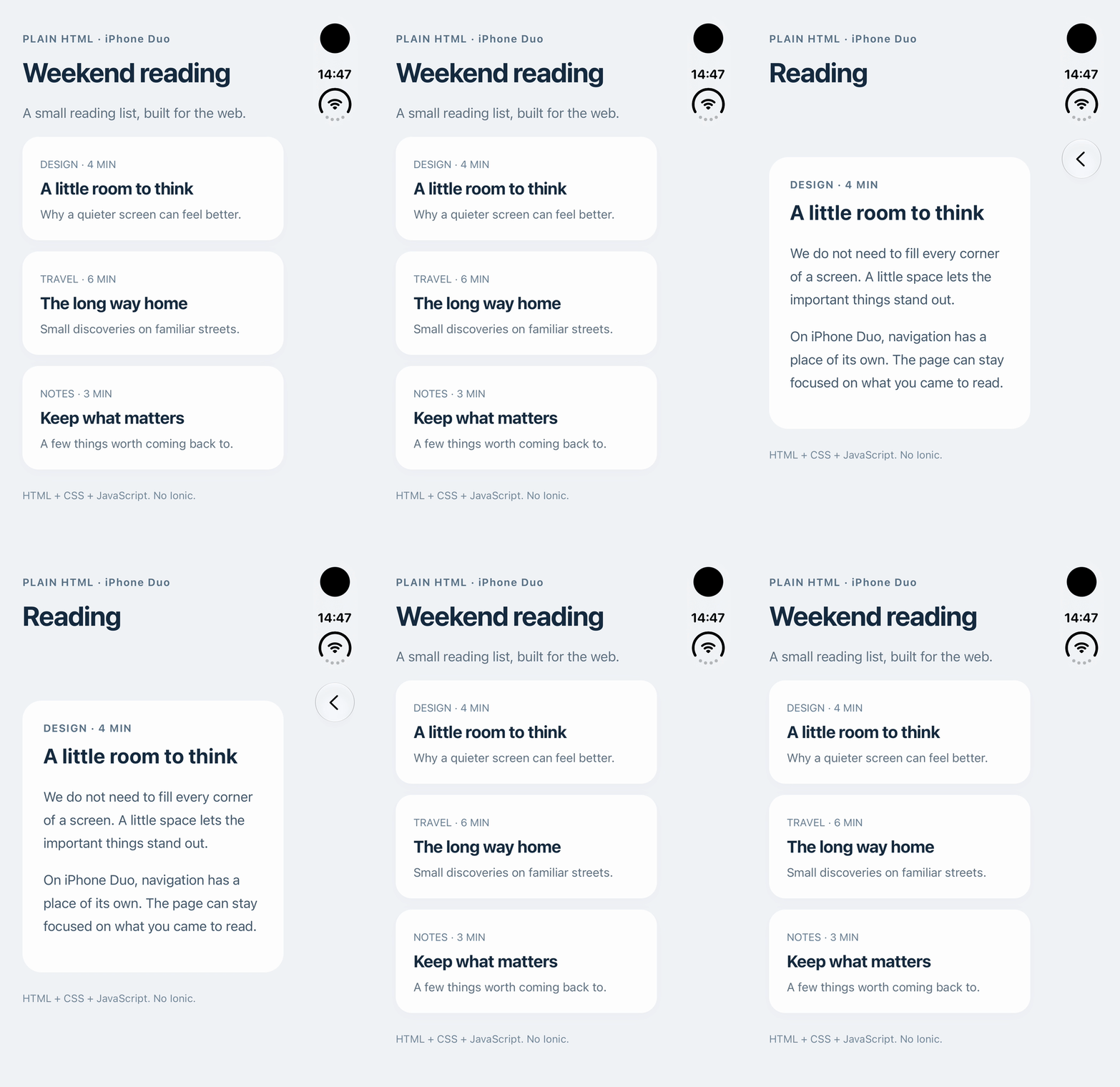
A plain HTML app on Duo. The back button on the right returns to the web list.
Add these two packages to your existing Capacitor project:
npm install @rdlabo/capacitor-native-ui @erkamyaman/capacitor-foldable
Once the app's root element (#app here) is mounted, initialize once. This is the startup example from the documentation:
import { enableNativeUI } from '@rdlabo/capacitor-native-ui/core';

const shell = await enableNativeUI({
  root: document.querySelector<HTMLElement>('#app')!,
});
Combine this with the documented device-placement integration. Get the initial placement with Foldable.getBarPlacement(), listen for barPlacementChange, and reflect the placement and inset in your existing CSS.
When vertical placement is no longer active, restore the regular spacing and call shell.disableVerticalControlArea(). When it returns, call shell.enableVerticalControlArea(). Process spacing updates and these state changes in sequence.
When the root is destroyed, remove the placement listener and call await shell.destroy().
With initialization in place, add data-* attributes to the existing HTML buttons you want to display as native UI. This marks a back button for placement in Vertical Bars. Pressing it invokes the original click handler.
<button
  type="button"
  data-native-ui="back-button"
  data-native-ui-placement="rail"
>
  Back
</button>
Build the web app, run npx cap sync ios, and rebuild the iOS app. This integration supports buttons and back buttons; it doesn't automatically convert HTML tab bars. The guide and examples cover the setup in more detail.
Help your Capacitor app feel at home on Duo
When someone chooses Duo, we want them to keep using their familiar apps in a way that fits the device.
Keep the web screens and logic you've already built, and use real native UI for navigation. That's now an option for adapting to Duo, too.
The device-placement information comes from Erkam Yaman's Capacitor Foldable. Thank you, Erkam!
@rdlabo/capacitor-native-ui is open source under the MIT license. If you're planning Duo support, give it a try in your existing app!
See you next time.
Originally published in Japanese on Zenn.


Top comments (0)