


Kubernetes (K8s) has become the de facto standard for orchestrating containerized applications. It provides powerful primitives for deploying, scaling, and managing containerized workloads, making it a top choice for modern DevOps teams and cloud-native development.
In this blog series, we’ll explore how to set up a production-ready Kubernetes environment on AWS using Amazon Elastic Kubernetes Service (EKS) and Terraform, starting with the foundational infrastructure.
Why EKS?
Amazon EKS is a fully managed Kubernetes service that makes it easy to run Kubernetes on AWS without needing to install or operate your own control plane or nodes. EKS handles high availability, scalability, and patching of the Kubernetes control plane, so you can focus on running your applications instead of managing infrastructure.
-> Benefits of using EKS:
- Managed control plane: No need to run your own etcd or master nodes.
- Native AWS integration: IAM, VPC, CloudWatch, EC2, ECR and more.
- Secure by default: Runs in a dedicated, isolated VPC.
- Scalable and production-ready.
-> In our setup:
- The VPC module creates a network with public and private subnets.
- The IAM module creates cluster roles, node roles, and OIDC provider for Kubernetes-AWS integration.
- The ECR module creates a container registry to store and manage Docker images.
- The EKS module provisions the EKS control plane and worker nodes in private subnets.
- The Secrets Manager module stores optional database, API, and application configuration secrets.
Architecture Overview
Here's how the setup works at high level:
- VPC is created with 3 Availability Zones for high availability.
- Each AZ contains both a public and a private subnet.
- EKS worker nodes (EC2 instances) are launched in private subnets for better security.
- A NAT Gateway is provisioned in a public subnet to allow worker nodes in private subnets to pull images and updates from the internet (e.g., from ECR, Docker Hub).
- EKS control plane (managed by AWS) communicates with the worker nodes securely within the VPC.
- The Internet Gateway in the public subnet provides external users access to the Kubernetes LoadBalancer service for the demo website.
- IAM roles and OIDC provider enable pod-level permissions through IRSA (IAM Roles for Service Accounts).
- KMS encryption secures the etcd database at rest on the EKS control plane.
This setup ensures that your nodes are not directly exposed to the internet while still having outbound internet access via the NAT gateway.

The Five Custom Terraform Modules
Step 1: Create the VPC
The foundation of our infrastructure. Creates networking with high availability across multiple AZs.
# Custom VPC Module
module "vpc" {
  source = "./modules/vpc"

  name_prefix     = var.cluster_name
  vpc_cidr        = var.vpc_cidr
  azs             = slice(data.aws_availability_zones.available.names, 0, 3)
  private_subnets = var.private_subnets
  public_subnets  = var.public_subnets

  enable_nat_gateway = true
  single_nat_gateway = true

  # Required tags for EKS
  public_subnet_tags = {
    "kubernetes.io/role/elb"                    = "1"
    "kubernetes.io/cluster/${var.cluster_name}" = "shared"
  }

  private_subnet_tags = {
    "kubernetes.io/role/internal-elb"           = "1"
    "kubernetes.io/cluster/${var.cluster_name}" = "shared"
  }

  tags = {
    Environment = var.environment
    Terraform   = "true"
    Project     = "EKS-Cluster"
  }
}
what it creates:
- VPC with CIDR 10.0.0.0/16
- 3 public subnets (10.0.1-3.0/24) for NAT Gateway and Internet Gateway
- 3 private subnets (10.0.11-13.0/24) for EKS nodes
- Single NAT Gateway for cost optimization
- Internet Gateway for public internet access
- 20 total resources
Step 2: IAM Module
Handles all identity and across management. Enables secure communication between Kubernetes and AWS services.
# Custom IAM Module
module "iam" {
  source = "./modules/iam"

  cluster_name = var.cluster_name

  tags = {
    Environment = var.environment
    Terraform   = "true"
    Project     = "EKS-Cluster"
  }
}
what it creates
- EKS cluster IAM role with necessary permissions
- EC2 node IAM role for worker nodes
- OIDC Provider for Kubernetes-AWS integration
- IRSA (IAM Roles for Service Accounts) configuration
- Inline policies for EKS and node permissions
- 7 total resources
Step 3: Create the EKS Cluster
Provisions the Kubernetes cluster with managed control plane and worker nodes.
We use the terraform-aws-eks module to spin up the cluster. This will provision:
- A managed EKS control plane
- A node group with autoscaling enabled
- Nodes inside private subnets with internet access via NAT Gateway
# Custom EKS Module
module "eks" {
  source = "./modules/eks"

  cluster_name       = var.cluster_name
  kubernetes_version = var.kubernetes_version
  vpc_id             = module.vpc.vpc_id
  subnet_ids         = module.vpc.private_subnets

  cluster_role_arn = module.iam.cluster_role_arn
  node_role_arn    = module.iam.node_group_role_arn

  endpoint_public_access  = true
  endpoint_private_access = true
  public_access_cidrs     = ["0.0.0.0/0"]

  enable_irsa = true

  # Node groups configuration
  node_groups = {
    general = {
      instance_types = ["t3.medium"]
      desired_size   = 2
      min_size       = 2
      max_size       = 4
      capacity_type  = "ON_DEMAND"
      disk_size      = 20

      labels = {
        role = "general"
      }

      tags = {
        NodeGroup = "general"
      }
    }

    spot = {
      instance_types = ["t3.medium", "t3a.medium"]
      desired_size   = 1
      min_size       = 1
      max_size       = 3
      capacity_type  = "SPOT"
      disk_size      = 20

      labels = {
        role = "spot"
      }

      taints = [{
        key    = "spot"
        value  = "true"
        effect = "NO_SCHEDULE"
      }]

      tags = {
        NodeGroup = "spot"
      }
    }
  }

  tags = {
    Environment = var.environment
    Terraform   = "true"
    Project     = "EKS-Cluster"
  }

  depends_on = [module.iam]
}
what it creates:
- EKS cluster control plane (Kubernetes 1.31)
- 4 worker node groups: 2 on-demand (general), 1 on-demand (general), 1 spot (cost-optimized)
- Cluster security groups and node security groups
- CloudWatch logging configuration
- Add-ons (CoreDNS, kube-proxy, VPC CNI, EBS CSI)
- KMS encryption for etcd
- 17 total resources
Step 4: ECR Module
Container registry for strong and managing Docker images.
module "ecr" {
  source = "./modules/ecr"

  repository_name = "demo-website"

  tags = {
    Environment = var.environment
    Terraform   = "true"
    Project     = "EKS-Cluster"
  }
}
what it creates:
- Elastic Container Registry repository
- Image scanning on push
- Lifecycle policies for image retention
- 1 total resource
Step 5: Secrets Manager Module
Securely stores sensitive data like database credentials and API keys (Optional).
module "secrets_manager" {
  source = "./modules/secrets-manager"

  name_prefix = var.cluster_name

  # Enable secrets as needed
  create_db_secret         = var.enable_db_secret
  create_api_secret        = var.enable_api_secret
  create_app_config_secret = var.enable_app_config_secret

  # Database credentials (if enabled)
  db_username = var.db_username
  db_password = var.db_password
  db_engine   = var.db_engine
  db_host     = var.db_host
  db_port     = var.db_port
  db_name     = var.db_name

  # API keys (if enabled)
  api_key    = var.api_key
  api_secret = var.api_secret

  # App config (if enabled)
  app_config = var.app_config

  tags = {
    Environment = var.environment
    Terraform   = "true"
    Project     = "EKS-Cluster"
  }
}
What it Creates:
- Optional database secrets
- Optional API secrets
- Optional application configuration secrets
- 0-3 total resources (optional)
How Modules Work Together
In our setup:
- The VPC module creates a network with public and private subnets
- The EKS module provisions the EKS control plane and worker nodes in private subnets
- The IAM module creates cluster roles, node roles, and OIDC provider for Kubernetes-AWS integration
- The ECR module creates a container registry to store and manage Docker images
- The Secrets Manager module stores optional database, API, and application configuration secrets.
Deploying the Infrastructure
Step 1: Initialize Terraform
cd terraform
terraform init
This downloads the required Terraform providers and initializes the working directory.
Step 2: Review the Plan
terraform plan
This shows all 45 resources that will be created.
Step 3: Apply Configuration
terraform apply
Apply complete! Resources: 45 added, 0 changed, 0 destroyed.
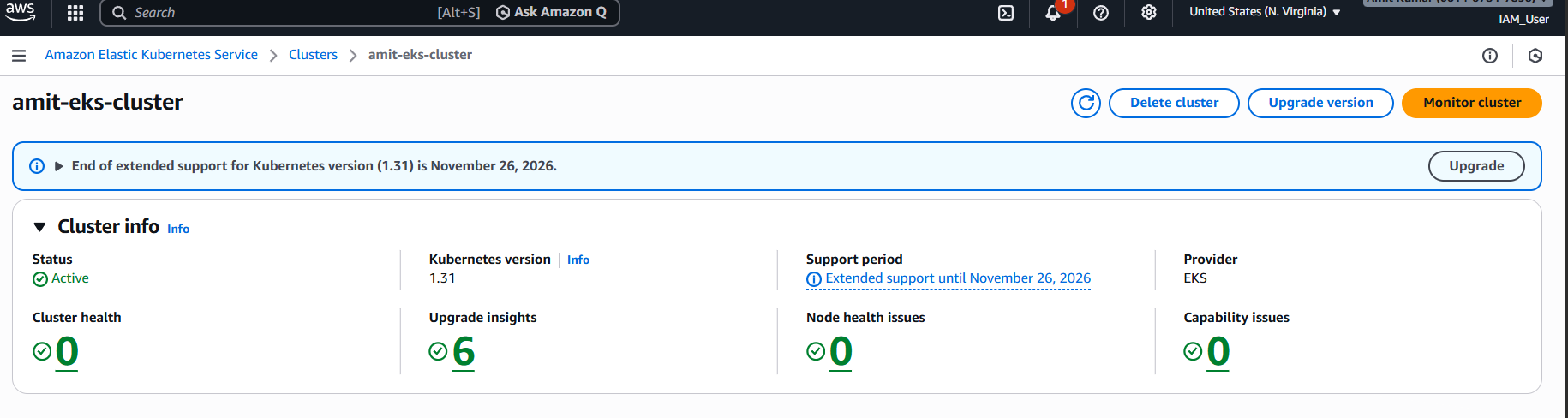
Outputs:
cluster_endpoint = "https://EA6F63CF5CF44B594EA9533013CF21C4.gr7.us-east-1.eks.amazonaws.com"
cluster_name = "eks-custom-modules-cluster"
ecr_repository_url = "123456789.dkr.ecr.us-east-1.amazonaws.com/demo-website"
Step 4: Configure Kubectl
terraform output -raw configure_kubectl
This outputs the aws eks update-kubeconfig command. Run it to connect kubectl to your cluster.
Step 5: Deploy Demo Application
Build and push a Docker Image to ECR:
cd ../demo-website

# Build Docker image
docker build -t demo-website:latest .

# Get ECR login command
cd ../terraform
$(terraform output -raw ecr_login_command)

# Tag and push to ECR
docker tag demo-website:latest <ECR_URL>:latest
docker push <ECR_URL>:latest
Deploy to Kubernetes:
cd ../demo-website
kubectl apply -f deployment.yaml
kubectl apply -f service.yaml

# Get LoadBalancer URL
kubectl get svc demo-website -o wide
Check deployment status:
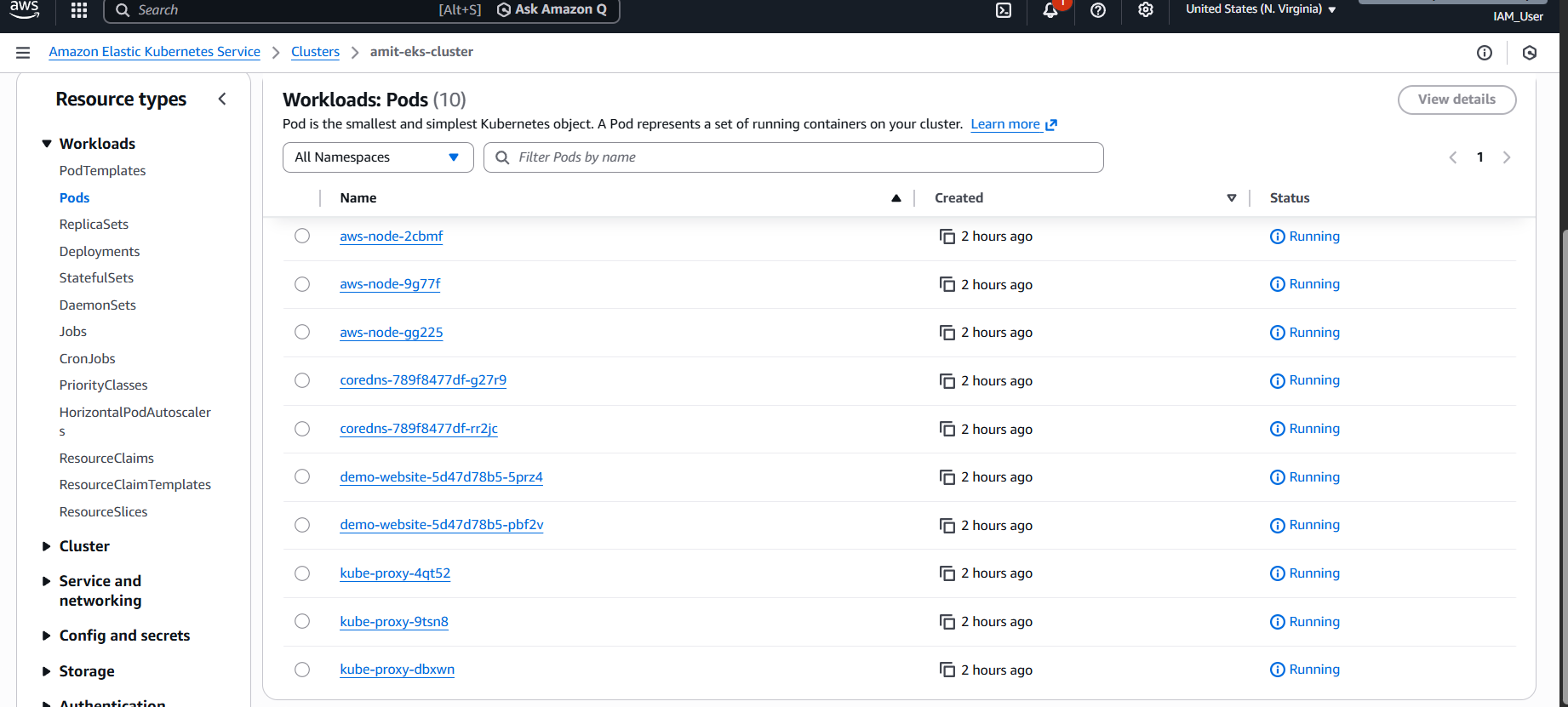
$ kubectl get pods
NAME                            READY   STATUS    RESTARTS   AGE
demo-website-5d9c8d7f6-2m4kl    1/1     Running   0          30s
demo-website-5d9c8d7f6-7p9q2    1/1     Running   0          30s

$ kubectl get svc
NAME           TYPE           CLUSTER-IP    EXTERNAL-IP                                        PORT(S)        AGE
demo-website   LoadBalancer   172.20.0.1    a1234567890.elb.us-east-1.amazonaws.com           80:31234/TCP   45s
Access the demo website at the LoadBalancer URL!

Cleanup
Once you're done experimenting, clean up resources to avoid charges:
# Delete Kubernetes resources
kubectl delete svc demo-website
kubectl delete deployment demo-website

# Destroy infrastructure
cd terraform
terraform destroy -auto-approve
Conclusion
We've successfully set up a production-grade Kubernetes cluster on AWS using custom Terraform modules. By building our own modules, we achieved.
References:
>> Connect With Me
If you enjoyed this post or want to follow my #30DaysOfAWSTerraformChallenge journey, feel free to connect with me here:
💼 LinkedIn: Amit Kushwaha
🐙 GitHub: Amit Kushwaha
📝 Hashnode / Amit Kushwaha
🐦 Twitter/X: Amit Kushwaha
Found this helpful? Drop a ❤️ and follow for more AWS and Terraform tutorials!
Questions? Drop them in the comments below! 👇
Happy Terraforming and Deploying!!


Top comments (0)