

In Part 1, we covered why you need an MCP gateway. Now let's get hands-on.
By the end of this post, you'll have:
- A running ContextForge gateway
- An MCP server registered and discoverable
- Tool calls executing through the gateway
- Admin UI up and running
All on your local machine, in about 15 minutes.
Prerequisites
- Python 3.12+
-
uv (package manager) —
pip install uvif you don't have it - Git
Step 1: Clone and Configure
git clone https://github.com/IBM/mcp-context-forge.git
cd mcp-context-forge
cp .env.example .env
Edit .env — change these default values for local development:
# Admin UI login
BASIC_AUTH_PASSWORD=Dev@Local2026!

# JWT signing key (32+ characters)
JWT_SECRET_KEY=contextforge-dev-secret-key-2026-not-for-prod

# Stored secrets encryption key
AUTH_ENCRYPTION_SECRET=contextforge-dev-encryption-salt-2026

# Platform admin account
PLATFORM_ADMIN_EMAIL=admin@example.com
PLATFORM_ADMIN_PASSWORD=Dev@Admin2026!
Step 2: Install Dependencies
make install-dev
This creates a virtual environment at ~/.venv/mcpgateway and installs ~289 packages including dev dependencies.
Verify:
make check-env-dev
Note: Use
check-env-dev, notcheck-env. The latter reads.env.exampledefaults and will flag security warnings.
Step 3: Run the Tests (Optional but Recommended)
make test
13,755+ tests, 99% coverage, ~67 seconds. Some tests skip based on your environment (no Rust, no PostgreSQL, etc.) — that's normal. Zero failures = success.
Step 4: Start the Dev Server
make dev
You now have:
-
API:
http://localhost:8000 -
Swagger Docs:
http://localhost:8000/docs -
Admin UI:
http://localhost:8000/admin/login
Step 5: Log Into the Admin UI
Open http://localhost:8000/admin/login:

| Field | Value |
|---|---|
admin@example.com |
|
| Password | Dev@Admin2026! |
On first login, you'll be asked to change your password. Set it to something like Dev@Admin2026!New#1.
The database is file-based SQLite (
mcp.db), so your changed password persists across server restarts.
Step 6: Generate a JWT Token
API calls require a Bearer token. Open a new terminal:
source ~/.venv/mcpgateway/bin/activate

python -m mcpgateway.utils.create_jwt_token \
  --username admin@example.com \
  --exp 10080 \
  --secret contextforge-dev-secret-key-2026-not-for-prod \
  --admin

# Save the output
export TOKEN="<paste-the-generated-token>"
Important: The
--adminflag is required. Without it, admin API calls return"Authorization token required".
Step 7: Register an MCP Server
We'll use mcp-server-time as an example. ContextForge's translate command converts stdio MCP servers to SSE:
Terminal 1 — Start the MCP server:
source ~/.venv/mcpgateway/bin/activate

python -m mcpgateway.translate \
  --stdio "uvx mcp-server-time --local-timezone UTC" \
  --port 9000
Output:
Multi-protocol server ready → SSE: http://127.0.0.1:9000/sse
Terminal 2 — Register it with the gateway:
curl -s -X POST http://localhost:8000/gateways \
  -H "Authorization: Bearer ${TOKEN}" \
  -H "Content-Type: application/json" \
  -d '{"name": "time-server", "url": "http://localhost:9000/sse"}' \
  | python -m json.tool
Response:
{
    "id": "4ba5541fd0bc486ea68830e39b1febdb",
    "name": "time-server",
    "url": "http://localhost:9000/sse",
    "transport": "SSE",
    "enabled": true,
    "reachable": true
}
Note: The URL must include
/sse— that's where the translate server exposes its SSE endpoint.

Step 8: Discover Tools
curl -s http://localhost:8000/tools \
  -H "Authorization: Bearer ${TOKEN}" \
  | python -m json.tool
You should see tools like get_current_time automatically discovered from the registered server.

Step 9: Execute a Tool Call
curl -s -X POST http://localhost:8000/tools/get_current_time/call \
  -H "Authorization: Bearer ${TOKEN}" \
  -H "Content-Type: application/json" \
  -d '{"arguments": {"timezone": "America/New_York"}}' \
  | python -m json.tool
You get back the current time — routed through ContextForge, logged, and ready for plugin processing.

Step 10: Explore the Admin Dashboard
Go back to http://localhost:8000/admin/ and explore:
| Section | What You'll See |
|---|---|
| Dashboard | Server/tool/resource counts, system health |
| Gateways | Your registered time-server
|
| Tools |
get_current_time discovered from the server |
| Plugins | 42 available plugins (enable/disable from config) |
| Servers | Virtual server management |
| Logs | Request/response audit trail |

Step 11: Check the API Docs
Visit http://localhost:8000/docs for the full Swagger UI:
- 344 API endpoints documented with OpenAPI 3.1.0
- Try-it-out functionality for every endpoint
- Schema definitions for all request/response models

What We Just Did
                    ┌────────────────────┐
mcp-server-time ──→ │                    │
  (stdio→SSE)       │   ContextForge     │ ← Admin UI
                    │   Gateway :8000    │ ← Swagger Docs
                    │                    │ ← JWT Auth
                    └────────────────────┘
                              ↑
                    curl / AI Agent / SDK
In 15 minutes, we set up a fully functional MCP gateway with:
- Authentication (JWT)
- Server discovery
- Tool execution
- Admin dashboard
- API documentation
Bonus: HTTPS in 30 Seconds
ContextForge ships with self-signed certificate generation:
# If certs don't exist yet, they'll be created automatically
SSL=true CERT_FILE=certs/cert.pem KEY_FILE=certs/key.pem make serve-ssl
Result: TLS 1.3, AEAD-AES256-GCM-SHA384, RSA-4096 — production-grade encryption.
Bonus: PostgreSQL Backend
Swap SQLite for PostgreSQL with one environment variable:
DATABASE_URL="postgresql+psycopg://user:pass@localhost:5432/mcp" make dev
Alembic migrations run automatically, creating 60 tables. Same API, same features, production-ready persistence.
What's Next
In Part 3, we'll enable plugins and see the real power of ContextForge:
- PII filtering that masks sensitive data before it reaches the LLM
- Rate limiting per team and per user
- TOON compression that saves 30-70% on LLM tokens
- 28 plugins running simultaneously in a pipeline
- Prometheus metrics and observability
ContextForge is open source under Apache 2.0.
 IBM
/
mcp-context-forge
IBM
/
mcp-context-forge
An AI Gateway, registry, and proxy that sits in front of any MCP, A2A, or REST/gRPC APIs, exposing a unified endpoint with centralized discovery, guardrails and management. Optimizes Agent & Tool calling, and supports plugins.
ContextForge
An open source registry and proxy that federates MCP, A2A, and REST/gRPC APIs with centralized governance, discovery, and observability. Optimizes Agent & Tool calling, and supports plugins.





ContextForge is an open source registry and proxy that federates tools, agents, and APIs into one clean endpoint for your AI clients. It provides centralized governance, discovery, and observability across your AI infrastructure:
- Tools Gateway — MCP, REST, gRPC-to-MCP translation, and TOON compression
- Agent Gateway — A2A protocol, OpenAI-compatible and Anthropic agent routing
- API Gateway — Rate limiting, auth, retries, and reverse proxy for REST services
- Plugin Extensibility — 40+ plugins for additional transports, protocols, and integrations
- Observability — OpenTelemetry tracing with Phoenix, Jaeger, Zipkin, and other OTLP backends
It runs as a fully compliant MCP server, deployable via PyPI or Docker, and scales to multi-cluster environments on Kubernetes with Redis-backed federation and caching.
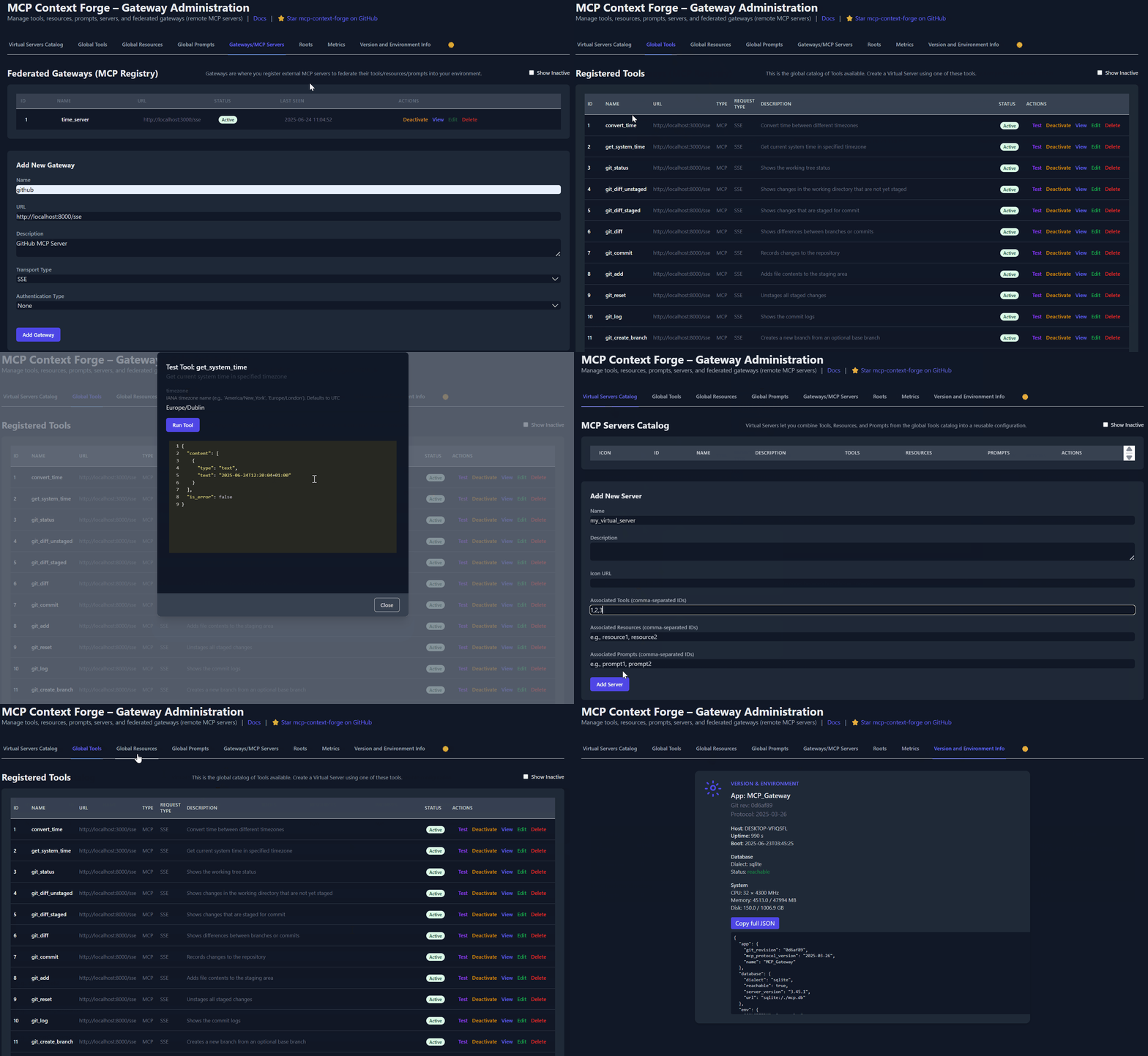
Table of Contents
In Part 3, we enable the plugin pipeline and see what makes ContextForge genuinely different.


Top comments (0)