


Updated: 22 July 2020
- Add "Clear the terminal inside VS Code"
- Add "Backward and Forward" (Essential)
- Add "Move a line up or down"
Updated: 02 July 2020
- Add "select a line" shortcut
- Add "toggle the problem panel"
- Remove and organise the import modules
- Navigate between terminal
Note: Select the title inside the quote and use Ctrl + F to quickly find the newly added section
After using PC for so many years with a mouse or trackpad, we so used to point and click everything we want on the screen so fast and concise. Drag and drop, left-click, right-click, scroll the web page up and down with mouse wheel.
There are some arguments in the web development community mention that writing code without a mouse could be faster.
I'm curious to try it out. My target is to focus 90% on using the keyboard. I don't think we can 100% avoid using a mouse in a graphic user interface (GUI) environment, especially when we want to check the navigation link, button and form.
I will try my best to use the keyboard shortcut, terminal and command line in VS Code. Then document my learning to be a mouse free developer (Ops, it's should be a mouse-less developer).
I not sure I can get used to it or not. What I pretty sure is my coding speed will decrease dramatically.
If you could also share how you code without using a mouse would be much appreciated. Let's learn together.
Below are the keyboard shortcut and navigation I learned so far, I'll continuously update this article when I learn something new.
--First Few Days--
I use mouse unconsciously, and I always have to remind myself not to use it.
--Change Cursor Colour--
I change my cursor colour to yellow. So, I can see it easily.
--Open a file--
Method 1: Use Go To File
I often toggle the sidebar off with Ctrl + B. I navigate from file to file with Ctrl + E (you can also use Ctrl + P) then search the keyword of the filename and press Enter to open a file.
Example:-
Your filename is how-to-build-a-website-with-gatsbyjs.md, you can type gatsbyjs or build a website, VS Code will filter and show you every file match your search.
Method 2: Use Breadcrumbs
Ctrl + Shift + . (Period) to focus your current breadcrumbs folder.
Use Ctrl + right/left arrow to navigate between folder.
Use up/down arrow to navigate between the file.
Press Enter to open a file.
--Navigate between editor and explorer--
I seldom navigate folder and file this way. I share this method with people who might find it useful.
Method 1
Ctrl + Shift + E to focus on the explorer and Ctrl + Shift + E again to focus back to the editor.
- Use the up/down arrow to navigate between the file or folder.
- Use the left arrow to go up one directory, and right arrow to go inside a directory.
- Press Enter to open a file.
Method 2
Ctrl + 0 (Zero) (not working in number pad) to focus on explorer, Ctrl + 1 (not working in number pad) to focus back to the editor
- Use the up/down arrow to navigate between the file or folder.
- Use the left arrow to go up one directory, and right arrow to go inside a directory.
- Press Enter to open a file.
--Navigate between the editor's tab--
Method 1
I use Ctrl + PgUp to focus on the previous tab and Ctrl + PgDn to focus on the next tab.
Method 2
You can use Ctrl + Tab to focus on the next tab or Ctrl + Shift + Tab to focus on the previous tab.
--Close a tab--
- Ctrl + W to close the current tab
--Delete entire line--
Method 1
Press Backspace deletes one character to the left
Method 2
Press Delete on the keyboard delete one character to the right
--Delete a word--
- Ctrl + D to select a word (whether you are in front, back or within the word), press Delete in the keyboard to remove the word.
- Place your cursor at the end of the word you want to delete, then Ctrl + Backspace to delete the word.
- Place your cursor in front of the word, and then Ctrl + Delete to delete the word.
--Insert a new line--
- Ctrl + Enter to move my cursor to a new line (go down 1 line). Ctrl + Shift + Enter to push existing line down and add a new line.
--Select a line--
- Ctrl + L to select the entire line
--Moving cursor in the editor--
(Sorry for including this basic)
- The right arrow moves one character to the right
- The left arrow moves one character to the left
- The up arrow moves the cursor up one line
- The down arrow moves the cursor down one line
--Move a line up or down--
Instead of Ctrl + X to cut a line and Ctrl + V to paste a line, you could use _Alt + Up/Down Arrow _ to move a line up or down
--Moving cursor by word--
- Ctrl + right arrow moves the cursor to the end of a word
- Ctrl + left arrow move the cursor to the beginning of a word
--Moving cursor by section--
- Home in the keyboard move cursor to the beginning of a line
- End in the keyboard move cursor to the end of a line
- Ctrl + Home move the cursor to the beginning of the page
- Ctrl + End move the cursor to the end of the page
- PgUp moves the cursor to the top of the editor.
- PgDn moves the cursor to the bottom of the editor.
I use it to scroll editor sometime.
--Select a word--
Method 1
Ctrl + D to select a word
Method 2
- Ctrl + Shift + Right Arrow to select a word toward the right
- Ctrl + Shift + Left Arrow to select a word toward the left
--Move and select a word--
- Ctrl + Shift + right arrow move the cursor and select the word toward the right.
- Ctrl + Shift + left arrow move the cursor and select the word toward left.
--Scroll the editor--
- Ctrl + up arrow to scroll one line up.
- Ctrl + down arrow to scroll one line down.
I use it to adjust the editor view.
--Open the Terminal inside VS Code--
Ctrl + `(backtick) toggle terminal panel on & off
--Open Terminal side by side--
- Ctrl + shift + 5 to open second terminal
--Navigate between terminal--
- Alt + right/left arrow to navigate between the terminal.
--Open an external Terminal--
If you always forget to stop the development server before closing the VS Code.
Use Ctrl + Shift + C to open an external terminal
if you want to change external terminal, Open VS Code setting and search External: Windows Exec
--Clear the terminal inside VS Code--
- Type clear and press Enter
- Ctrl + L in the terminal
--Show All Command--
Method 1
Ctrl + Shift + P to see all commands
Method 2
I prefer pressing F1 to see all commands
--Toggle the problems panel--
When you see your file become red colour, VS Code detects a problem in your file.
- Ctrl + Shirt + M to focus on the problems panel.
--Remove and organise the import modules--
After you remove some components, usually, you need to remove the import module manually.
You can remove those un-used components or modules automatically by pressing Alt + Shift + O.
The drawback
VS Code organise all import statement in its preference way. I like to put react import statement at the top. But, after pressing Alt + Shift + O, En... maybe you try it see whether you like it or not.
--Backward and Forward--
Imagine you are in line 1034, and you want to import a module at the top of the editor. You Ctrl + Home to navigate to the top and import the module. How are you going back to line 1034?
You might need to remember the line number and use Ctrl + G option. What if you don't want to squeeze your memory muscle to remember the line number?
- You can use Alt + Left Arrow to backward (This does not change and undo anything, it just back to previous location or action)
Why did I say it also back to the previous action?
If your previous action is select a line, at this moment, you navigate to the top and then Alt + Left Arrow. It will back to select a line.
Please note that if you in file 1, and you go to file 2 and import a module. At this moment, you Alt + Left Arrow. You will go back to file 1.
Alt + Right Arrow to go forward
I want to continue writing, but dev.to fenced block syntax highlighting is not working.
Below is the result I get:-
`html
`
I not sure how to fix it, could anyone give me some hint or guide me to fix it?
(I end up putting 4 back-tick above and 3 back-tick below to make the fenced block syntax highlight work.
`
<div>
  <article>
    <a>I'm a button</a>
  </article>
</div>
Dev.to's team, what is happening?
I'll continue...
--Emmet--
<div>
<article>
<a>I'm a button</a>
</article>
</div>
```
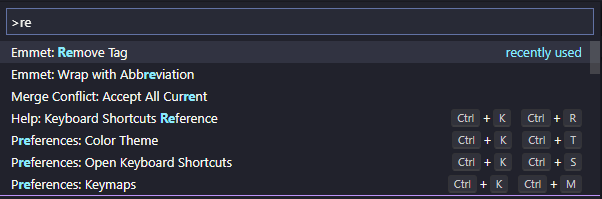
**Remove Tag**
I want to remove the article tag.
1. Place the cursor inside the tag until the beginning and the ending tag is glowing.
2. Press **_F1_**
3. Type **remove tag**
4. Press **_Enter_**
**Update Tag**
Same concept above
**Wrap with Abbreviation**
I want to wrap the word "link" with an anchor tag.
```
<p>Please check out this link</p>
```
1. Put the cursor in front the word "link"
2. **_Ctrl + D_** to select the word
3. Press **_F1_** and type **wrap**
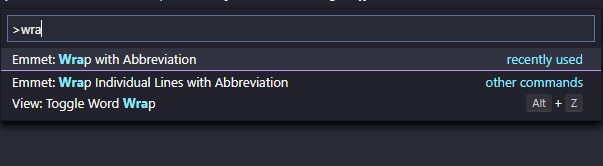
4. Type **"a"** and press **_Enter_**
Thank you for reading~
**Hi, Do you have any similar tips could share with me?**


Latest comments (34)
when you try learn to be as mouse-less as possible because going from the keyboard to the touchpad on your laptop is a massive pain and your goldfish concentration can't afford the sudden halt
Thank you, I'm always looking to some new ways to stop using the mouse!
PS: you can navigate throught the editor with a "vim flavour":
j (down) - k (up) | h (collapse) - l (expand)
Ctrl + Shift + . (full stop) what does "full stop" mean?
Glad that you ask, It's should be called period. Thank you for rising this issue.
You really like hurting yourself :)
I don't feel hurt when I try something new. But you're right, and I feel a bit uncomfortable when I just started to use more on keyboard. Now, I get used to it.
I wouldn't say you have to ditch your mouse completely, but using the keyboard is definitely faster in many cases.
I have recently published a blog post where I list all keyboard shortcuts that I use frequently:
tkainrad.dev/posts/a-collection-of...
Might provide some inspiration.
Also recently, I published a free web application that helps to learn and train keyboard shortcuts: keycombiner.com/
The app has pre-made collections for popular software, such as VSCode, which can be filtered and searched easily: keycombiner.com/collecting/collect...
Thanks for sharing your keyboard shortcut list. I learn some new keyboard shortcut today.
You should try the window manager i3 or the wayland variant sway if you want to go fully mouseless. A vriend recommended it to me and havent booted into the standard ubuntu window manager ever since.
This is cause I have 100 virtual desktops now (which will be 100 virtual desktops per monitor soon). Why so many? Cause I have a section of 10 virtual desktops for each project I'm working on. Studying is section 1 til 3, own project is 4, work is 5 and 10 is pure unproductive fun and music.
Changing from my editor to chrome to test the application is 1 keybind away(super+ shift + page up), going to the dev server to look at the errors as well(super + shift + page down or super + right when using stacked mode), changing my music is so as well etc. And except for work everything is always open so I can just press the keybind to go to section 2 (ctrl+shift+super+ 2) and get going. (which is also why I hibernate my laptop instead of shutting it down)
The only reason I use my mouse on my laptop is to test the application I'm building since that has a gui or browse the web.
The downside (and sometimes upside) is that literally no one can use my laptop as doing something as simple as starting google chrome is done using type "google chrome" util you see it and can navigate to it using arrow keys . (It works way more efficient than it sounds: github.com/davatorium/rofi)
Oh andehh its also extremely configurable as you probably already noticed, for example: I set the F9 and F10 keys to control the volume of my raspberry pi which plays my music.
cray
Awesome article, it really helped a lot
Btw I guess you are getting that block syntax problem because in heading ---Open the vscode terminal --- you have explicitly used a backtick which might be conflicting with further blocks.. try removing that
Aman, Thank you for telling me.
The ---Heading--- I add it later.
I can't solve block syntax highlight until today.
I want to respectfully state that the article has absolutely nothing to do with the concerns you mentioned.
I don't understand why we must develop as we live in the 70s, using black themes or using keyboard only,. In the 70s developers don't have more options, but we are in 2020, we have rich IDEs, we have more memory available, we don't have to use dumb terminals, we have touch devices. Please, don't get me wrong, is just that as I see we have more options now and we must use all of the then accordly ti the situations.
Because it's efficient and fast. If I don't need an IDE, I'm not going to use one thank you.
Thank you for your opinion. You're right. I still find GUI work faster in VS Code.
i.e. the source control panel.
Git - add a file, commit, and push a lot faster—no need to type a long filename.
I'm thinking to write an article about how VS Code make coding fast.
(Meanwhile, I still experimenting whether using mouse-less can increase productivity or not)
Nice post Anson! Articles like this always teach me a keyboard shortcut I've either forgotten or never knew. In this case, that Ctrl/Cmd + Shift + period to bring up breadcrumbs is a nice touch :). Thanks!
I get a lot of benefit from having common keyboard reflexes across multiple applications. For me this means tweaking some of VS Code's keyboard shortcuts to match my tmux+vim muscle memory, which I wrote a bit about here.
I think the more important piece is to experiment a bit when you can, but fall back to whatever's most comfortable when you really need to get something done. No mouse-shaming required! :)